Troubleshooting
Find your symptom in the tables below. Each row gives the cause and a short fix, with a link to the chapter that covers it in full. Read the Console first, because most RCC problems log an error or warning there.
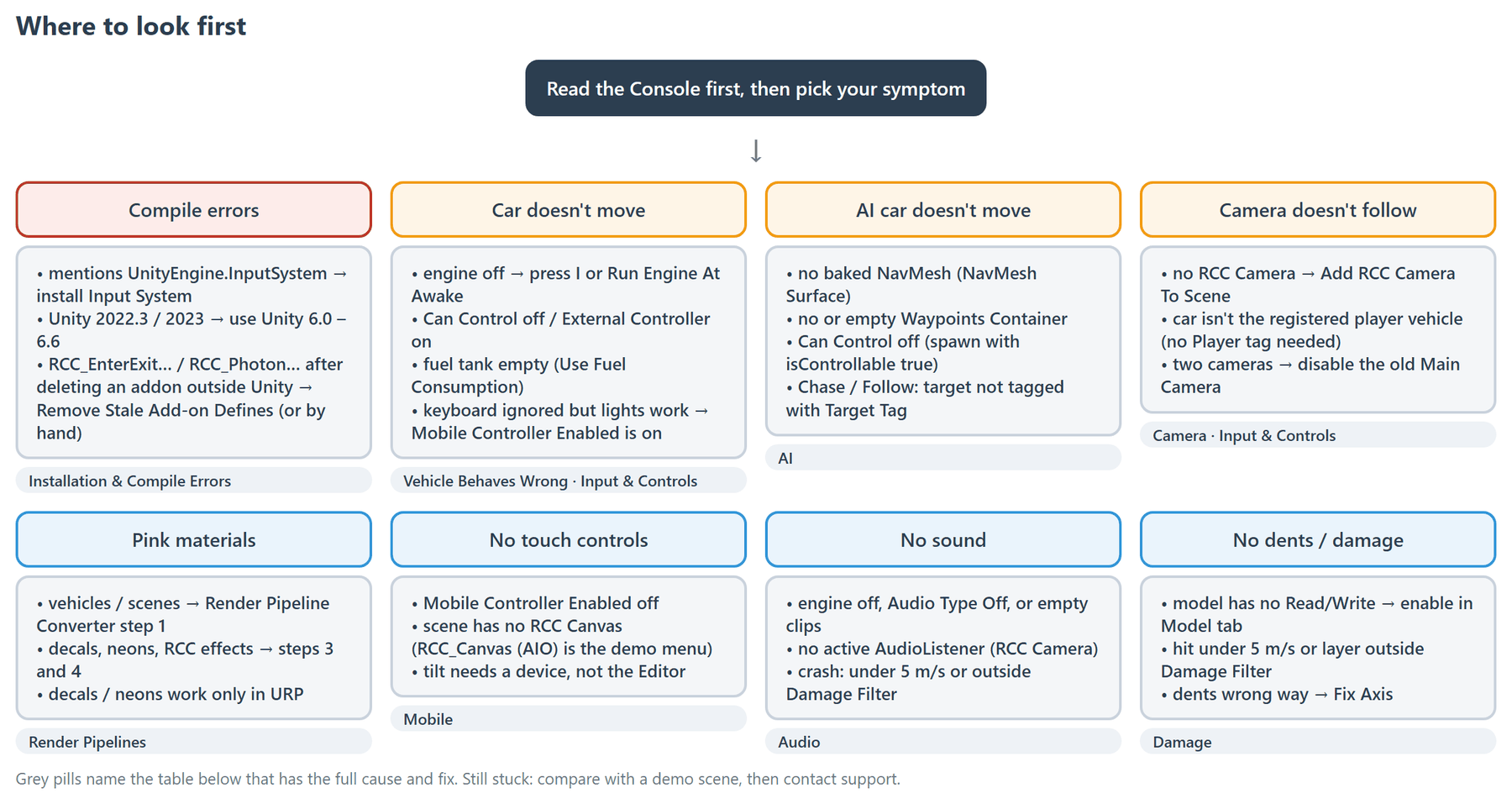
Installation & Compile Errors
| Symptom | Cause | Fix |
|---|---|---|
Compile errors that mention UnityEngine.InputSystem |
The Input System package is missing. RCC supports only the Input System. | Install Input System from Window → Package Manager → Unity Registry. Set Active Input Handling to Input System Package (New) or Both (Edit → Project Settings → Player). See How to Install RCC. |
Compile errors in Unity 2022.3 or 2023 (for example about linearVelocity) |
RCC V6 uses Unity 6 APIs and needs Unity 6.0 – 6.6. | Open the project in Unity 6.0 or newer. |
| Input System Update Recommended dialog | The installed Input System is 1.11.0 or older. | Update Input System in the Package Manager. |
| Missing Signature window when importing a shader or addon package (Unity 6.6) | Unity 6.6 checks package signatures. RCC's bundled packages ship inside RCC and aren't signed. | Expected. Click Import Anyway (or Reimport Anyway). See How to Install RCC. |
| Found Missing Layers For Realistic Car Controller dialog | RCC's layers (RCC_Vehicle, RCC_WheelCollider, RCC_DetachablePart, RCC_Prop by default) aren't in Tags & Layers. |
Click Add Layers. Not Now hides the dialog for this editor session only. To use other layer names, set them in Tools → BoneCracker Games → Realistic Car Controller → Edit RCC Settings → Tags & Layers. |
| The Welcome Window opens every time Unity loads | The Welcome Window opens automatically only while the BCG_RCC define is missing. Something removes it, for example version control reverting ProjectSettings/ProjectSettings.asset. |
Check that BCG_RCC is in Edit → Project Settings → Player → Scripting Define Symbols and that the settings file is saved. There is no "Don't show again" option. |
Compile errors about RCC_EnterExit… or RCC_Photon… types after deleting an addon outside Unity |
The addon's define (BCG_ENTEREXIT or RCC_PHOTON) is still set. RCC removes it automatically only when you delete inside Unity. |
Run Tools → BoneCracker Games → Realistic Car Controller → Other → Remove Stale Add-on Defines. If that menu isn't available, remove the define in Scripting Define Symbols by hand. See Addon Packages. |
| Compile errors after removing URP or HDRP outside Unity | BCG_URP or BCG_HDRP is still set. |
Run Tools → BoneCracker Games → Realistic Car Controller → Other → Remove Stale Add-on Defines. If that menu isn't available, remove the define in Scripting Define Symbols by hand. See Render Pipelines. |
| RCC defines are left over after deleting RCC outside Unity | The define cleaner lives inside the RCC folder, so it wasn't there to run. | Remove BCG_RCC, BCG_URP, BCG_HDRP, BCG_ENTEREXIT and RCC_PHOTON from Scripting Define Symbols by hand. |
| A demo scene fails to load another scene (all-in-one menu, car selection, Photon lobby) | The target scene isn't in Build Settings. | Open Tools → BoneCracker Games → Realistic Car Controller → Welcome Window, then click Add Demo Scenes To Build Settings on the Welcome tab. It replaces your current Build Settings scene list. See Demo Scenes. |
New in V6: Deleting an addon, the Photon PUN 2 SDK, URP / HDRP, or the RCC folder inside Unity removes the matching define automatically. You don't need to delete other folders to fix define errors.
Vehicle Behaves Wrong
| Symptom | Cause | Fix |
|---|---|---|
| Throttle does nothing | The engine is off, Can Control is off, or the fuel tank is empty. | Press I to start the engine, or turn on Run Engine At Awake. Turn on Can Control (Inputs tab). If Use Fuel Consumption is on, check Fuel Tank Amount. See Vehicle Inspector Reference. |
| Holding brake makes the car reverse | Automatic Reverse (Inputs tab) with the automatic gearbox. | Turn Automatic Reverse off, or use the handbrake to hold the car. |
| Wheels sink into the ground or float | The WheelColliders don't match the wheel models. | Click Create WheelColliders again, choose Delete Existing And Create New, then Center. See How to Create New Vehicles. |
| Car drives backwards or steers with the rear wheels | The model faces −Z, or the front and rear wheels were swapped. | Re-export the model with Z forward and Y up, or reassign the wheels. See How to Create New Vehicles. |
| Handling ignores your settings, and fields are drawn in red | A global behavior preset is active (Override Behavior in RCC Settings). | Turn on Ignore Global Behavior Preset at the top of the vehicle inspector, or turn off Override Behavior. See Behavior Presets. |
| Car rolls over too easily | The center of mass is too high. | Move the vehicle's COM child lower. Raise Anti Roll Front / Rear Horizontal (Steering tab). See Vehicle Inspector Reference. |
| An upside-down car jumps up and turns upright on its own | Auto Reset in RCC Settings. Below 5 km/h, a car rolled more than 60° for 3 seconds is flipped back. | Turn off Auto Reset in Tools → BoneCracker Games → Realistic Car Controller → Edit RCC Settings. See RCC Settings. |
| Jitter at high speed | The physics timestep is too coarse. RCC changes Unity's fixed timestep only while Override FixedTimeStep is on, and it ships off. | Turn on Override FixedTimeStep (RCC Settings → General Settings) and set a smaller Fixed Timestep (range 0.005 – 0.06). Or change Fixed Timestep in Edit → Project Settings → Time. |
| Car passes through thin walls at high speed | The Rigidbody uses discrete collision detection. | Set the vehicle Rigidbody's Collision Detection to Continuous Dynamic. |
| A surface drives like asphalt | The collider has no physic material, or a different one than the ground material entry. | Assign the physic material listed in Tools → BoneCracker Games → Realistic Car Controller → Configure → Configure Ground Materials. See Ground Physics. |
| Errors on every wheel when a vehicle spawns | A ground material entry has an empty Wheel Particles slot, or the prefab has no Particle System on its root. | Assign a particle prefab to every entry. See Ground Physics. |
| RCC Settings changes made in Play mode are lost | In Play mode RCC runs on a copy of the RCC Settings asset. | Make lasting changes in Edit mode. See RCC Settings. |
Input & Controls
| Symptom | Cause | Fix |
|---|---|---|
| The car ignores player input | Can Control is off, or External Controller is on (Inputs tab). | Turn Can Control on and External Controller off. See Vehicle Inspector Reference. |
| The camera and UI don't pick your car | The car isn't registered as the player vehicle. RCC doesn't use the Player tag. | Keep Register Last Spawned Vehicle As Player Vehicle on (Scene Manager), or call RCC.RegisterPlayerVehicle(vehicle). The Scene Manager is created automatically if the scene has none. See Quick Start. |
| A previous vehicle stops responding after you register a new one | Changed in V6: registering a new player vehicle turns Can Control off on the previous one, unless that one is AI, replay, network or override-driven. | Intended. To switch back, call RCC.RegisterPlayerVehicle(vehicle, true). The one-argument version doesn't turn Can Control back on. See Scripting API. |
| A parked car moves with the player's input | Every vehicle with Can Control on and External Controller off reads player input. | Turn off Can Control on vehicles the player shouldn't drive, or spawn them with isControllable false. |
| Keyboard / gamepad steering and throttle do nothing, but lights and camera keys work | Mobile Controller Enabled is on, so driving input comes from the touch controls only. It turns on when you switch the build target to Android or iOS. | Switch back to a desktop build target, or turn off Mobile Controller Enabled. See Mobile Setup. |
| Gamepad High Beam doesn't work on Left Stick Down | Changed in V6: High Beam moved to the View / Select button. | Use View / Select, or rebind it. See Input System. |
| Gamepad triggers never go below 50% | A V5 bug. | Update to V6.0.0. Triggers are linear 0 – 1. |
OverrideInputs doesn't move the car |
Can Control is off, the engine is off, or the car is AI-driven. | See the common mistakes in How to Override Inputs. |
For the full key and gamepad table, see Input System.
Mobile
| Symptom | Cause | Fix |
|---|---|---|
| No touch controls on the device | Mobile Controller Enabled is off, or the scene has no RCC Canvas. | Turn it on in Tools → BoneCracker Games → Realistic Car Controller → Edit RCC Settings → Controller Settings. Add the canvas with Tools → BoneCracker Games → Realistic Car Controller → Create → UI → Add RCC Canvas To Scene. RCC_Canvas (AIO).prefab is the demo menu and has no touch controls. See Mobile Setup. |
| Touch controls appear in a desktop build | Mobile Controller Enabled is on. RCC doesn't detect the platform at runtime. | Turn it off, or switch the build target to Windows, macOS or Linux, which turns it off. |
| Touch controls turn on or off by themselves after a platform switch | New in V6: switching to Android / iOS turns Mobile Controller Enabled on, and switching to Windows / macOS / Linux turns it off. | Intended. To stop the sync, choose Ignore and don't warn me again in the Play-mode dialog. To turn the sync and warnings back on, use Tools → BoneCracker Games → Realistic Car Controller → Other → Reset Mobile Controller Warnings. |
| A dialog about the mobile controller appears when entering Play mode, or the build logs a warning | Mobile Controller Enabled doesn't match the active build target. | Pick Enable it / Disable it in the dialog, or fix the setting before building. |
| Tilt steering doesn't work in the Editor | The Editor has no accelerometer, so Gyro mode falls back to the Left / Right buttons. | Test tilt on a device. |
| The NOS button is missing | The player vehicle has Use NOS off. | Turn on Use NOS (Engine & Gears tab). |
Camera
| Symptom | Cause | Fix |
|---|---|---|
| The camera doesn't follow the vehicle | The scene has no RCC Camera, or no player vehicle is registered. | Add one with Tools → BoneCracker Games → Realistic Car Controller → Create → Cameras → Add RCC Camera To Scene, then check the Input & Controls table above. See Camera System. |
| Two cameras render, or Unity warns about two AudioListeners | The old Main Camera is still enabled. | Changed in V6: Add RCC Camera To Scene offers to disable the other cameras and AudioListeners (Ctrl+Z undoes it). If you dragged the prefab in, disable the Main Camera yourself. |
| The camera jumps close to the car, or leaves Wheel / Cinematic mode by itself | Occlusion: something on Occlusion Layer Mask is between the car and the camera. | Untick those layers in Occlusion Settings → Occlusion Layer Mask, or turn off Use Occlusion. See Camera System. |
| C skips the hood, wheel, fixed or cinematic view | That mode isn't set up. | Add a hood or wheel camera with Tools → BoneCracker Games → Realistic Car Controller → Create → Cameras → Add Hood Camera To Vehicle / Add Wheel Camera To Vehicle. Turn on Use Wheel / Fixed / Cinematic Camera Mode on the RCC Camera. |
| Mouse or touch drag doesn't orbit | Orbit reads drags from the Drag (Orbit) panel of the RCC Canvas. | Add the RCC Canvas to the scene. |
| The right stick orbits the camera | New in V6: gamepad orbit. | Turn off Use Gamepad Orbit on the RCC Camera. |
Damage
| Symptom | Cause | Fix |
|---|---|---|
| The body doesn't dent | The model doesn't have Read/Write enabled. RCC skips those meshes and logs an error. | Select the model asset, turn on Read/Write in the Model tab, click Apply. See Damage System. |
| Some hits don't damage | Impacts under 5 m/s are ignored, and so are layers outside Damage Filter. | Check Damage Filter on the Damage tab. |
| Dents go the wrong way | The mesh is rotated differently from the vehicle root. | Turn off Auto Install, then click Fix Axis next to each mesh marked Axis is wrong!. |
| Wheels never fall off | Wheel Detachment is off, or Maximum Deformation is 0. | Turn on Wheel Detachment and set Maximum Deformation above 0. |
| A detachable part goes loose but never falls off | The part's Is Breakable is off. | Turn on Is Breakable on the RCC_DetachablePart. |
AI
| Symptom | Cause | Fix |
|---|---|---|
| The AI car doesn't move | No baked NavMesh, no Waypoints Container (Console: Waypoints Container Couldn't Found!), an empty container, or Can Control off. | Bake a NavMesh with a NavMesh Surface (AI Navigation package). Add waypoints with Tools → BoneCracker Games → Realistic Car Controller → AI → Add Waypoints Container To Scene. Spawn AI cars with isControllable true. See AI System. |
| Chase Target / Follow Target mode stops with the handbrake on | No object with the Target Tag (default Player) within Detector Radius. RCC's vehicle prefabs are Untagged. |
Tag the target vehicle's root GameObject with the Target Tag. |
| The AI hits walls or other cars | Use Raycasts is off, or Obstacle Layers / Raycast Length don't fit the scene. | Turn on Use Raycasts and adjust Raycast Length and Obstacle Layers. |
| The AI is too fast for corners | No speed limits. | Lower the waypoint Target Speed before corners, add brake zones, or turn on Limit Speed and set Maximum Speed. |
The AI car ignores OverrideInputs |
A plain OverrideInputs doesn't take over from the AI. |
See How to Override Inputs. |
Audio
| Symptom | Cause | Fix |
|---|---|---|
| No engine sound | Audio Type is Off, the engine clips are empty, or the engine is off (the engine is silent while off). | Set Audio Type and assign clips on the Sounds tab. Start the engine. See Audio System. |
| No sound at all | The scene has no active AudioListener. | Check that the RCC Camera's AudioListener is enabled. |
| Engine sounds too high-pitched | Max Engine Sound Pitch is too high (range 1 – 2, default 1.75). | Lower it on the Sounds tab. |
| Crash sounds too loud or too quiet | Crash volume is Max Crash Sound Volume × impulse. | Change Max Crash Sound Volume in RCC Settings → SFX Settings. |
| No crash sounds | Use Collision Audio is off, the hit was under 5 m/s, the layer is outside Damage Filter, or Crashing Sounds is empty. | Check each one. See Audio System. |
| Errors about flat tires or exhaust flames | Wheel Flat Sound or Exhaust Flame Clips in RCC Settings is empty. | Keep a clip in both. |
Render Pipelines
| Symptom | Cause | Fix |
|---|---|---|
| Pink materials on vehicles or scenes | Built-in materials in a URP / HDRP project. | Run step 1 of Tools → BoneCracker Games → Realistic Car Controller → Render Pipeline Converter. See Render Pipelines. |
| Pink decals, neons or other RCC effects | RCC's custom shaders for the pipeline aren't imported. | Run converter step 3, then step 4. |
| The converter window opens by itself | RCC detected a switch to URP or HDRP. | Run the converter steps. RCC sets BCG_URP / BCG_HDRP automatically, so don't edit them by hand. |
| Decals and neons do nothing | They use URP's Decal Projector and work only in URP. | Use URP, or leave them out. See Customization. |
| Vehicle lights are very dim in HDRP | HDRP needs much higher light intensities. | Raise the Light Intensity. See Lights System. |
| Front lens flares flicker at speed (Built-in) | The flare is hidden by the car's own colliders. | Add the RCC vehicle layer to the LensFlare's Ignore Layers. |
| Paint customization stops working | The painter's Paint Material isn't the material on the body renderers. Painters are RCC_Customizer_Paint components under the Paint Manager. |
Drag the body material into Paint Material, then click Get All Painters on the Paint Manager. See Customization. |
Addons
| Symptom | Cause | Fix |
|---|---|---|
| Where are the Photon PUN 2 and Enter-Exit addons? | They ship as packages in Addon Packages/. |
Import them from Tools → BoneCracker Games → Realistic Car Controller → Welcome Window → Addons tab. See Addon Packages. |
| Photon PUN 2 couldn't be found dialog | The RCC Photon addon is imported but PUN 2 isn't. | Import PUN 2 from the Asset Store first. RCC sets RCC_PHOTON once PUN 2 is present. |
| Compile errors inside the Photon folder on Unity 6.5 or newer | Older PUN 2 versions don't compile on Unity 6.5+. | Update PUN 2 from the Asset Store. |
| Removing an addon | — | Delete its folder inside Unity. RCC removes its define automatically. If you deleted it outside Unity, see the Installation table above. |
Performance
| Symptom | Cause | Fix |
|---|---|---|
| Low frame rate with many vehicles | Every vehicle runs wheel physics, audio, particles and lights. | Add RCC_LOD to distant vehicles. In RCC Settings → Optimization, turn on Do Not Use Any Particle Effects or Do Not Use Skidmarks, and keep lights as vertex lights. See Mobile Setup. |
| Physics costs too much on mobile | The physics timestep is small. | Turn on Override FixedTimeStep and use a larger Fixed Timestep (handling gets less precise). |
| Frame spikes on crashes with high-poly bodies | Recalculate Normals recalculates normals after each dent. | Turn off Recalculate Normals on the Damage tab, or use a lower-poly body mesh. |
| Old skidmarks disappear | Each RCC_Skidmarks prefab has a fixed buffer of Max Marks (1024). New marks overwrite the oldest. Memory doesn't grow. |
Raise Max Marks on the RCC_Skidmarks prefabs, or clear them with RCC.CleanSkidmarks(). |
| The frame rate is capped | Override FPS is on in RCC Settings (ships off). | Turn it off, or change Maximum FPS. |
Still Stuck
- Open a demo scene. If it works there, compare it with your scene.
- Test in a new scene with one demo vehicle and the RCC Camera.
- Contact support with Tools → BoneCracker Games → Realistic Car Controller → Help → Contact Support. Include your invoice number, Unity version, RCC version, render pipeline and the Console errors.