Addon Packages (Photon PUN 2 & Enter / Exit)
RCC ships two optional addons inside the package: Photon PUN 2 multiplayer and the Enter / Exit system (walk around on foot and get in and out of vehicles). This page covers installing, using and removing them.
What's Included
Both addons are .unitypackage files in RealisticCarControllerV4/Addon Packages/. They are imported from the Welcome Window, not installed by default.
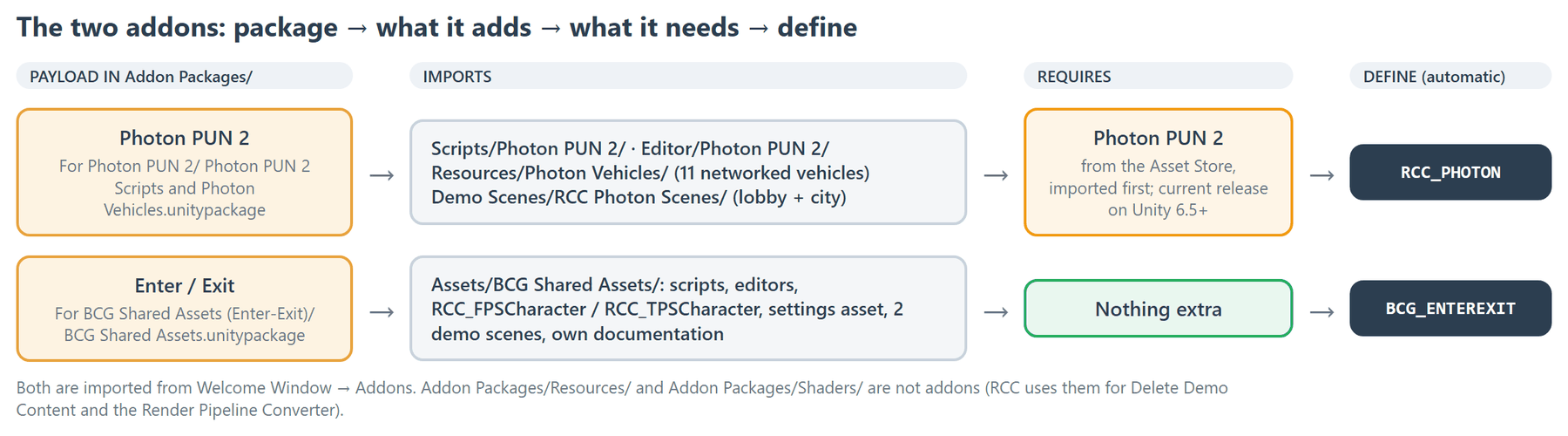
| Addon | Package | Imports | Requires | Define |
|---|---|---|---|---|
| Photon PUN 2 | For Photon PUN 2/Photon PUN 2 Scripts and Photon Vehicles.unitypackage |
Scripts/Photon PUN 2/ (lobby manager, vehicle sync, room and chat UI), Editor/Photon PUN 2/, Resources/Photon Vehicles/ (11 networked vehicles), Demo Scenes/RCC Photon Scenes/ (lobby + city) |
Photon PUN 2 from the Asset Store, imported first | RCC_PHOTON |
| Enter / Exit | For BCG Shared Assets (Enter-Exit)/BCG Shared Assets.unitypackage |
Assets/BCG Shared Assets/: scripts, editors, RCC_FPSCharacter / RCC_TPSCharacter prefabs, settings asset, two demo scenes, its own Documentation/00_EnterExitSystem.html |
Nothing extra | BCG_ENTEREXIT |
Each addon sets its define automatically after import. You don't need to add it by hand.
Addon Packages/Resources/ and Addon Packages/Shaders/ are not addons. RCC uses them itself (Delete Demo Content and the Render Pipeline Converter).
Install Photon PUN 2
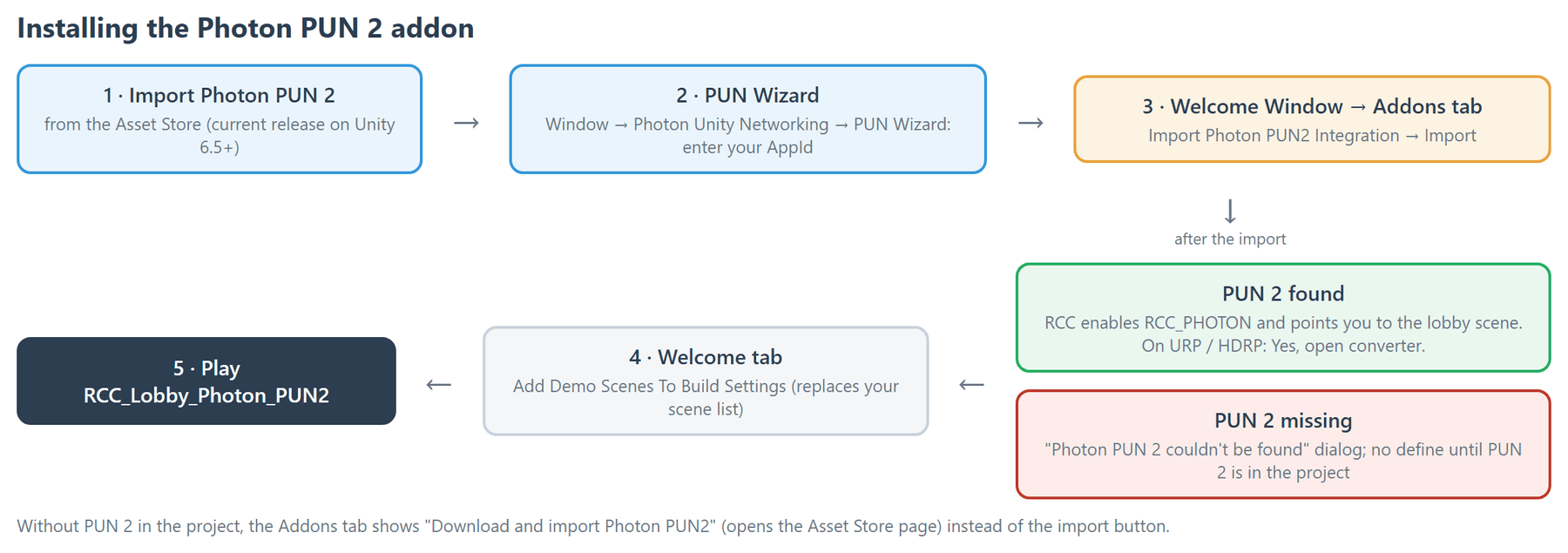
- Import Photon PUN 2 from the Asset Store. On Unity 6.5 and newer, use the current PUN 2 release.
- Open Window → Photon Unity Networking → PUN Wizard and enter your Photon AppId.
- Open Tools → BoneCracker Games → Realistic Car Controller → Welcome Window → Addons tab.
- Click Import Photon PUN2 Integration, then Import in Unity's import window.
- After the import, RCC enables
RCC_PHOTONand shows a dialog pointing to the lobby scene. On URP or HDRP it also offers to convert materials. Click Yes, open converter. - On the Welcome tab, click Add Demo Scenes To Build Settings.
If PUN 2 is not in the project, the Addons tab shows Download and import Photon PUN2 instead of the import button. The button opens the PUN 2 Asset Store page.
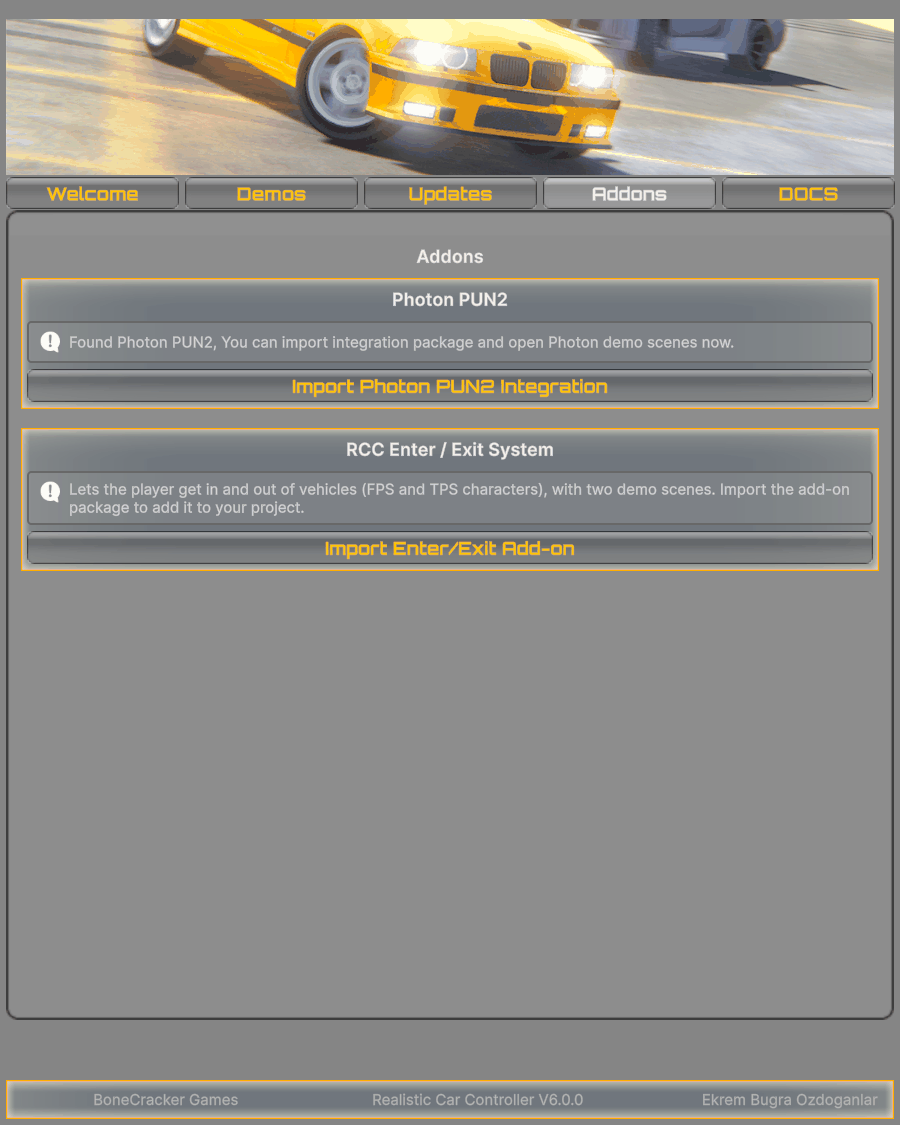
Install Enter / Exit

- Open Tools → BoneCracker Games → Realistic Car Controller → Welcome Window → Addons tab.
- Click Import Enter/Exit Add-on, then Import in Unity's import window.
- After the import, RCC enables
BCG_ENTEREXITand shows a welcome dialog. On URP or HDRP it also offers to convert materials. Click Yes, open converter. - Open a demo scene from
Assets/BCG Shared Assets/Demo Scenes/.
The RCC City Enter-Exit FPS / TPS buttons on the Demos tab also offer to import the addon if it's missing. After the import, click the button again to open the scene.
Add Enter / Exit to your own scene
Your scene needs an RCC Canvas (Tools → BoneCracker Games → Realistic Car Controller → Create → UI → Add RCC Canvas To Scene). Then use the Tools → BoneCracker Games → Realistic Car Controller → Enter-Exit menu:
- Add Manager To Scene: creates
RCC_EnterExitManagerwith its input manager. - Select each enterable vehicle → Add To Vehicle.
- Drop
RCC_FPSCharacterorRCC_TPSCharacterfromBCG Shared Assets/Prefabs/into the scene. For your own character, select it and use Add To FPS Player or Add To TPS Player. - On the character's
RCC_EnterExitPlayer, assign Character Camera. The FPS prefab includes its own camera. For TPS, use a camera withRCC_TPSCameraController. - Add Enter-Exit UI To RCC Canvas: adds the enter / exit prompt.
- Optional: Add Mobile Controls To RCC Canvas adds on-foot joysticks.
For component details, see the addon's own Documentation/00_EnterExitSystem.html.
Demo Scenes
| Scene | Location | Notes |
|---|---|---|
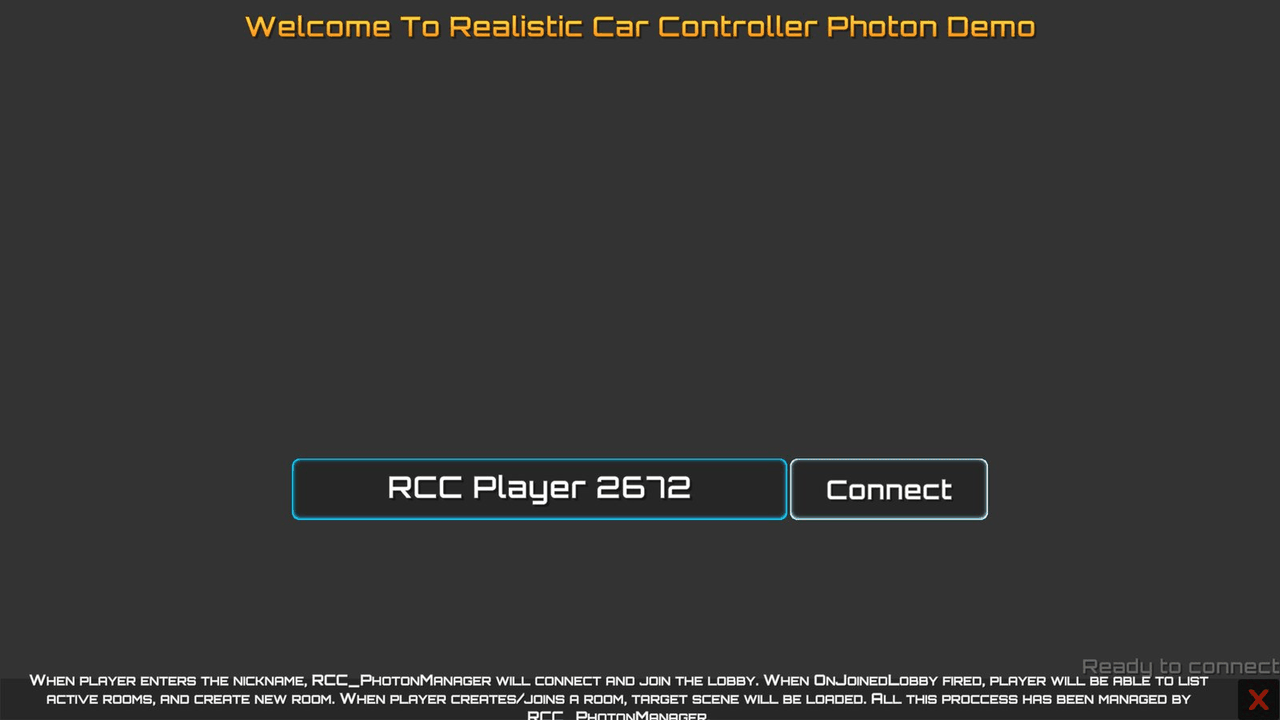
RCC_Lobby_Photon_PUN2 |
Demo Scenes/RCC Photon Scenes/ |
Start here. Connect, then create or join a room (up to 8 players). |
RCC_City_Photon_PUN2 |
Demo Scenes/RCC Photon Scenes/ |
Loaded from the lobby. Spawn your vehicle from the Options menu. If you play it without a connection, it loads the lobby. |
RCC_Blank_EnterExit_FPS |
Assets/BCG Shared Assets/Demo Scenes/ |
First-person character. |
RCC_Blank_EnterExit_TPS |
Assets/BCG Shared Assets/Demo Scenes/ |
Third-person character. |
Open them from the Welcome Window Demos tab. Add Demo Scenes To Build Settings includes the addon scenes when they are in the project. That button replaces your current Build Settings scene list.
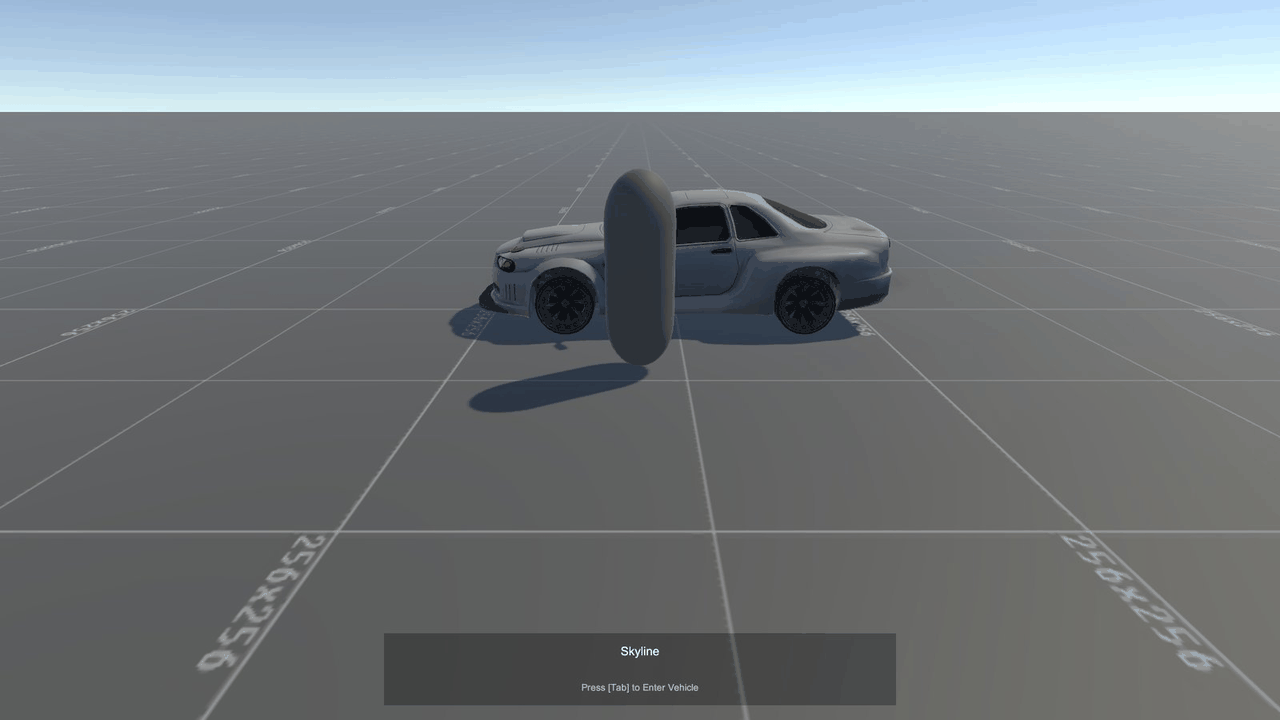
Enter / Exit Controls & Settings
On-foot controls (Scripts/RCC_EnterExitInputActions.inputactions):
| Action | Keyboard / Mouse | Gamepad |
|---|---|---|
| Move | W A S D / Arrow keys | Left Stick |
| Look | Mouse | Right Stick |
| Enter / Exit vehicle | Tab | Start |
Driving controls are RCC's own. See Input System.
On-foot mobile joysticks follow RCC Settings → Mobile Controller Enabled (Mobile Setup). Force Mobile Controller turns them on regardless.
Settings asset: BCG Shared Assets/Resources/RCC Assets/RCC_EnterExitSettings.asset. Open it with Tools → BoneCracker Games → Realistic Car Controller → Enter-Exit → Edit Settings or the Edit Enter/Exit Settings button on the Addons tab.
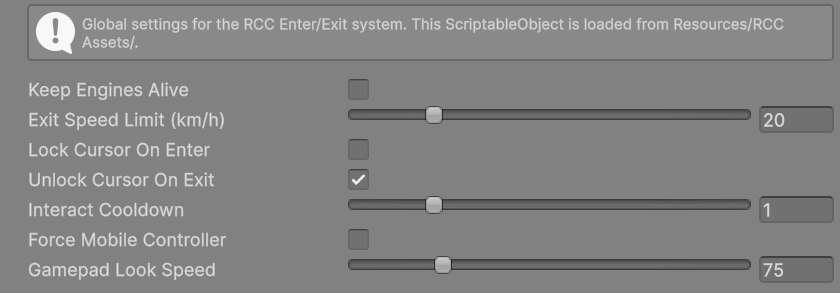
| Inspector label | What it does | Shipped default | Range |
|---|---|---|---|
| Keep Engines Alive | Vehicle engine keeps running after the player exits. | Off | — |
| Exit Speed Limit (km/h) | You can't exit above this speed. | 20 | 0 – 100 |
| Lock Cursor On Enter | Locks the cursor when entering a vehicle. | Off | — |
| Unlock Cursor On Exit | Unlocks the cursor when exiting a vehicle. | On | — |
| Interact Cooldown | Seconds before you can enter / exit again. | 1 | 0 – 5 |
| Force Mobile Controller | Always use on-screen joysticks on foot. | Off | — |
| Gamepad Look Speed | Right-stick look speed (× the character's look sensitivity). | 75 | 10 – 300 |
With BCG_ENTEREXIT set, RCC_Events also exposes OnPlayerEnteredVehicle and OnPlayerExitedVehicle. See Events System.
Photon Notes
- AppId: the lobby can't connect without it. Set it in the PUN Wizard or in
PhotonServerSettings(Window → Photon Unity Networking → Highlight Server Settings) → App Id PUN. - Scene loading: creating a room loads the scene named in
RCC_PhotonManager→ Gameplay Scene Name (RCC_City_Photon_PUN2in the lobby scene). Other players follow the master client automatically. The scene must be in Build Settings. - Changing networked scenes: call
RCC_PhotonManager.Instance.LoadLevel(sceneName), notPhotonNetwork.LoadLeveldirectly. Before loading a non-networked scene (e.g. a main menu), callRCC_PhotonManager.Instance.LeaveNetwork(). With Disconnect On Other Scenes on (default), loading a non-networked scene disconnects and removes the lobby UI. - Networked vehicles: each prefab in
Resources/Photon Vehicles/has aPhotonViewandRCC_PhotonSync. The demo spawns the vehicle picked in the menu by loadingResources/Photon Vehicles/<same name>. Give your own networked vehicle the same components and put it in that folder. - URP / HDRP: if you skipped the conversion prompt and the imported vehicles look wrong, run the Render Pipeline Converter.

Removing an Addon
Delete the addon's files inside the Unity Project window. RCC then removes the matching define automatically.
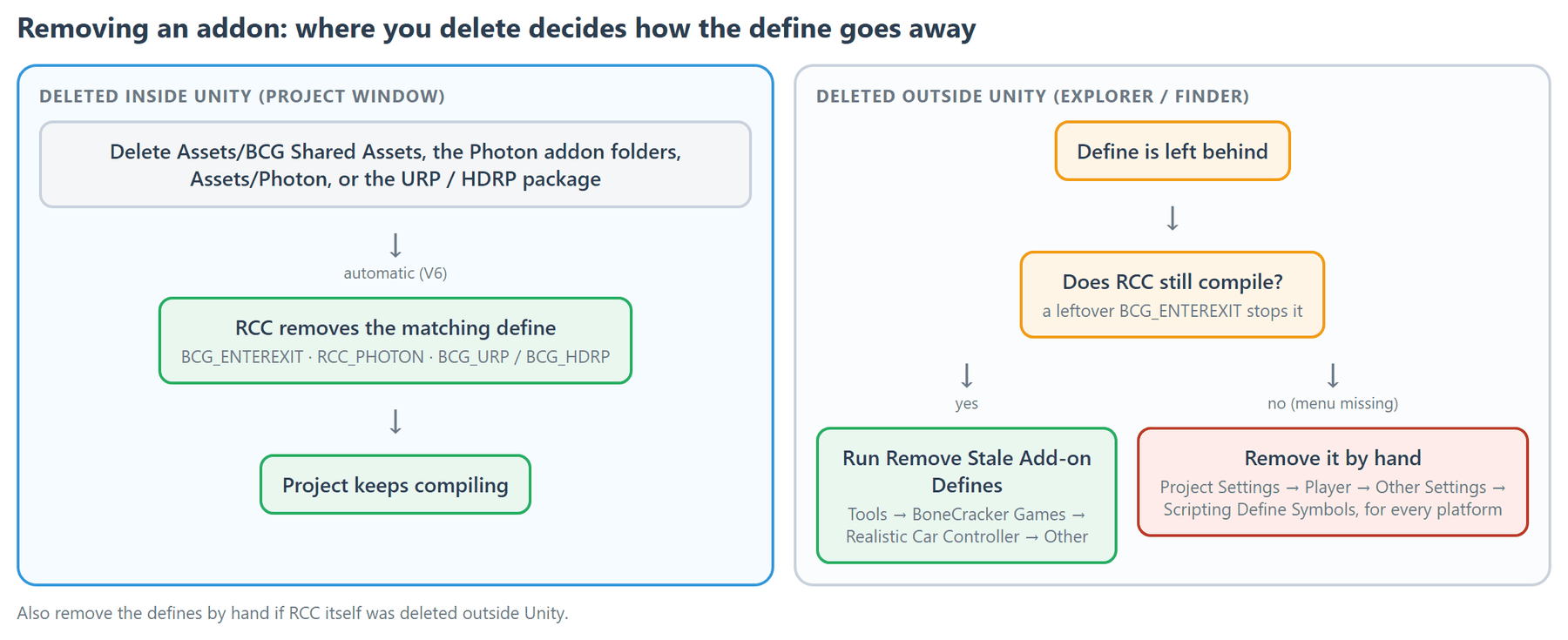
| To remove | Delete | Define removed |
|---|---|---|
| Enter / Exit | Assets/BCG Shared Assets |
BCG_ENTEREXIT |
| Photon addon | Scripts/Photon PUN 2, Editor/Photon PUN 2, Resources/Photon Vehicles, Demo Scenes/RCC Photon Scenes |
RCC_PHOTON |
| Photon PUN 2 SDK | Assets/Photon |
RCC_PHOTON |
New in V6: removing an addon, the PUN 2 SDK or the URP / HDRP package inside Unity also removes RCC's matching define, so the project keeps compiling.
Deleted files outside Unity (Explorer / Finder)? Run Tools → BoneCracker Games → Realistic Car Controller → Other → Remove Stale Add-on Defines. A leftover BCG_ENTEREXIT stops RCC from compiling, so that menu won't appear. In that case, remove BCG_ENTEREXIT by hand in Project Settings → Player → Other Settings → Scripting Define Symbols for every platform. Do the same if RCC itself was deleted outside Unity.
Unity 6.5 / 6.6 Notes
- Unity 6.5+: older PUN 2 releases don't compile. Update PUN 2 from the Asset Store before importing the Photon addon.
- Unity 6.6: Unity marks RCC's bundled packages as Missing Signature on import. This is expected. RCC explains it once per editor session. Click Import Anyway (or Reimport Anyway).
Troubleshooting
| Symptom | Fix |
|---|---|
| Dialog "Photon PUN 2 couldn't be found in your project" | Import PUN 2 from the Asset Store first. RCC_PHOTON is enabled once PUN 2 is present. |
| PUN 2 compile errors on Unity 6.5 or newer | Update PUN 2 to the current Asset Store version. |
| Lobby never connects | Enter your AppId in the PUN Wizard or in PhotonServerSettings → App Id PUN. |
| Creating a room doesn't load the city scene | Add the Photon scenes to Build Settings (Welcome tab → Add Demo Scenes To Build Settings). |
Compile errors about RCC_EnterExitPlayer / RCC_EnterExitVehicle after deleting BCG Shared Assets |
Remove BCG_ENTEREXIT from Scripting Define Symbols by hand (see Removing an Addon). |
More fixes: Troubleshooting.