Vehicle Inspector Reference
This page covers every setting the RCC_CarControllerV4 Inspector shows, in the order it draws them: the top toggle, the 10 category tabs, and the System Overall Check.
Default is the value on a freshly added controller. WheelCollider values come from Resources/RCC Assets/RCC_InitialSettings.asset. Demo vehicles are tuned differently. The Engine & Gears section lists the Muscle prefab's values for comparison.
New in V6: hover any label to see its tooltip. Category icons have tooltips too.
Quick Start
- Select the vehicle root (the object with
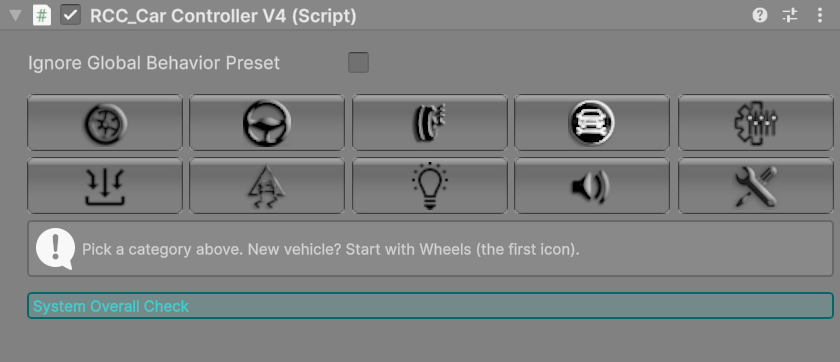
RCC_CarControllerV4). - Click a category icon. Only one tab is open at a time. On a new vehicle, start with Wheels.
- Change values. When you change something, the Inspector reapplies RCC layers (if Set Layers Auto is on in RCC Settings) and rebuilds the torque curve (if Auto Generate Engine Torque Curve is on).
- Scroll down to System Overall Check and fix every red message.
Top of the Inspector
| Inspector label | What it does | Default |
|---|---|---|
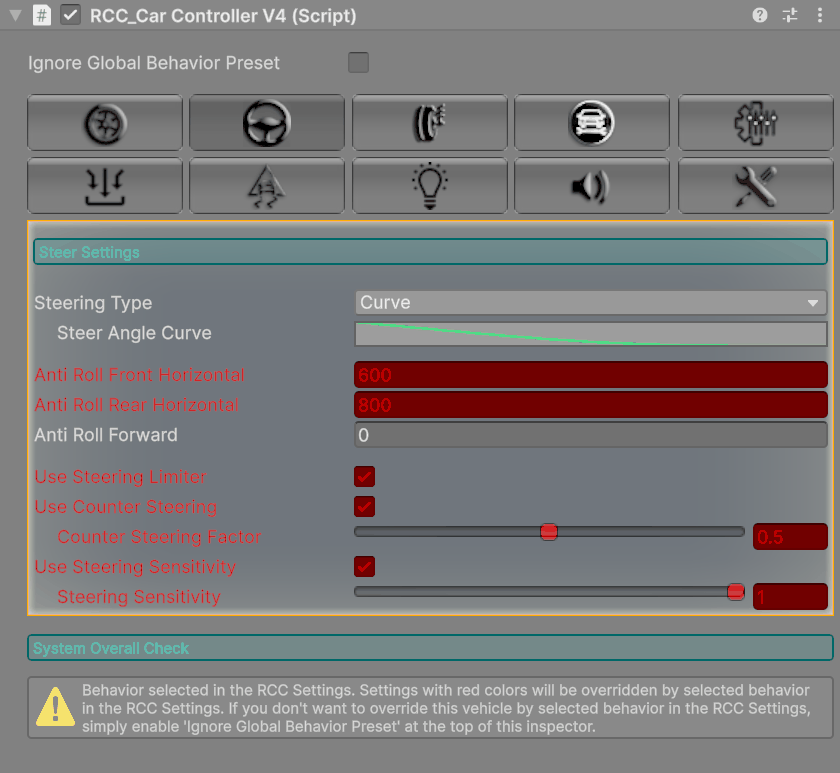
| Ignore Global Behavior Preset | When on, the preset selected in RCC Settings is not applied to this vehicle. An info box confirms this. | Off |
Changed in V6: this toggle was labelled Ineffective Behavior. The field is still
overrideBehavior.
Red fields. If Override Behavior is on in RCC Settings and this vehicle does not ignore the preset:
- The Inspector draws the settings the preset controls in red.
- System Overall Check shows a warning.
- The preset is applied when the vehicle spawns. It also sets Steering Type and the Steer Angle Curve, but those two are not drawn in red.
For what each preset changes, see Behavior Presets.
Category Tabs
| Row | Icons, left to right |
|---|---|
| 1 | Wheels, Steering, Suspension, Engine & Gears, Customizer |
| 2 | Inputs, Stability, Lights, Sounds, Damage |
Wheels
| Inspector label | What it does | Default | Range |
|---|---|---|---|
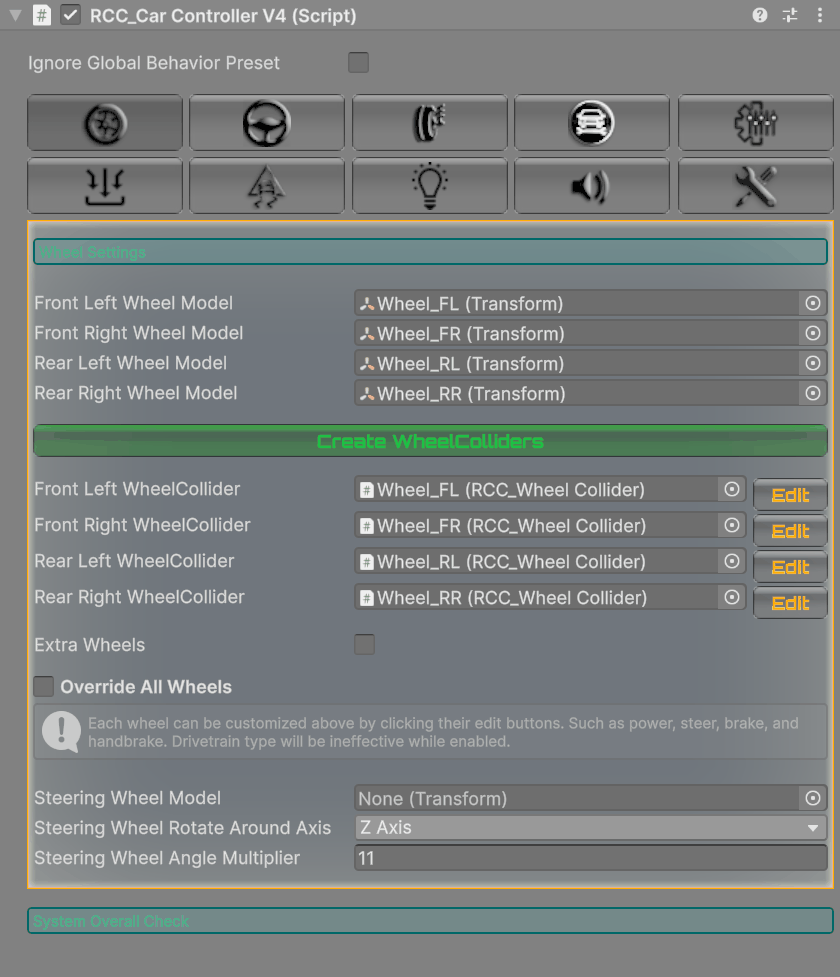
| Front Left / Front Right / Rear Left / Rear Right Wheel Model | The visible wheel meshes. Needed before you can create WheelColliders. | — | — |
| Front Left / Front Right / Rear Left / Rear Right WheelCollider | The RCC_WheelCollider for each wheel. Filled in by Create WheelColliders. Edit selects it. |
— | — |
| Extra Wheels | Shows the extra rear wheel lists. Use it for trucks with more axles. | Off | — |
| Extra Rear Wheel Models / Extra Rear Wheel Colliders | Meshes and colliders of the extra rear wheels. | Empty | — |
| Override All Wheels | Lets you set Power, Steer, Brake and EBrake (handbrake) for each wheel, each with a multiplier slider. While it is on, Wheel Type Choise has no effect. | Off | Power / Steer −1 to 1, Brake / EBrake 0 to 1 |
| Steering Wheel Model | An interior steering wheel that turns with steering input. Optional. | — | — |
| Steering Wheel Rotate Around Axis | The local axis the steering wheel turns around (X, Y or Z). | Z Axis | — |
| Steering Wheel Angle Multiplier | How far the steering wheel model turns per unit of input. | 11 | — |
Create WheelColliders needs all four wheel models assigned. It works like this:
- It sizes each collider from its wheel model's bounds. Suspension and friction come from RCC_InitialSettings: spring 45000, damper 3000, distance 0.2.
- If WheelColliders already exist, it asks Delete Existing And Create New or Keep WheelColliders.
- Then it asks Center or With Suspension Distance. Center moves the colliders up by half the suspension distance.
- Ctrl+Z undoes the whole operation in one step.
For how WheelColliders work, see How WheelColliders Work.
Steering
| Inspector label | What it does | Default | Range |
|---|---|---|---|
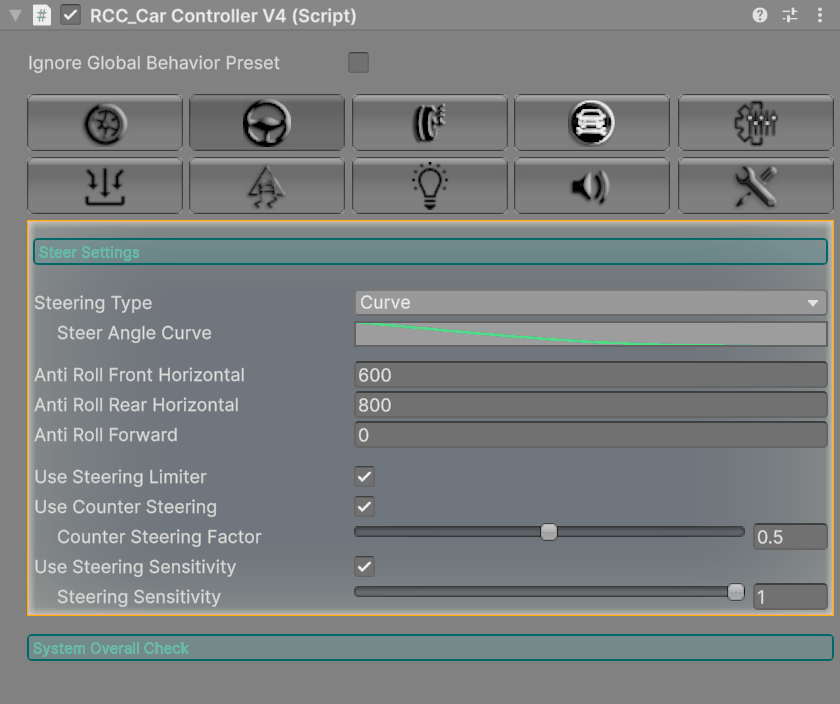
| Steering Type | Curve: the steer angle comes from a speed curve. Simple: the angle blends from the maximum to a high-speed angle. Constant: the angle is always the maximum. | Curve | — |
| Steer Angle Curve (Curve) | Steer angle (degrees) by speed (km/h). | 40° at 0, 10° at 120, 7° at 200 | — |
| Maximum Steer Angle (Simple, Constant) | Steer angle at standstill. | 40 | 0–60 |
| Maximum Steer Angle At ''X'' Speed (Simple) | Steer angle at the ''X'' speed. | 5 | 0–60 |
| ''X'' Speed (Simple) | Speed (km/h) where the high-speed angle is reached. | 120 | — |
| Anti Roll Front Horizontal / Anti Roll Rear Horizontal | Anti-roll bar force between the left and right wheels. Higher values mean less body roll. | 1000 / 1000 | — |
| Anti Roll Forward | Resists body pitch (nose dive and squat) between the front and rear wheels on each side. 0 turns it off. | 0 | — |
| Use Steering Limiter | Limits steering while the car slides sideways. | On | — |
| Use Counter Steering | Steers against a drift automatically. | On | — |
| Counter Steering Factor | Strength of counter steering. | 0.5 | 0–1 |
| Use Steering Sensitivity | Smooths steering input instead of applying it instantly. | On | — |
| Steering Sensitivity | Speed of that smoothing. Lower values are slower. | 1 | 0.05–1 |
To set up a real steering wheel controller, see Steering Wheels.
Suspension
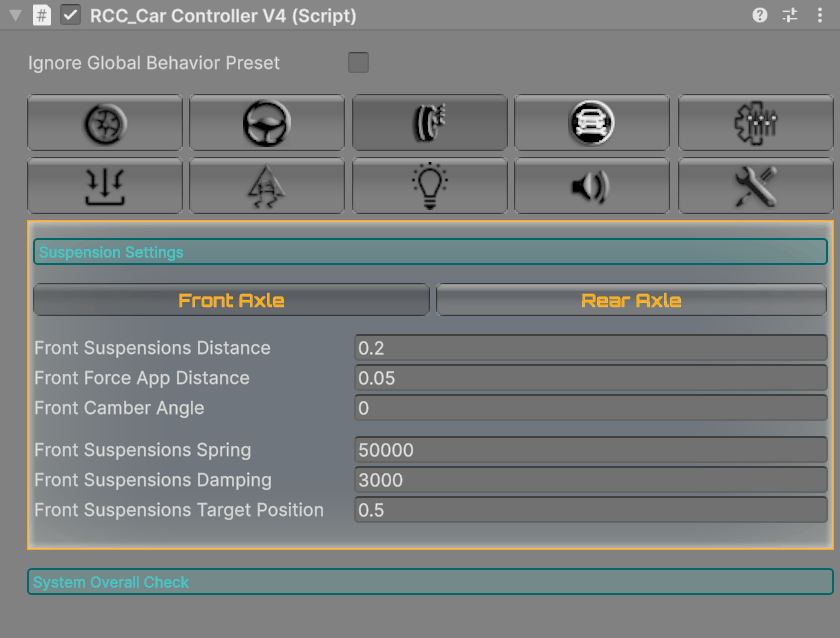
This tab needs all four WheelColliders. Otherwise it shows an error. Click Front Axle or Rear Axle. Values apply to both wheels of that axle, and rear camber also applies to extra rear wheels.
| Inspector label | What it does | Default |
|---|---|---|
| Front / Rear Suspensions Distance | Suspension travel (m). | 0.2 |
| Front / Rear Force App Distance | WheelCollider force application point. | 0.05 |
| Front / Rear Camber Angle | Tilts the wheel models (degrees). Visual only. | 0 |
| Front / Rear Suspensions Spring | Spring strength. | 45000 |
| Front / Rear Suspensions Damping | Damper strength. | 3000 |
| Front / Rear Suspensions Target Position | Rest position of the spring (0–1 along the travel). | 0.5 |
Engine & Gears
The panel header reads Configurations.
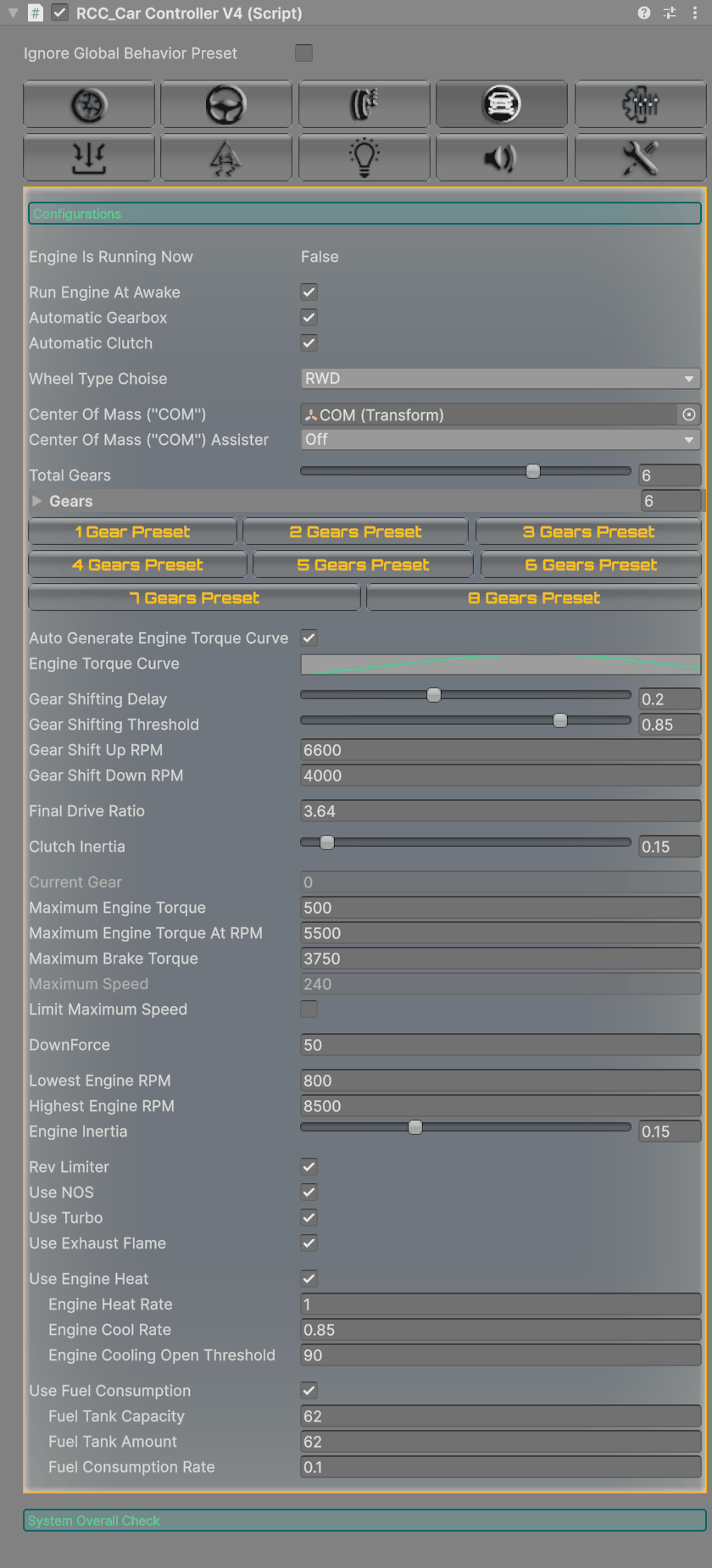
| Inspector label | What it does | Default | Range |
|---|---|---|---|
| Engine Is Running Now | Read-only engine state. | — | — |
| Run Engine At Awake | Starts the engine when the vehicle spawns. | On | — |
| Automatic Gearbox | Shifts gears automatically. | On | — |
| Automatic Clutch | When off, the clutch follows the player's clutch input. | On | — |
| Wheel Type Choise | Drivetrain: FWD, RWD, AWD or BIASED. BIASED currently powers all wheels exactly like AWD. | RWD | — |
| Center Of Mass (''COM'') | The COM transform. Created automatically if missing. | Child COM |
— |
| Center Of Mass (''COM'') Assister | Moves the center of mass sideways based on how fast the car turns (yaw rate). Slight and Medium move it toward the inside of the turn. Opposite moves it toward the outside. | Off | — |
| Total Gears | Number of forward gears. | 6 | 1–8 |
| Gears | For each gear: Max Ratio, Max Speed and Target Speed For Next Gear (km/h). Max Speed is recalculated at runtime. | 6 gears: 4.35, 2.5, 1.66, 1.23, 1.0, 0.85 | — |
| 1 Gear Preset … 8 Gears Preset (buttons) | Set Total Gears and rebuild the gear list with preset ratios. Changing Total Gears alone does not rebuild the list. | — | — |
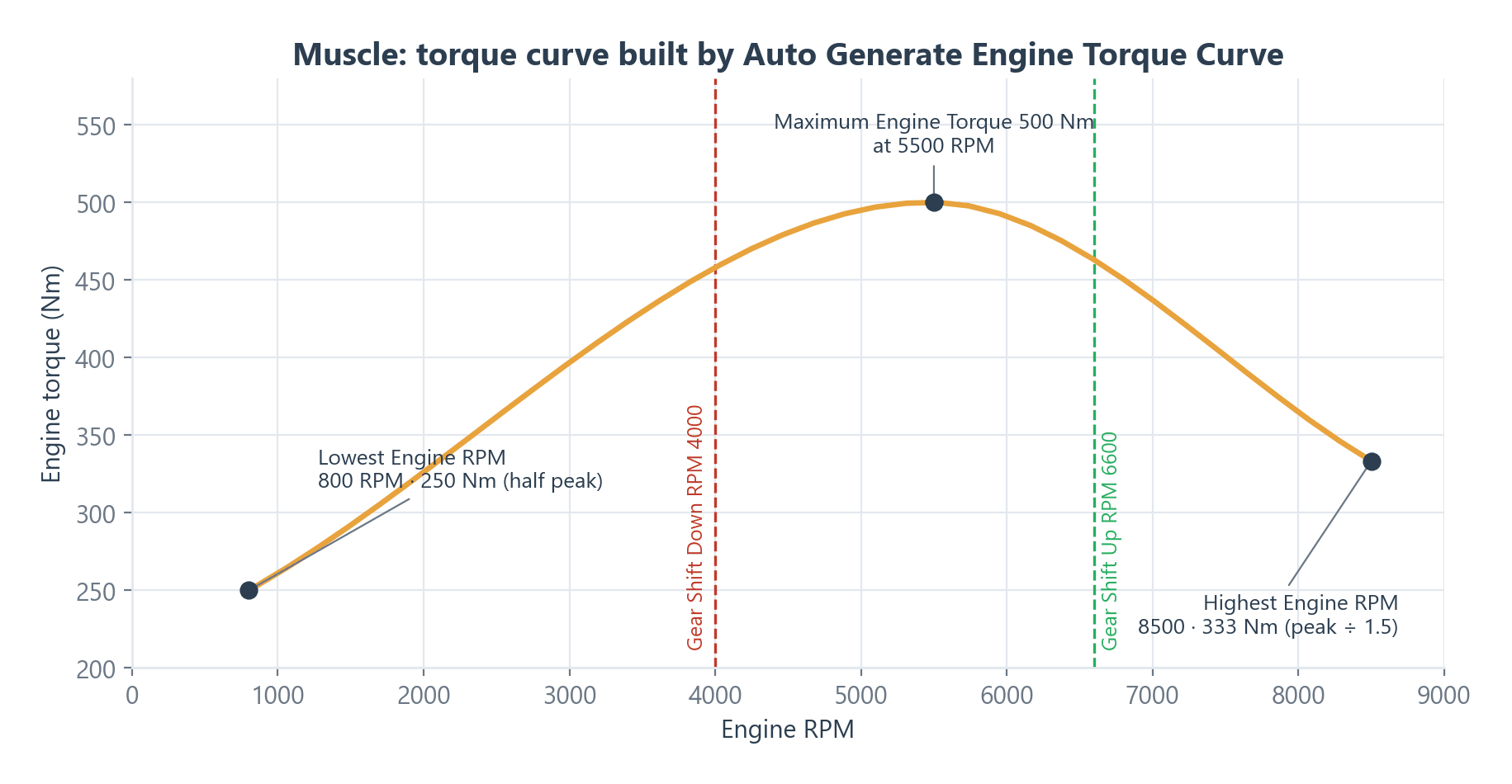
| Auto Generate Engine Torque Curve | Rebuilds the torque curve from Lowest Engine RPM, Maximum Engine Torque At RPM and Highest Engine RPM. While it is on, manual edits to the curve are replaced. | On | — |
| Engine Torque Curve | Torque by RPM. | Generated | — |
| Gear Shifting Delay | Seconds the throttle is cut during a shift. | 0.35 | 0–0.5 |
| Gear Shifting Threshold | Sets how early the automatic gearbox shifts up (1 = at each gear's maximum speed). Used when a preset button rebuilds the gear list, so set it before clicking one. | 0.75 | 0.25–1 |
| Gear Shift Up RPM / Gear Shift Down RPM | RPM limits for automatic shifting. An upshift also needs the gear's target speed. | 6500 / 3500 | — |
| Final Drive Ratio | Multiplies every gear ratio. | 3.23 | — |
| Clutch Inertia | Higher values engage the clutch more slowly. | 0.25 | 0.1–0.9 |
| Current Gear | Read-only. Numbering starts at 0. | 0 | — |
| Maximum Engine Torque | Peak torque (Nm). | 300 | — |
| Maximum Engine Torque At RPM | RPM of peak torque. | 5500 | — |
| Maximum Brake Torque | Brake torque per braked wheel. | 2000 | — |
| Maximum Speed | Read-only top speed (km/h). Calculated from Highest Engine RPM, the last gear ratio, Final Drive Ratio and wheel radius. | 240 | — |
| Limit Maximum Speed / Limit Maximum Speed At | Caps the speed (km/h). | Off / 400 | — |
| DownForce | Downward force that grows with speed. | 25 | — |
| Lowest Engine RPM / Highest Engine RPM | Idle RPM and RPM limit. | 800 / 7000 | — |
| Engine Inertia | Higher values make RPM respond more slowly. | 0.15 | 0.02–0.4 |
| Rev Limiter | Cuts power at the RPM limit. | On | — |
| Use NOS | Hold NOS with throttle at 75% or more for up to double engine torque. The NOS tank (0–100) refills after 3 seconds unused. | Off | — |
| Use Turbo | Turbo sound, blow-off and dashboard boost gauge. Doesn't add power. | Off | — |
| Use Exhaust Flame | Allows exhaust flames. | On | — |
| Use Engine Heat | Simulates engine temperature. Shows Engine Heat Rate (1), Engine Cool Rate (1) and Engine Cooling Open Threshold (90 °C). | Off | — |
| Use Fuel Consumption | Burns fuel. The engine gets no fuel when the tank is empty. Shows Fuel Tank Capacity (62 L), Fuel Tank Amount (62) and Fuel Consumption Rate (0.1). | Off | — |
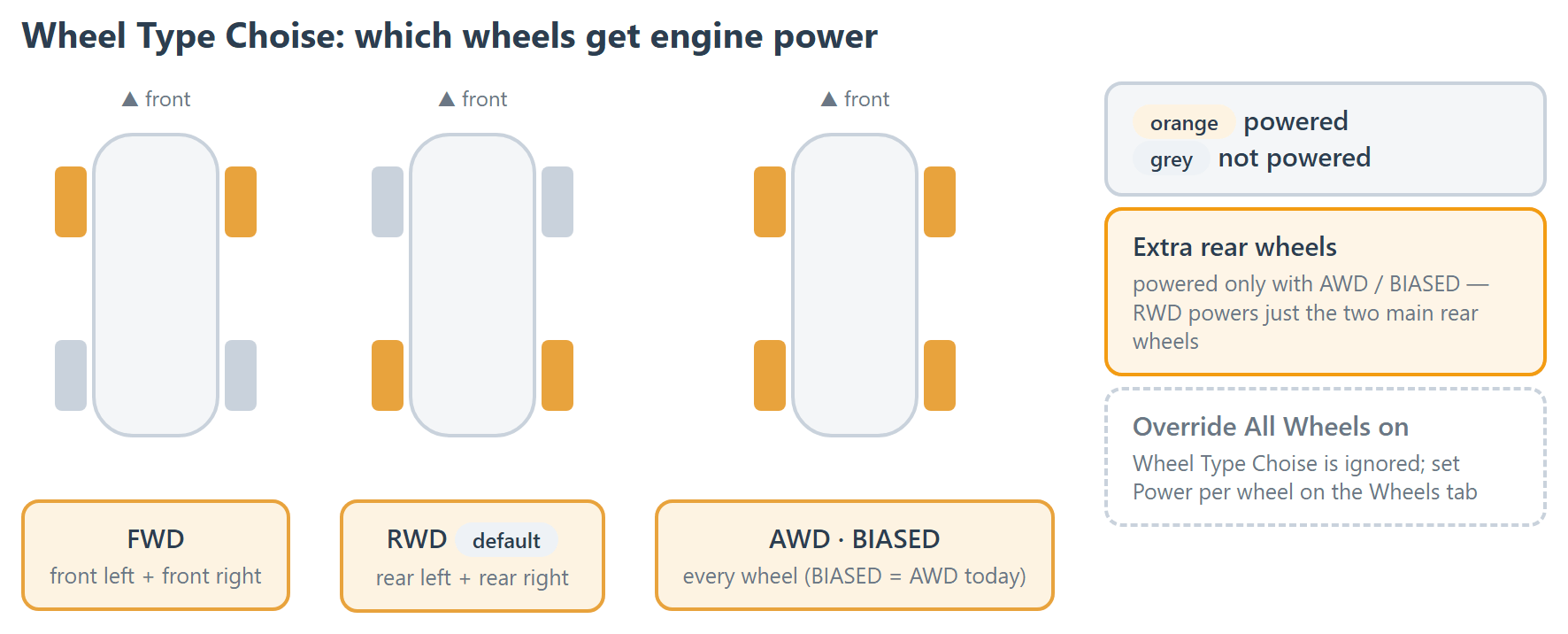
For comparison, Prefabs/Vehicles/Muscle.prefab uses these values:
- 500 Nm peak torque at 5500 RPM, with an 800–8500 RPM range.
- Final drive ratio 3.64, shifting up at 6600 RPM and down at 4000 RPM.
- Brake torque 3750, downforce 50.
- Anti-roll 600 front and 800 rear.
- NOS and turbo on.
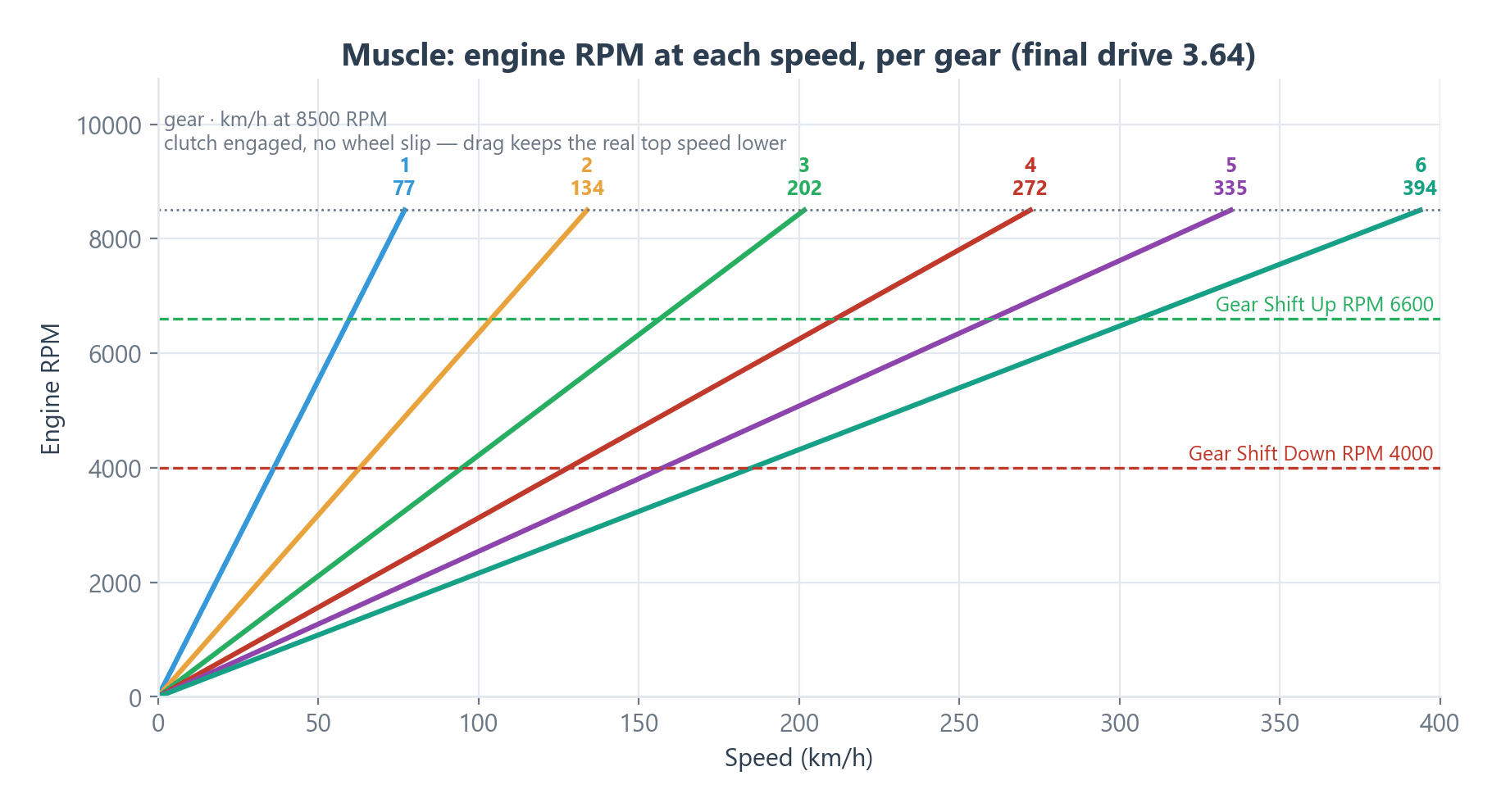
The script fields for NOS and turbo are useNOS / useTurbo. The runtime tank and boost values are NoS (0–100) and turboBoost (0–30). Those two runtime values are not shown in the Inspector.
Customizer
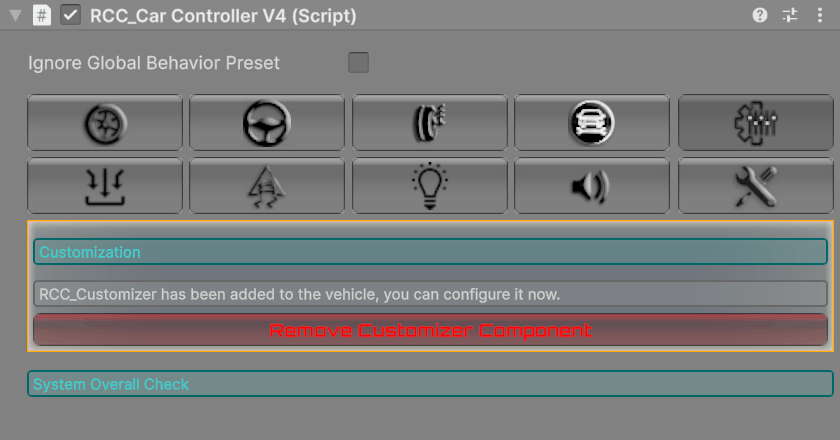
Shows Add Customizer Component, or Remove Customizer Component (undoable) if the vehicle already has RCC_Customizer. To set it up, see Customization.
Inputs
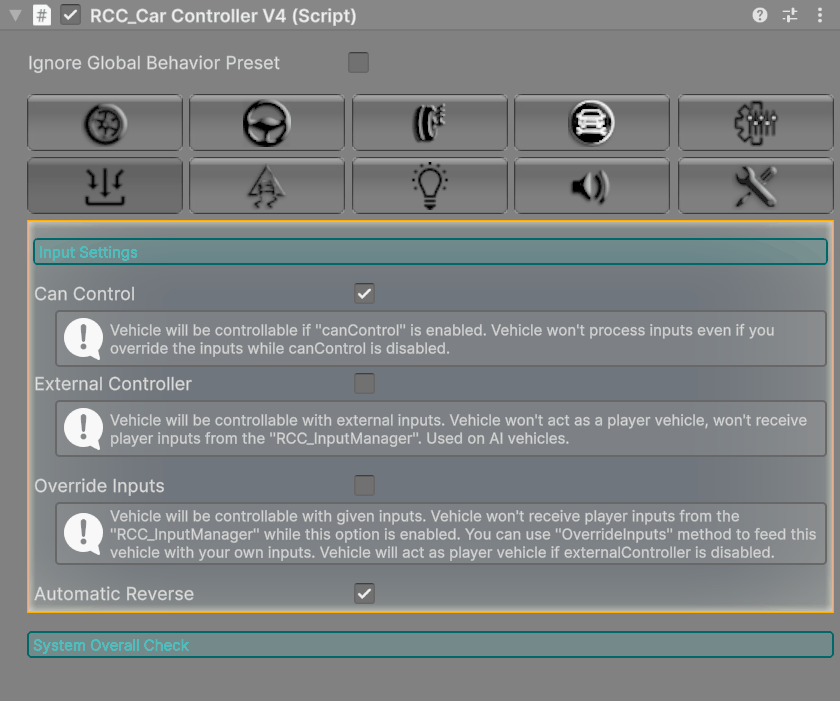
| Inspector label | What it does | Default |
|---|---|---|
| Can Control | When off, the vehicle ignores all inputs, including overridden ones, and holds the handbrake. Also available in code as SetCanControl(bool). |
On |
| External Controller | For AI or custom scripts. The vehicle ignores player input and player key presses (lights, gears, engine), and the engine always starts at spawn. | Off |
| Override Inputs | The vehicle uses inputs you pass to OverrideInputs(...) instead of player input. |
Off |
| Automatic Reverse | With the automatic gearbox, holding brake at a standstill shifts into reverse. When off, you must release the brake near a standstill, then hold it again. | On |
For how these interact, see How to Override Inputs.
Stability
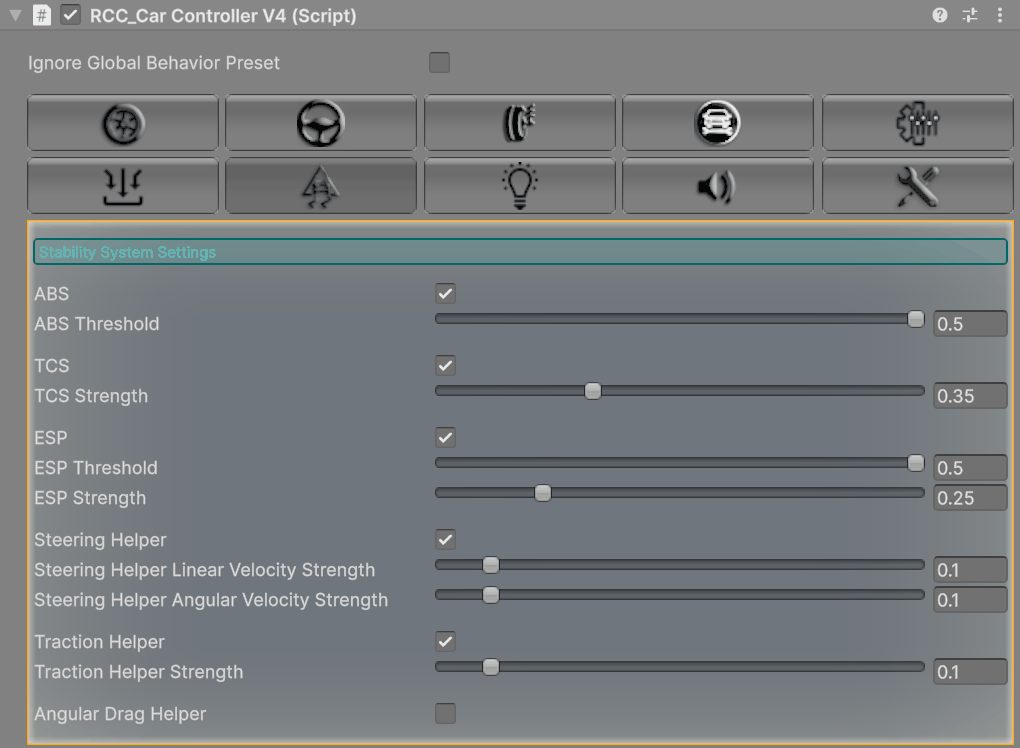
When a global preset is active, this whole tab is drawn in red. Strength fields appear only while their toggle is on.
| Inspector label | What it does | Default | Range |
|---|---|---|---|
| ABS / ABS Threshold | Releases the brakes when the wheels lock. The threshold is the forward slip that triggers it. | On / 0.35 | 0.05–0.5 |
| TCS / TCS Strength | Cuts torque when the wheels spin. | On / 0.5 | 0.05–1 |
| ESP / ESP Threshold / ESP Strength | Brakes single wheels to correct understeer or oversteer. | On / 0.5 / 0.25 | 0.05–0.5 / 0.05–1 |
| Steering Helper / Linear Velocity Strength / Angular Velocity Strength | Turns the car's velocity and rotation toward the steering direction. | On / 0.1 / 0.1 | 0–1 |
| Traction Helper / Traction Helper Strength | Reduces front-wheel sideways grip during oversteer to help recovery. | On / 0.1 | 0–1 |
| Angular Drag Helper / Angular Drag Helper Strength | Adds angular drag with speed to reduce spinning. | Off / 0.1 | 0–1 |
Lights
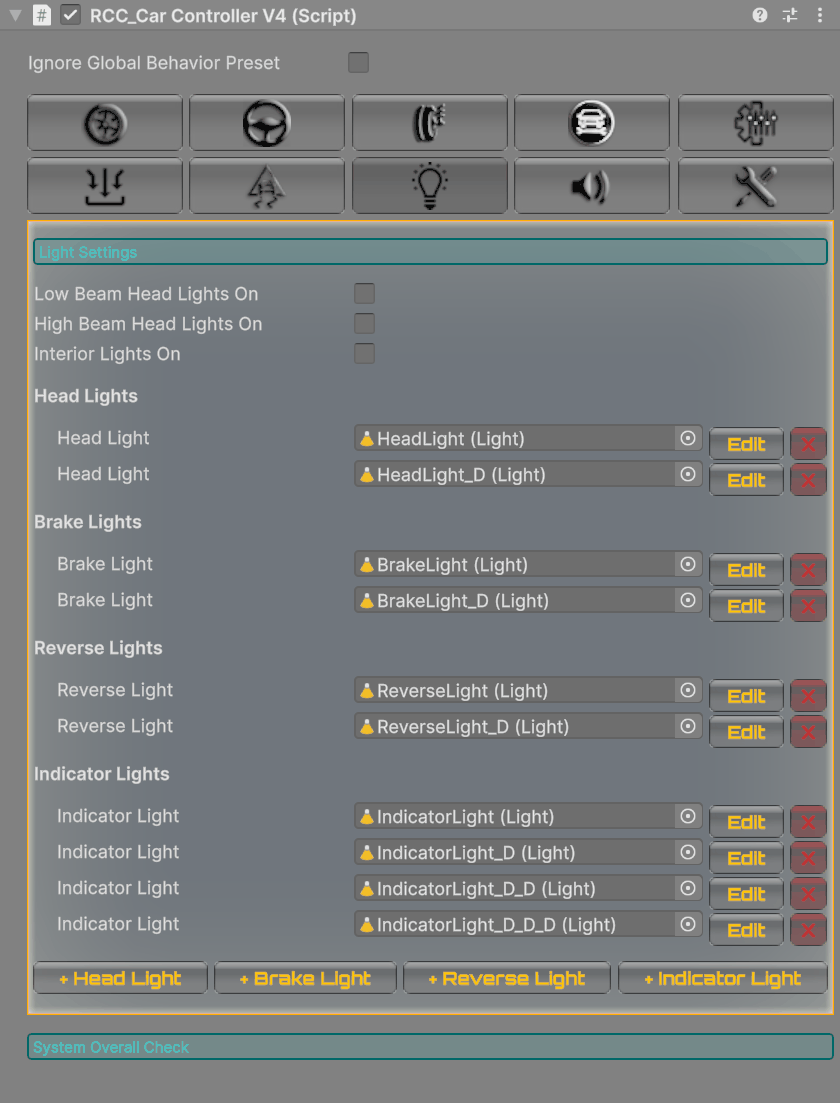
- Toggles: Low Beam Head Lights On, High Beam Head Lights On, Interior Lights On. All are off by default.
- Lists the vehicle's head, brake, reverse and indicator lights. Edit selects a light. X deletes it (undoable).
- + Head Light, + Brake Light, + Reverse Light and + Indicator Light add a new light.
Details: Lights System.
Sounds
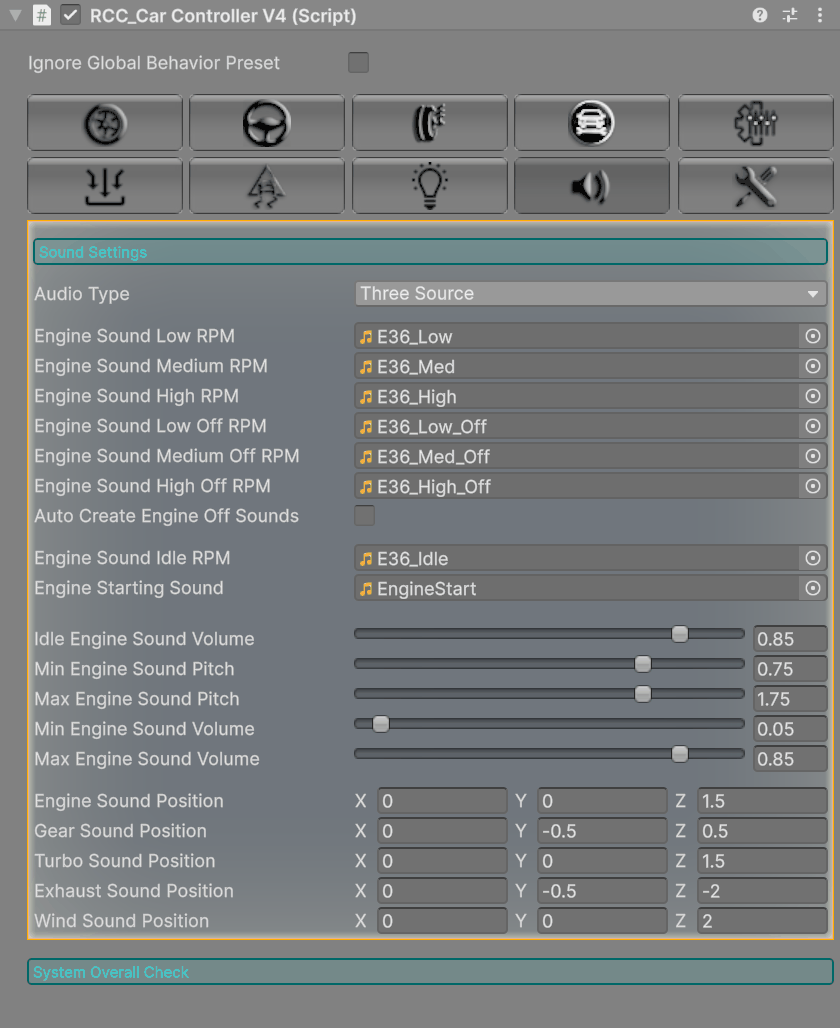
- Audio Type: One Source, Two Source, Three Source or Off. The default is One Source. The choice decides which Engine Sound clip slots appear.
- Auto Create Engine Off Sounds (on by default) hides the "Off" clip slots and creates those layers for you.
- Also shown:
- Engine Sound Idle RPM and Engine Starting Sound clips.
- Idle volume (0.85), pitch 0.75–1.75, volume 0.05–0.85.
- Local positions for the engine, gear, turbo, exhaust and wind sounds.
Details: Audio System.
Damage
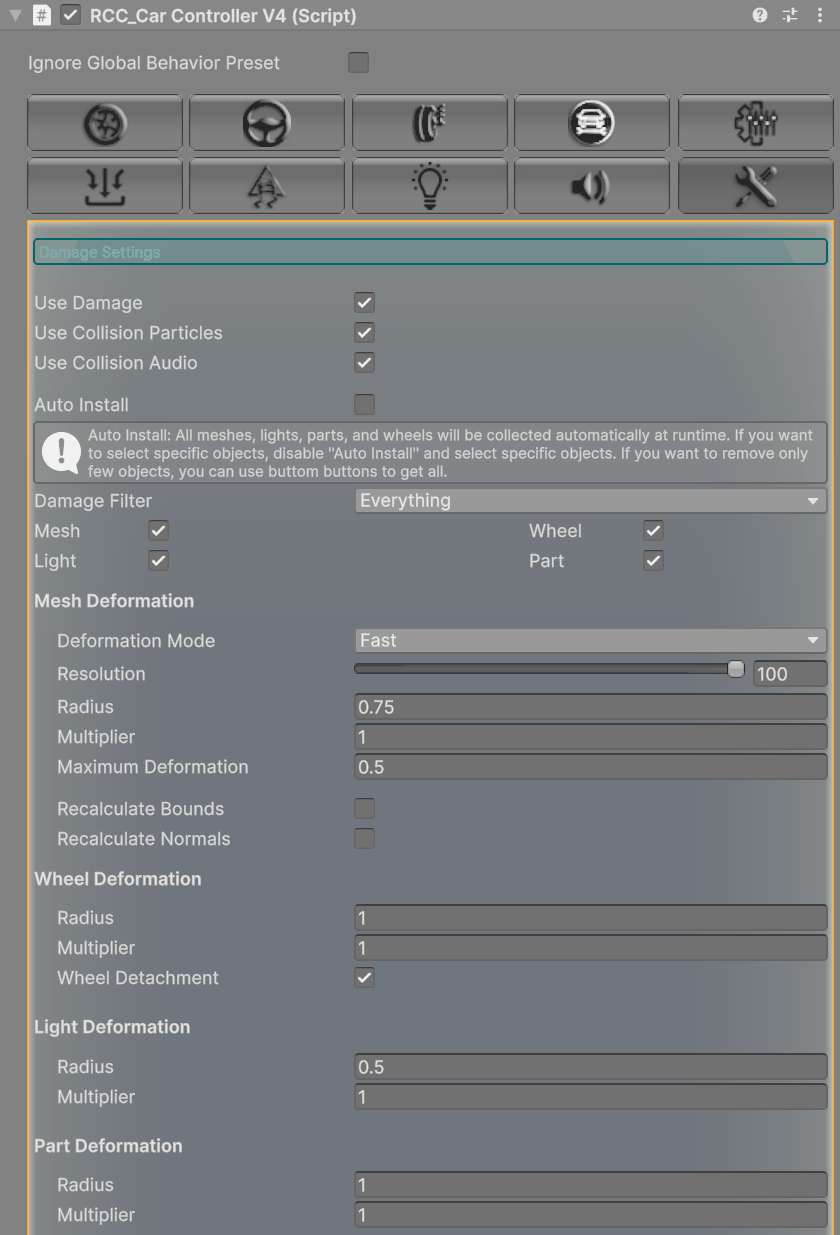
| Inspector label | What it does | Default |
|---|---|---|
| Use Damage / Use Collision Particles / Use Collision Audio | Turn on deformation, impact sparks and crash sounds. | On / On / On |
| Auto Install | Collects meshes, lights, parts and wheels at runtime. Turn it off to pick them by hand. | On |
| Damage Filter | Layers that can cause damage. | Everything |
| Mesh / Wheel / Light / Part | Which damage types are active. Each one shows its own Radius and Multiplier. | All on |
| Deformation Mode / Resolution / Maximum Deformation | Mesh deformation settings. | Fast / 100 / 0.5 |
- With Auto Install off, the tab lists the collected items with X buttons. It also shows Get Meshes, Get Lights, Get Parts, Get Wheels and Clean Empty Elements.
- Fix Axis appears for meshes with wrong axes.
- In Play Mode, Repair Now repairs a damaged vehicle.
Details: Damage System.
System Overall Check
This check runs below the tabs whenever you are not in Play Mode.
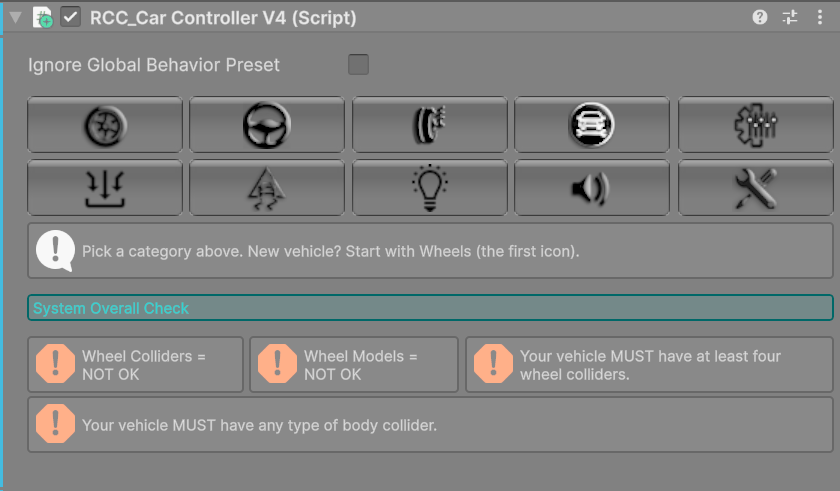
Automatic fixes:
- Creates a
COMchild if it is missing (not on prefab assets). - Places the COM from the vehicle bounds if its local height is exactly 0, and shows a warning.
- Creates 6 default gears if the gear list is empty.
- Resets a Steer Angle Curve that has fewer than 2 keys.
AI vehicles:
- An info box shows when the vehicle has
RCC_AICarController, with a Remove AI Controller From Vehicle button. - An error shows if the scene has no
RCC_AIWaypointsContainer, with a Create Waypoints Container button.
Messages:
| Message | Fix |
|---|---|
| Behavior selected in the RCC Settings… | A global preset is active and red fields are preset-controlled. Enable Ignore Global Behavior Preset to opt out. |
| Wheel Colliders = NOT OK / Wheel Models = NOT OK / COM = NOT OK | Assign the missing references on the Wheels or Engine & Gears tab. |
| Your vehicle MUST have at least four wheel colliders. | Use Create WheelColliders. |
| Scene has no RCC Camera… | Add RCC Camera button. |
| Mobile Controller is enabled in RCC Settings, but the scene has no RCC Canvas with mobile buttons… | Add RCC Canvas button. If the scene has an RCC Canvas without mobile buttons, Select RCC Canvas instead. See Mobile Setup. |
| This collider is not enabled / trigger enabled / mesh collider is not convex | Fix the listed collider. |
| Your vehicle MUST have any type of body collider. | Add a collider to the body. |
| Additional rigidbodies found. | Remove extra Rigidbodies from the vehicle. |
| Sphere colliders found… | Make sure none of them are on the wheels. |
| Some of the wheelcolliders have 0 radius or almost 0 suspension distance… | Wheel models must have renderers, and suspension distance must be above 0.01. |
| Min engine RPM must be lower than max engine RPM! (and other RPM errors) | Keep Lowest < Shift Down < Shift Up < Highest RPM. Min and max RPM must be at least 3000 apart. Shift up and down must be at least 1000 apart. |
| Meshes with wrong axes found… | Use Fix Axis on the Damage tab. |
| No power / steering / brake / handbrake wheel found! | Shown with Override All Wheels on. At least one wheel needs each role. |
New in V6: the RCC Camera and RCC Canvas warnings, with one-click fix buttons. They appear only for player vehicles placed in a scene, not for prefab assets, Prefab Mode, AI vehicles or External Controller vehicles.
Not in the Inspector
- Runtime values are not drawn by this Inspector: engine RPM, speed, direction, powered wheel count, NOS level, turbo boost, and inputs. Speed is always in km/h.
- Trailers: the controller has no trailer attach setting. Add an
RCC_TrailerAttachPointcomponent (it creates a trigger BoxCollider) to the vehicle and to the trailer. - Rigidbody (mass 1370, drag 0.0025, angular drag 0.35 on new vehicles) is edited on the Rigidbody component.