Audio System
This page covers the sounds a vehicle makes: the engine, gear shifts, crashes, wind, brakes, NOS, turbo, indicators and tires. It explains where each clip comes from and which settings change it.
Quick Start
To replace a vehicle's engine sound:
- Select the vehicle and open the Sounds tab of the
RCC_CarControllerV4Inspector (the icon with the "Sounds" tooltip). - Set Audio Type to match your recordings: OneSource (one loop), TwoSource (low + high RPM) or ThreeSource (low + medium + high RPM).
- Drag your looping clips into the engine fields that appear, and into Engine Sound Idle RPM. Enter Play mode.
RCC builds the audio sources when the vehicle wakes up. If you change Audio Type or engine clips during Play mode, the change takes effect the next time the vehicle is spawned.
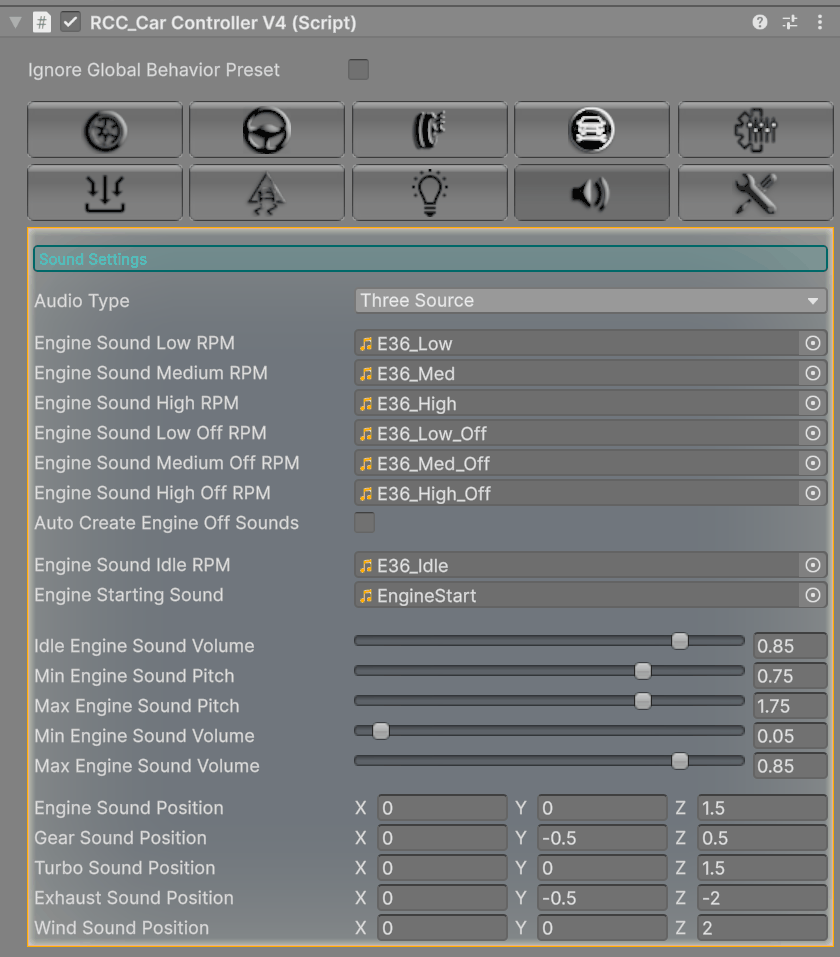
Audio Sources on a Vehicle
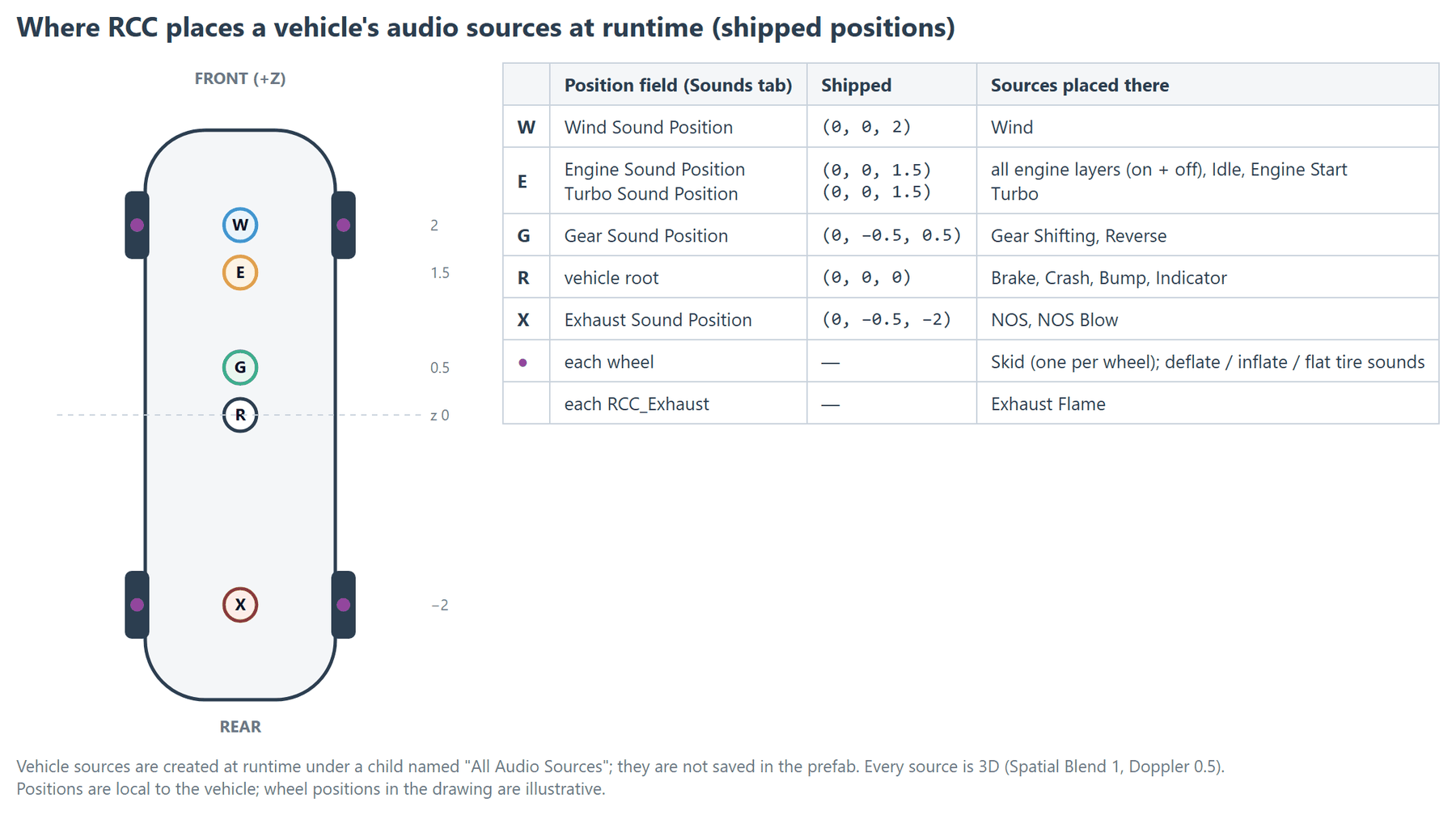
You don't add audio sources yourself. At runtime RCC creates them under a child named All Audio Sources on the vehicle.
| Source | Clip comes from | When it plays |
|---|---|---|
| Engine Sound High / Medium / Low AudioSource | Sounds tab engine clips | Loops while the engine runs. Crossfaded by RPM and louder with more throttle. |
| Engine Sound High / Medium / Low Off AudioSource | The Off RPM clips. If Auto Create Engine Off Sounds is on, the normal engine clips through a 3000 Hz low-pass filter. | Loops. Louder as you release the throttle (engine braking). |
| Engine Sound Idle AudioSource | Engine Sound Idle RPM | Loops. Loudest at low RPM and silent at Highest Engine RPM. |
| Engine Start AudioSource | Engine Starting Sound | Plays once when the engine starts. The engine runs 1 second later. |
| Gear Shifting AudioSource | RCC Settings → Gear Shifting Sounds (random pick) | Plays once per gear change at Max Gear Shifting Sound Volume. |
| Reverse Sound AudioSource | RCC Settings → Reverse Transmission Sound | Loops while reversing. Volume and pitch rise with speed. |
| Wind Sound AudioSource | RCC Settings → Wind Sound | Loops. Volume is Max Wind Sound Volume × speed ÷ 300 km/h, so it reaches full volume at 300 km/h. |
| Brake Sound AudioSource | RCC Settings → Brake Sound | Loops while braking in a forward gear. Scales with front brake force and is silent when the front wheels have nearly stopped. |
| Crash Sound AudioSource | RCC Settings → Crashing Sounds (random pick) | Plays once per qualifying collision. See Crash Sounds. |
| NOS Sound AudioSource | RCC Settings → NOS Clip | Loops while NOS is active. Needs Use NOS. |
| NOS Blow | RCC Settings → Turbo Blowout Clip (random pick) | Plays once when NOS stops, or when turbo boost drops from high. Needs Use NOS or Use Turbo. |
| Turbo Sound AudioSource | RCC Settings → Turbo Clip | Loops with a 10 kHz high-pass filter. Volume and pitch follow turbo boost, which only builds near full throttle or high RPM. Needs Use Turbo. |
| Indicator Sound AudioSource | RCC Settings → Indicator Clip | Plays once on each indicator blink. Created by RCC_Light (Indicator type). |
| Skid Sound AudioSource (one per wheel) | The ground material's sound | Plays while wheel slip exceeds the surface's slip limit and the vehicle moves faster than 1 m/s. Louder and higher-pitched with more slip. |
| Bump Sound AudioSource | RCC Settings → Wheel Bump Clip | Plays once when a wheel's load suddenly jumps by 5000 N or more. Bigger jumps are louder. |
| Deflate / inflate sounds (on the wheel) | RCC Settings → Wheel Deflate Sound / Wheel Inflate Sound | Plays once when a tire deflates or is repaired. |
| Flat tire sound (on the wheel) | RCC Settings → Wheel Flat Sound | Loops while a deflated tire rolls on the ground. Louder with wheel speed. |
| Exhaust Flame AudioSource | RCC Settings → Exhaust Flame Clips (random pick) | Plays while an RCC_Exhaust with a flame effect shows flames. Flames appear when Use Exhaust Flame is on and the throttle is released between 5000 and 5500 RPM, or when boost input is 0.75 or higher. |
Surface skid sounds are set per ground material. See Ground Physics.
Sounds Tab Fields
Shipped defaults are the values on a freshly added RCC_CarControllerV4. The demo vehicles use their own values. When Audio Type is Off, every field below it is hidden.
| Inspector label | What it does | Range | Shipped default |
|---|---|---|---|
| Audio Type | Sets the number of engine layers: OneSource, TwoSource, ThreeSource or Off (no engine sound). | — | OneSource |
| Engine Sound (OneSource) / Engine Sound Low RPM, Engine Sound Medium RPM (ThreeSource only), Engine Sound High RPM | The looping clips played while you are on the throttle. | — | None |
| Engine Sound Off / Engine Sound Low, Medium, High Off RPM | The looping clips played while you are off the throttle. These fields only appear when Auto Create Engine Off Sounds is off. | — | None |
| Auto Create Engine Off Sounds | When on, the off-throttle layers reuse the on-throttle clips through a low-pass filter. When off, assign the Off clips yourself, or off-throttle is silent. | — | On |
| Engine Sound Idle RPM | The idle loop. | — | None |
| Engine Starting Sound | The one-shot starter sound. | — | None |
| Idle Engine Sound Volume | The idle layer's volume at 0 RPM. It fades to 0 at Highest Engine RPM. | 0–1 | 0.85 |
| Min Engine Sound Pitch | The engine pitch at 0 RPM. | 0–1 | 0.75 |
| Max Engine Sound Pitch | The engine pitch at Highest Engine RPM. | 1–2 | 1.75 |
| Min Engine Sound Volume | Has no effect. The code does not use it. | 0–1 | 0.05 |
| Max Engine Sound Volume | The peak volume of the engine layers. | 0–1 | 0.85 |
| Engine Sound Position | The local position of the engine, idle and start sources. | — | (0, 0, 1.5) |
| Gear Sound Position | The local position of the gear shift and reverse sources. | — | (0, -0.5, 0.5) |
| Turbo Sound Position | The local position of the turbo source. | — | (0, 0, 1.5) |
| Exhaust Sound Position | The local position of the NOS and blow-off sources. | — | (0, -0.5, -2) |
| Wind Sound Position | The local position of the wind source. | — | (0, 0, 2) |
Some audio toggles live on other tabs:
| Inspector label | Tab | Shipped default |
|---|---|---|
| Use NOS | Engine & Gears | Off |
| Use Turbo | Engine & Gears | Off |
| Use Exhaust Flame | Engine & Gears | On |
| Use Collision Audio | Damage | On |
Changed in V6: Turning Use Turbo on at runtime (for example, through a customization upgrade) now creates the blow-off sound too. An empty Turbo Blowout Clip list no longer causes errors.
Engine Layer Blending
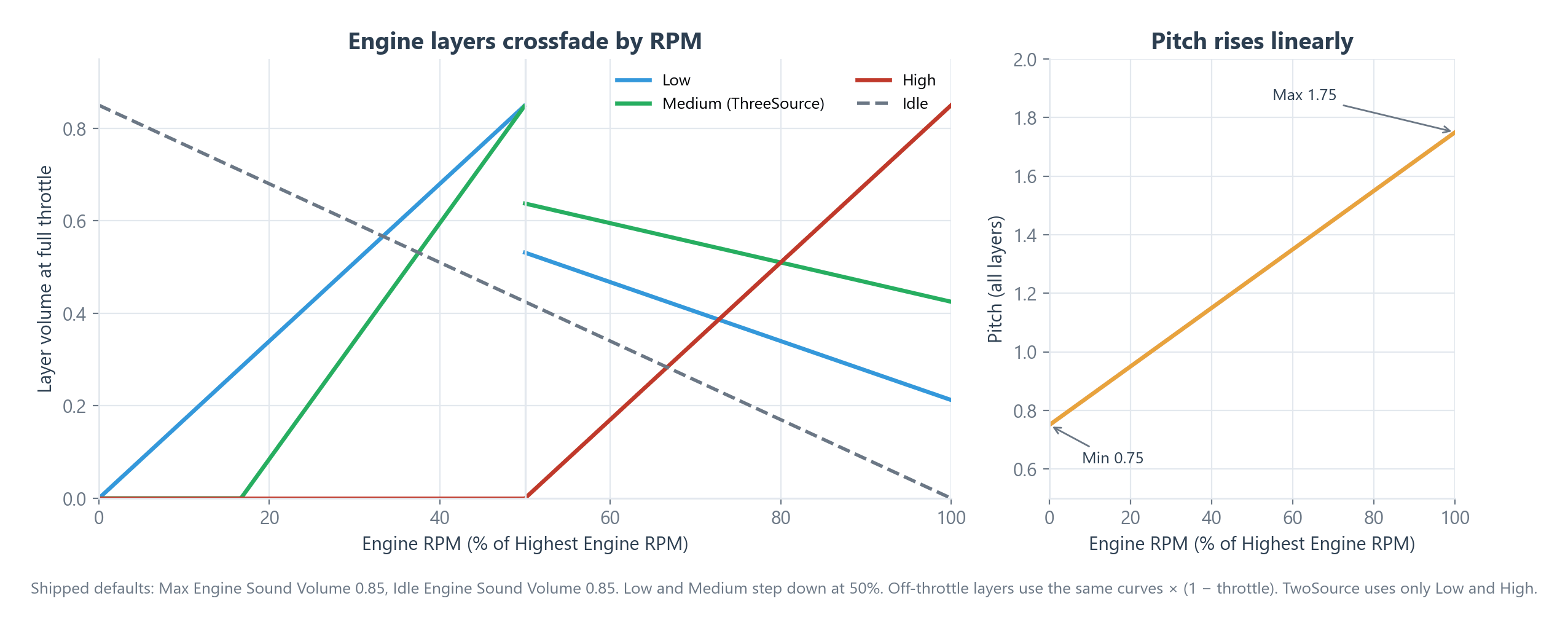
- Pitch: All engine layers share one pitch. It goes from Min Engine Sound Pitch at 0 RPM to Max Engine Sound Pitch at Highest Engine RPM. When the engine is off, the pitch is 0, so the engine is silent.
- Throttle: On-throttle layers play at their layer volume × throttle. Off-throttle layers play at their layer volume × (1 − throttle).
- RPM crossfade (TwoSource and ThreeSource): Each layer's volume depends on the current RPM as a share of Highest Engine RPM, multiplied by Max Engine Sound Volume. TwoSource uses the Low and High rows only.
| Layer | Silent below | Full volume at | At Highest Engine RPM |
|---|---|---|---|
| Low | — (rises from 0 RPM) | 50% | 25% volume |
| Medium | about 17% | 50% | 50% volume |
| High | 50% | 100% | full volume |
- OneSource: The single layer has no RPM crossfade. Only throttle and pitch change it.
- Idle: The idle layer plays alongside the other layers in every mode except Off.
Crash Sounds
A crash sound plays only when all of these are true:
- The collision's relative speed is at least 5 m/s.
- The other object's layer is in Damage Filter (Damage tab, shown when Use Damage is on). A fresh component uses Everything. The filter applies to crash sounds even when Use Damage is off.
- Use Collision Audio is on.
- Crashing Sounds in RCC Settings has at least one clip.
Volume = Max Crash Sound Volume × collision impulse ÷ 10,000. Unity caps AudioSource volume at 1.
Shared Sounds in RCC Settings
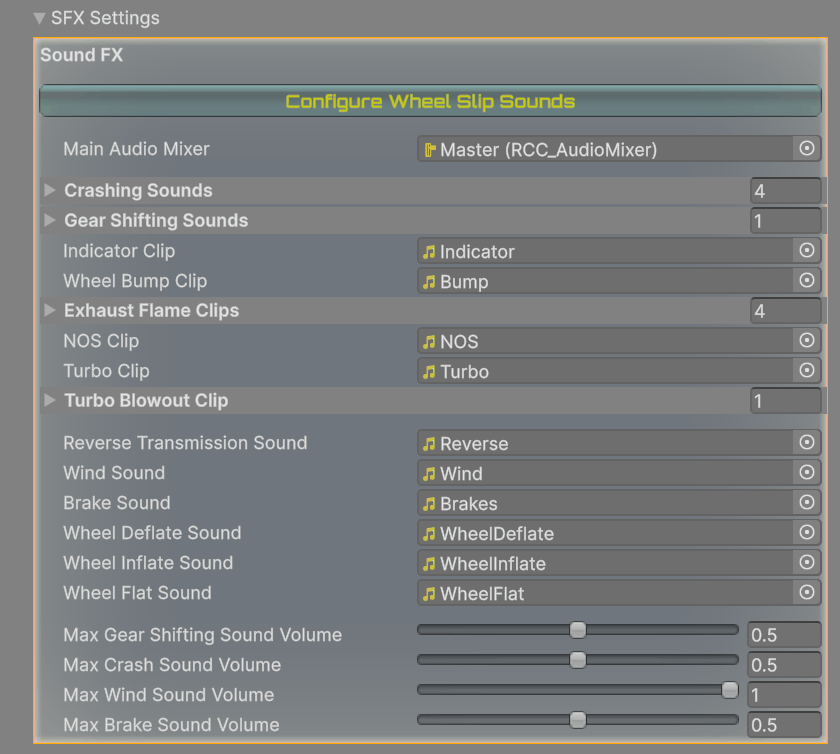
Open Tools → BoneCracker Games → Realistic Car Controller → Edit RCC Settings and expand SFX Settings. These clips are shared by every vehicle. The Configure Wheel Slip Sounds button opens the ground materials, where skid sounds are set.
| Inspector label | Used by | Shipped value |
|---|---|---|
| Main Audio Mixer | The mixer group for RCC sounds | Master group of Sounds/RCC_AudioMixer.mixer |
| Crashing Sounds | Crash | 4 clips (carimpact2–carimpact5) |
| Gear Shifting Sounds | Gear change | 1 clip |
| Indicator Clip | Indicator blink | Indicator |
| Wheel Bump Clip | Suspension bumps | Bump |
| Exhaust Flame Clips | Exhaust flames | 4 clips (ExhaustFire1–ExhaustFire4) |
| NOS Clip | NOS | NOS |
| Turbo Clip | Turbo spool | Turbo |
| Turbo Blowout Clip | NOS release and turbo blow-off | 1 clip (TurboBlow1) |
| Reverse Transmission Sound | Reversing | Reverse |
| Wind Sound | Wind | Wind |
| Brake Sound | Brakes | Brakes |
| Wheel Deflate Sound | Tire deflates | WheelDeflate |
| Wheel Inflate Sound | Tire repaired | WheelInflate |
| Wheel Flat Sound | Rolling on a flat tire | WheelFlat |
| Max Gear Shifting Sound Volume | Gear change volume | 0.5 |
| Max Crash Sound Volume | Crash volume scale | 0.5 |
| Max Wind Sound Volume | Wind volume at 300 km/h | 1 |
| Max Brake Sound Volume | Brake volume at full front braking | 0.5 |
An empty Gear Shifting Sounds or Crashing Sounds list just skips that sound. Keep a clip in Wheel Flat Sound and in Exhaust Flame Clips (if your exhausts have flames); leaving them empty causes errors.
3D and Mixer Settings
- Every RCC audio source is fully 3D (Spatial Blend 1) with Doppler Level 0.5. Min and max distances are set per source in code.
- The sources are created at runtime, so they are not saved in the prefab and you can't edit them in the Inspector before Play mode.
- All sources route to Main Audio Mixer, except the tire deflate, inflate and flat sounds. To control vehicle volume from your own mixer, assign one of its groups there.
See Also
- Ground Physics for skid sounds per surface
- Lights System for indicator lights
- Damage System for Damage Filter and collisions
- RCC Settings
- Vehicle Inspector Reference