Behavior Presets
A behavior preset is a named set of driving assists, steering limits and tire friction values stored in RCC Settings. When presets are on, the selected preset is applied to every vehicle. This page lists the five shipped presets, every preset field, and how to switch presets in the editor and from code.
Quick Start
The global preset system ships off (every vehicle uses its own inspector values). To turn it on:
- Open Tools → BoneCracker Games → Realistic Car Controller → Edit RCC Settings.
- Expand Behavior Settings and tick Override Behavior.
- Click a preset button in the toolbar under the list: Balanced, Racing, Drift, Semi Arcade or Fun.
- Enter Play mode. Every vehicle uses that preset.
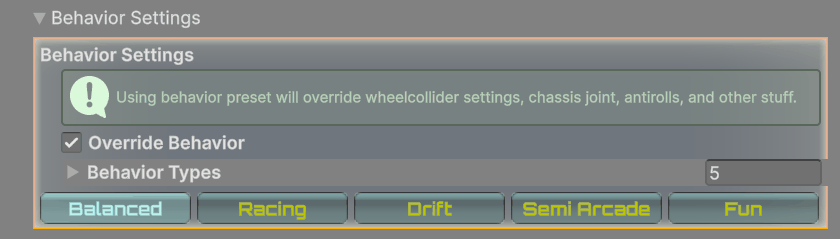
From code, one call does steps 2–3 at runtime:
using UnityEngine;

public class DriftModeOnStart : MonoBehaviour {

    private void Start() {

        // 0 Balanced, 1 Racing, 2 Drift, 3 Semi Arcade, 4 Fun
        RCC.SetBehavior(2);

    }

}
Shipped Presets
The presets live in Resources/RCC Assets/RCC_Settings.asset → Behavior Types. The index is the position in that list.
| Index | Name | In short |
|---|---|---|
| 0 | Balanced | ABS, ESP and TCS on; light helpers; standard grip. |
| 1 | Racing | ABS, ESP and TCS on; stronger helpers and anti-roll than Balanced; shorter sideways grip tail. |
| 2 | Drift | All assists off; counter-steering on; dynamic grip loss while sliding; extra yaw from steering; no anti-roll floor. |
| 3 | Semi Arcade | ABS, ESP and TCS off; strong helpers; double tire grip; high anti-roll; Slight COM assist. |
| 4 | Fun | Like Semi Arcade with maximum steering helper, highest anti-roll and the grippiest tires. |
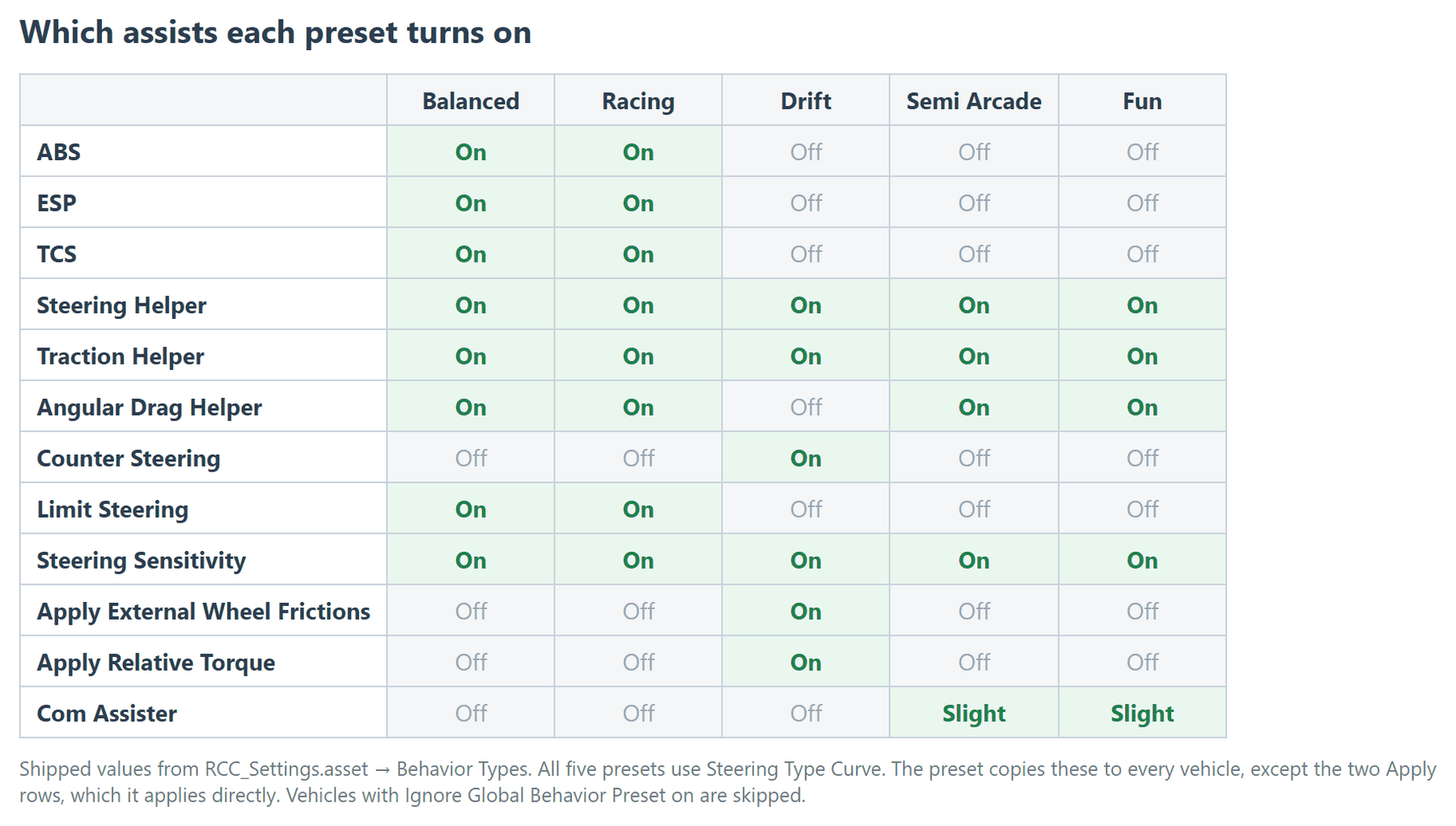
Comparison
Values from the shipped RCC_Settings.asset. A range a–b is a Minimum/Maximum pair (see How a Preset Is Applied).
| Field | Balanced | Racing | Drift | Semi Arcade | Fun |
|---|---|---|---|---|---|
| ABS / ESP / TCS | On | On | Off | Off | Off |
| Steering Helper | On | On | On | On | On |
| Traction Helper | On | On | On | On | On |
| Angular Drag Helper | On | On | Off | On | On |
| Counter Steering | Off | Off | On | Off | Off |
| Limit Steering | On | On | Off | Off | Off |
| Steering Sensitivity | On | On | On | On | On |
| Apply External Wheel Frictions | Off | Off | On | Off | Off |
| Apply Relative Torque | Off | Off | On | Off | Off |
| Com Assister | Off | Off | Off | Slight | Slight |
| Steering Curve (km/h → max °) | 0→40, 100→10, 200→5 | 0→40, 100→10, 200→5 | 0→40, 200→5 | 0→40, 100→10, 200→5 | 0→40, 100→10, 200→5 |
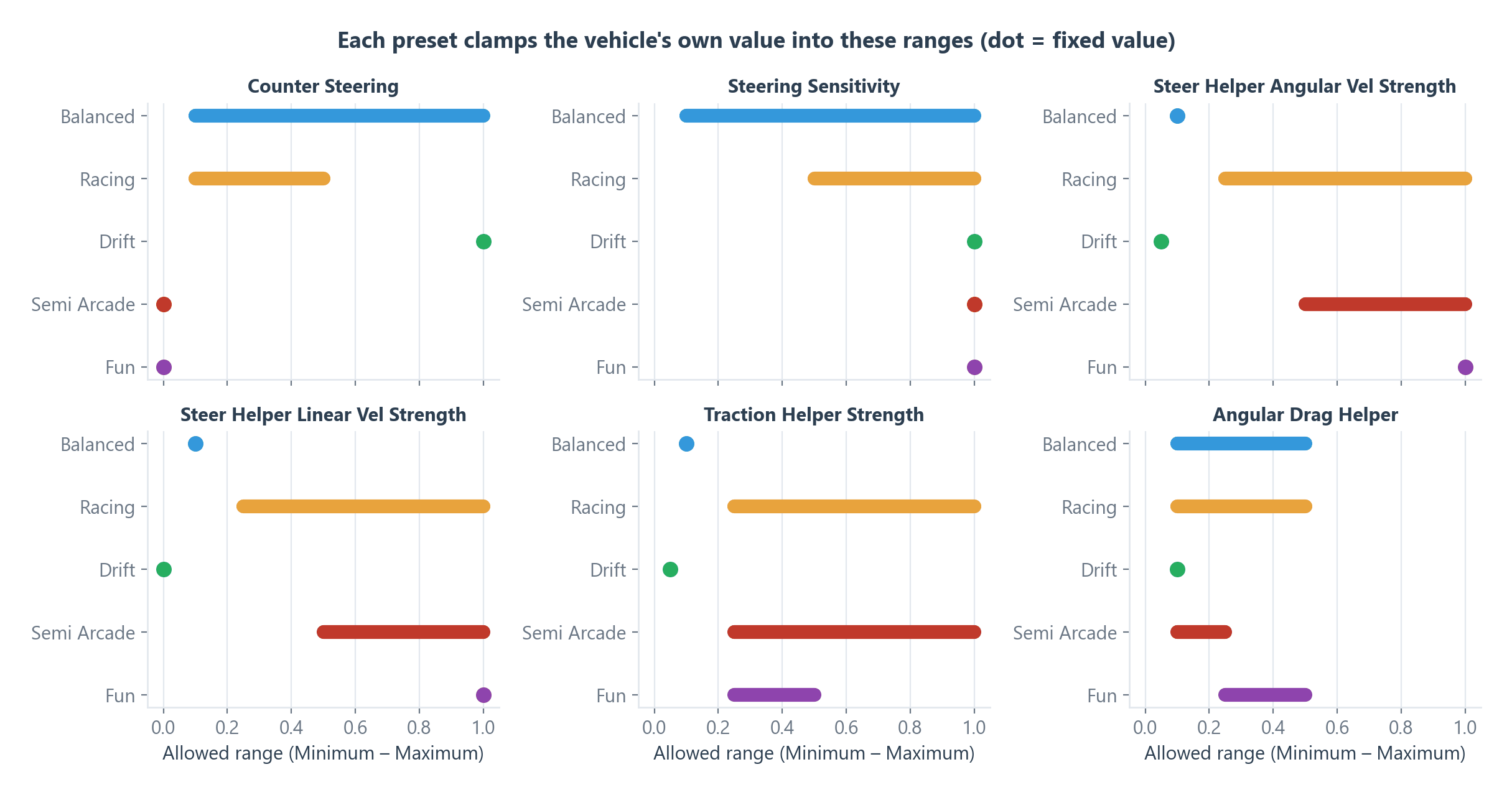
| Counter Steering Min–Max | 0.1–1 | 0.1–0.5 | 1–1 | 0–0 | 0–0 |
| Steering Sensitivity Min–Max | 0.1–1 | 0.5–1 | 1–1 | 1–1 | 1–1 |
| Steer Helper Angular Vel Strength Min–Max | 0.1–0.1 | 0.25–1 | 0.05–0.05 | 0.5–1 | 1–1 |
| Steer Helper Linear Vel Strength Min–Max | 0.1–0.1 | 0.25–1 | 0–0 | 0.5–1 | 1–1 |
| Traction Helper Strength Min–Max | 0.1–0.1 | 0.25–1 | 0.05–0.05 | 0.25–1 | 0.25–0.5 |
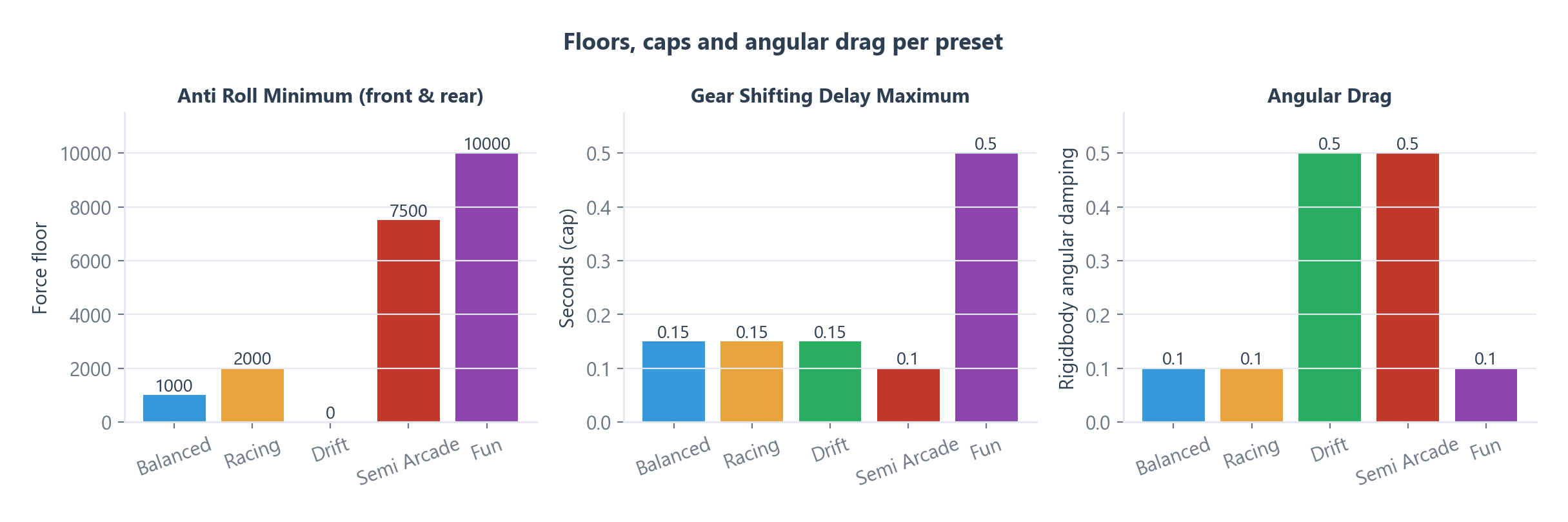
| Anti Roll Front / Rear Horizontal Minimum | 1000 | 2000 | 0 | 7500 | 10000 |
| Gear Shifting Delay Maximum | 0.15 | 0.15 | 0.15 | 0.1 | 0.5 |
| Angular Drag | 0.1 | 0.1 | 0.5 | 0.5 | 0.1 |
| Angular Drag Helper Min–Max | 0.1–0.5 | 0.1–0.5 | 0.1–0.1 | 0.1–0.25 | 0.25–0.5 |
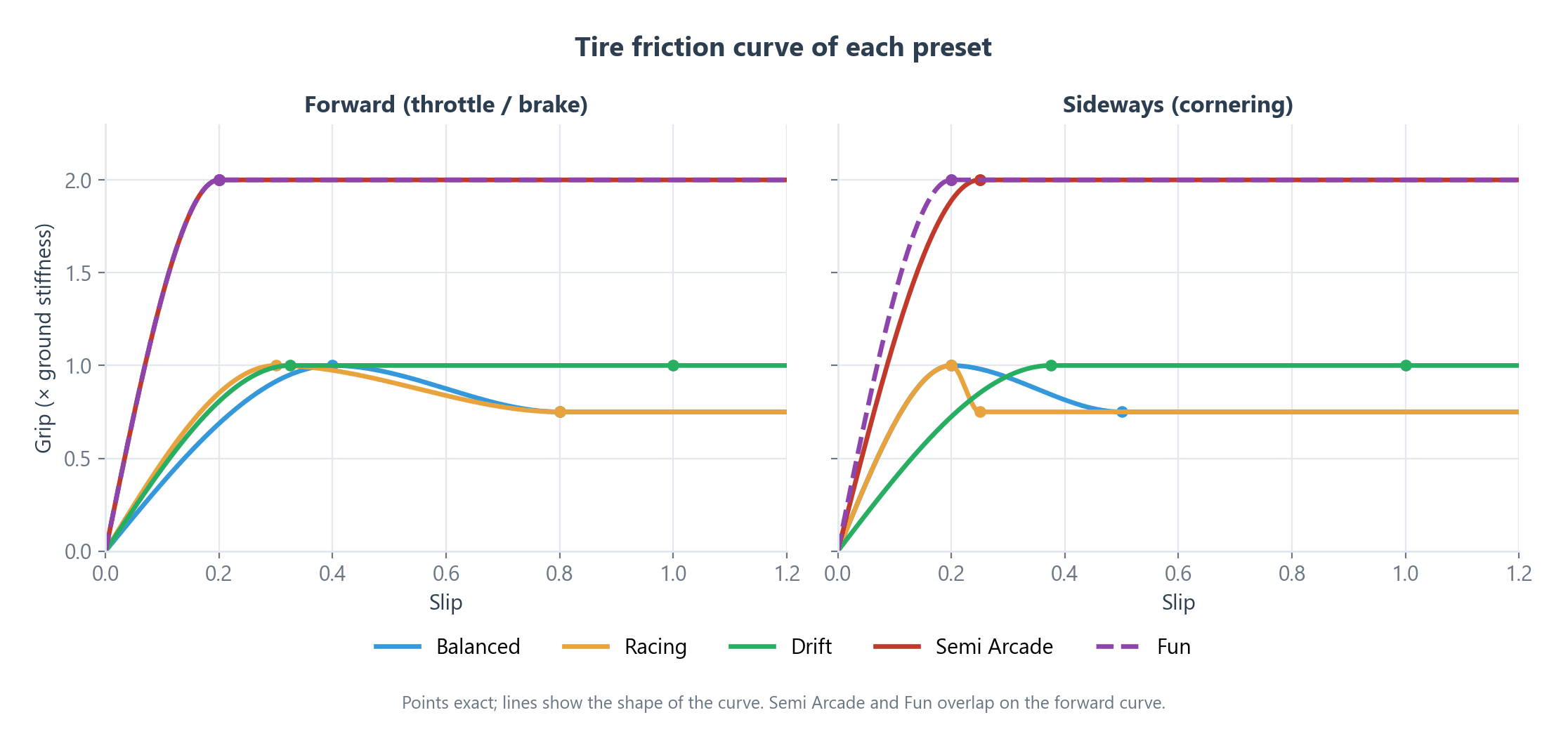
| Forward Extremum Slip / Value | 0.4 / 1 | 0.3 / 1 | 0.325 / 1 | 0.2 / 2 | 0.2 / 2 |
| Forward Asymptote Slip / Value | 0.8 / 0.75 | 0.8 / 0.75 | 1 / 1 | 0.2 / 2 | 0.2 / 2 |
| Sideways Extremum Slip / Value | 0.2 / 1 | 0.2 / 1 | 0.375 / 1 | 0.25 / 2 | 0.2 / 2 |
| Sideways Asymptote Slip / Value | 0.5 / 0.75 | 0.25 / 0.75 | 1 / 1 | 0.25 / 2 | 0.2 / 2 |
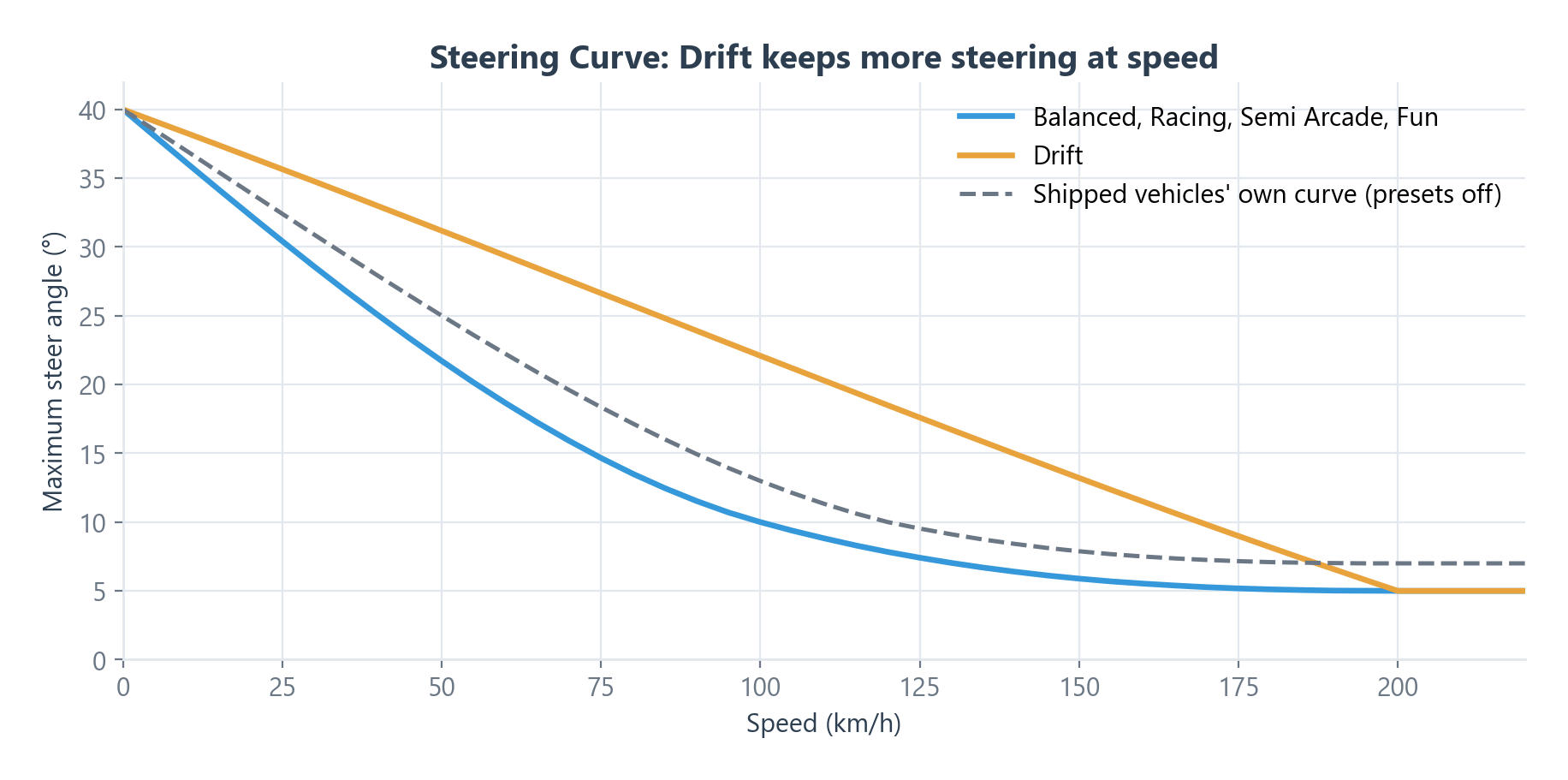
All five use Steering Type Curve. The High Speed Steer Angle fields are listed in the field reference; they only matter for vehicles on the Simple steering type.
How a Preset Is Applied
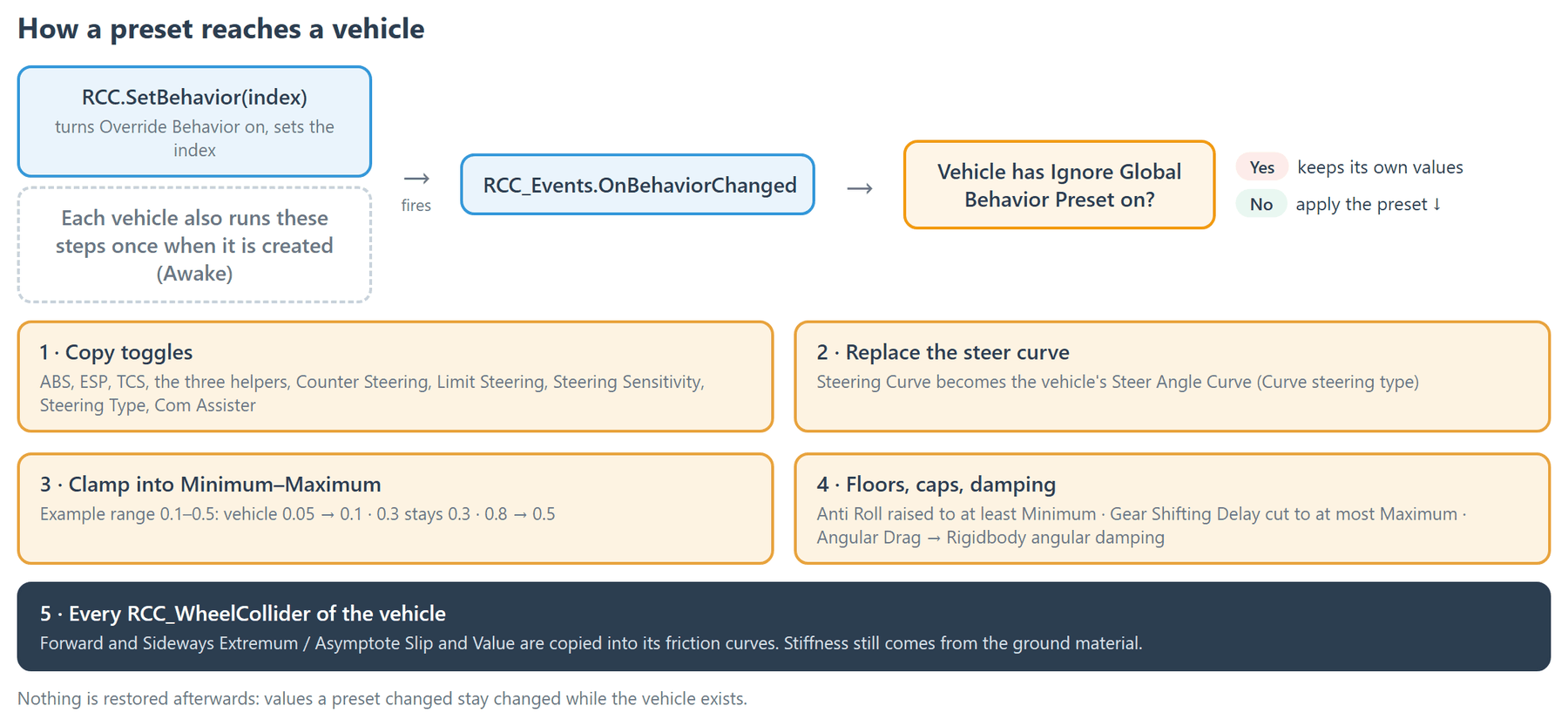
- When: each vehicle applies the selected preset when it is created (Awake) and again whenever
RCC_Events.OnBehaviorChangedfires (everyRCC.SetBehaviorcall). Its wheels re-apply friction at the same moments. - Toggles are copied to the vehicle: Steering Helper, Traction Helper, Angular Drag Helper, Counter Steering, Limit Steering (vehicle: Use Steering Limiter), Steering Sensitivity, ABS, ESP, TCS, Steering Type and Com Assister.
- Steering Curve replaces the vehicle's Steer Angle Curve when the steering type is Curve. Because the shipped presets set Curve, a vehicle set to Simple or Constant is switched to Curve.
- Minimum/Maximum pairs clamp the vehicle's own value. A value already inside the range is kept; a value outside is moved to the nearest end.
- Anti Roll … Minimum is a floor only. Gear Shifting Delay Maximum is a cap only.
- Angular Drag is written to the Rigidbody's angular damping. When Angular Drag Helper is on, the helper overwrites angular damping every physics step, so Angular Drag only has a lasting effect with the helper off (as in Drift).
- Friction: every preset writes its forward and sideways Extremum/Asymptote Slip and Value to all wheels. Stiffness still comes from ground materials.
- Apply External Wheel Frictions adds dynamic grip loss while wheels slip, plus a sideways push on rear wheels of RWD vehicles at high throttle.
- Apply Relative Torque adds yaw torque from steering input every physics step while grounded.
- Values a preset changed are not restored while the vehicle exists. There is no runtime call that turns presets off.
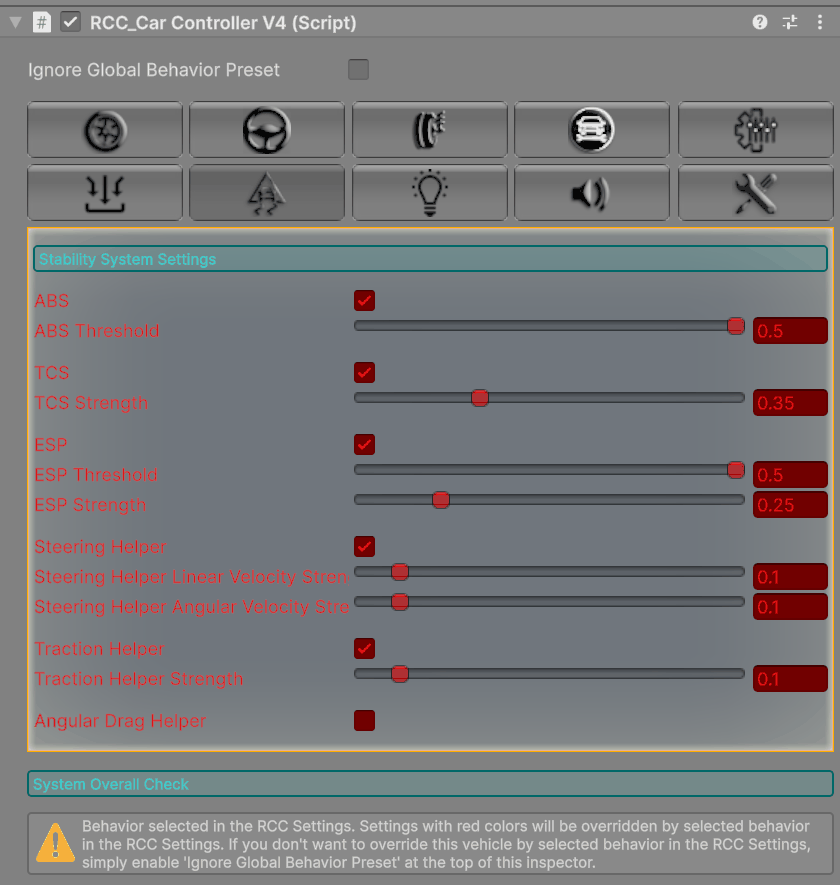
When presets are on, the vehicle inspector shows a warning and draws the sections a preset controls in red.
Field Reference
Labels as shown in Behavior Settings → Behavior Types → Element N.
| Inspector label | What it does | Range |
|---|---|---|
| Behavior Name | Button label in the toolbar. | — |
| Steering Helper | Turns the car toward where the front wheels point and bends its velocity to follow its heading. Reduces fishtailing. | — |
| Traction Helper | Lowers the front wheels' sideways grip in proportion to the car's yaw rate when steering and slide direction disagree. Reduces spinning out. It does not cut engine torque. | — |
| Angular Drag Helper | Raises the Rigidbody's angular damping with speed. | — |
| Counter Steering | Adds steering input against the drift angle. | — |
| Limit Steering | Limits steering input while the car slides sideways. | — |
| Steering Sensitivity | Smooths steering input; the vehicle's Steering Sensitivity value sets how fast the wheels follow. | — |
| ABS | Releases a wheel's brake while it slips (not while the handbrake is held). | — |
| ESP | Brakes single wheels to correct understeer and oversteer. | — |
| TCS | Reduces a driven wheel's torque while it spins. | — |
| Apply External Wheel Frictions | Enables dynamic grip loss while sliding (see above). | — |
| Apply Relative Torque | Adds yaw torque from steering input while grounded. | — |
| Steering Type | Curve, Simple or Constant. | — |
| Steering Curve | Speed (km/h) → maximum steer angle (degrees). Used with Curve. | — |
| Com Assister | Shifts the center of mass sideways with the car's rotation: Off, Slight, Medium, Opposite. | — |
| High Speed Steer Angle Minimum / Maximum | Clamp the vehicle's Maximum Steer Angle At "X" Speed (Simple steering). | 0–60 |
| High Speed Steer Angle Atspeed Minimum / Maximum | Clamp the vehicle's "X" Speed, in km/h (Simple steering). | ≥ 0 |
| Counter Steering Minimum / Maximum | Clamp the vehicle's Counter Steering Factor. | 0–1 |
| Steering Sensitivity Minimum / Maximum | Clamp the vehicle's Steering Sensitivity. | 0–1 |
| Steer Helper Angular Vel Strength Minimum / Maximum | Clamp the steering helper's turning torque. | 0–1 |
| Steer Helper Linear Vel Strength Minimum / Maximum | Clamp how strongly the steering helper bends velocity. | 0–1 |
| Traction Helper Strength Minimum / Maximum | Clamp the vehicle's Traction Helper Strength. | 0–1 |
| Anti Roll Front Horizontal Minimum | Lowest allowed front anti-roll force. | ≥ 0 |
| Anti Roll Rear Horizontal Minimum | Lowest allowed rear anti-roll force. | ≥ 0 |
| Gear Shifting Delay Maximum | Longest allowed gear shift delay, in seconds. | 0–1 |
| Angular Drag | Rigidbody angular damping (see above). | 0–10 |
| Angular Drag Helper Minimum / Maximum | Clamp the vehicle's Angular Drag Helper Strength. | 0–1 |
| Forward Extremum Slip / Value | Peak forward grip point of every wheel. | ≥ 0 |
| Forward Asymptote Slip / Value | Forward grip after the tire breaks loose. | ≥ 0 |
| Sideways Extremum Slip / Value | Peak sideways grip point of every wheel. | ≥ 0 |
| Sideways Asymptote Slip / Value | Sideways grip after the tire breaks loose. | ≥ 0 |
What the friction values mean: How WheelColliders Work.
Per-Vehicle Opt-Out
To keep one vehicle on its own settings while presets are on, tick Ignore Global Behavior Preset at the top of its RCC_CarControllerV4 inspector. That vehicle and its wheels skip every preset step above.
Changed in V6: this toggle was previously labelled Ineffective Behavior.
Creating a Custom Preset
Edit outside Play mode.
- Open Edit RCC Settings → Behavior Settings and tick Override Behavior (the list is disabled while it is off).
- Expand Behavior Types and click + under the list. Unity adds a copy of the last entry as a new element.
- Rename Behavior Name and change the values. A button with that name appears in the toolbar.
- Select it with its button, or call
RCC.SetBehavior(5)(its index in the list).
Reordering or removing entries changes the indices your code uses.
Switching at Runtime
RCC.SetBehavior(int) turns Override Behavior on, sets the selected index and fires RCC_Events.OnBehaviorChanged. Every vehicle in the scene re-applies the preset; vehicles spawned later use it too. An index outside the list applies nothing.
A preset picker for a uGUI Dropdown:
using System.Collections.Generic;
using UnityEngine;
using UnityEngine.UI;

public class BehaviorDropdown : MonoBehaviour {

    public Dropdown dropdown;

    private void Start() {

        List<string> names = new List<string>();

        foreach (RCC_Settings.BehaviorType preset in RCC_Settings.Instance.behaviorTypes)
            names.Add(preset.behaviorName);

        dropdown.ClearOptions();
        dropdown.AddOptions(names);
        dropdown.SetValueWithoutNotify(RCC_Settings.Instance.behaviorSelectedIndex);
        dropdown.onValueChanged.AddListener(RCC.SetBehavior);

    }

}
React to a change, for example to update a HUD label:
using UnityEngine;
using UnityEngine.UI;

public class BehaviorLabel : MonoBehaviour {

    public Text label;

    private void OnEnable() {

        RCC_Events.OnBehaviorChanged += UpdateLabel;
        UpdateLabel();

    }

    private void OnDisable() {

        RCC_Events.OnBehaviorChanged -= UpdateLabel;

    }

    private void UpdateLabel() {

        RCC_Settings.BehaviorType preset = RCC_Settings.Instance.selectedBehaviorType;
        label.text = preset != null ? preset.behaviorName : "Off";

    }

}
selectedBehaviorType returns null while Override Behavior is off.
Editing in Play Mode
In Play mode, Edit RCC Settings opens a runtime copy of the settings. Changes affect only that session and are lost when you stop. Clicking a preset button there does not re-apply presets to vehicles already in the scene; call RCC.SetBehavior instead.