First Look — What You Got
A short tour of the package after import: the folders, the settings assets, the prefabs you will use first, the Tools menu, and the Welcome Window.
Everything RCC ships lives in one folder: Assets/RealisticCarControllerV4/.
Folder Layout
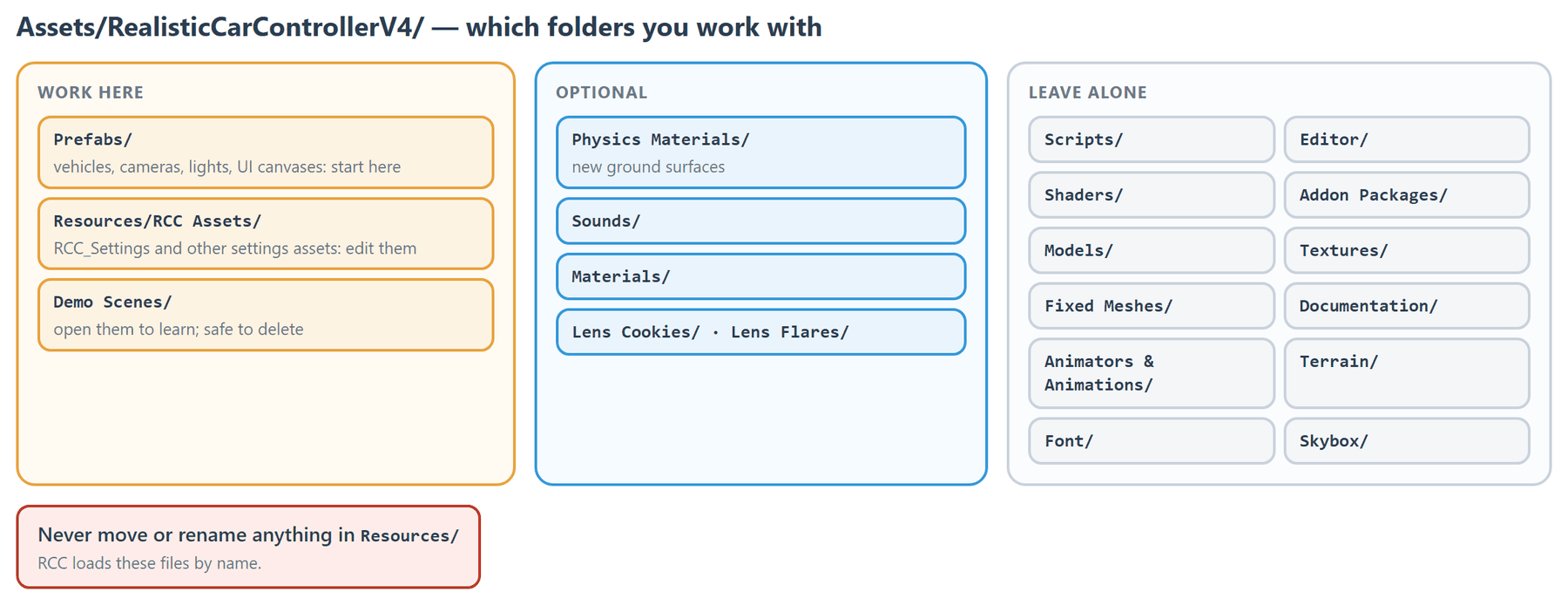
| Folder | What's in it | Do you need to touch it? |
|---|---|---|
Addon Packages/ |
Installer .unitypackage files for the addons (Photon PUN 2, Enter-Exit) and the render pipeline shaders. |
No. Import them from the Welcome Window (Addons tab) or the Render Pipeline Converter. See Addon Packages. |
Animators & Animations/ |
Animator controllers and clips for the cinematic camera and the demo plane. | No. |
Demo Scenes/ |
The demo scenes and their lighting data. See Demo Scenes. | Open them to learn. Safe to delete (see Welcome tab). |
Documentation/ |
This documentation as offline HTML. | No. |
Editor/ |
Custom inspectors, editor windows, menu items and setup scripts. | No. |
Fixed Meshes/ |
Saved mesh assets used by the Jeep, M3_E46 and Pickup demo vehicles. | No. |
Font/ |
The Orbitron font used by the UI. | No. |
Lens Cookies/ |
Light cookie textures for vehicle lights. | Optional. |
Lens Flares/ |
Lens flare assets for vehicle lights. | Optional. |
Materials/ |
Materials for decals, neons, particles and URP lens flares. | Optional. |
Models/ |
3D models for the demo vehicles, wheels, spoilers and environments. | No. |
Physics Materials/ |
Physic materials for surfaces (asphalt, grass, sand, terrain) and colliders. | Only when you add new ground surfaces. See Ground Physics. |
Prefabs/ |
Vehicles, wheels, cameras, lights, UI canvases, crashers and props. | Yes. This is where you start. |
Resources/ |
Settings assets, the input actions file and editor icons. RCC loads these by name. | Edit the settings assets. Never move or rename anything here. |
Scripts/ |
Runtime C# code. See Scripts Reference. | No. Extend RCC from your own scripts instead. |
Shaders/ |
The skidmark shader, plus Builtin/, URP/ and HDRP/ folders that receive the pipeline shaders on import. |
No. See Render Pipelines. |
Skybox/ |
The demo skybox. | No. |
Sounds/ |
Engine, gear, crash, turbo, exhaust and wheel audio, plus RCC_AudioMixer.mixer. |
Optional. See Audio System. |
Terrain/ |
Terrain data and terrain layers for the demo scenes. | No. |
Textures/ |
Textures for the city, dashboard, decals, mobile UI, particles, upgrades and wheels. | No. |
The Photon PUN 2 addon adds four more folders when you import it: Scripts/Photon PUN 2/, Editor/Photon PUN 2/, Resources/Photon Vehicles/ and Demo Scenes/RCC Photon Scenes/.
Settings Assets
These ScriptableObjects live in Resources/RCC Assets/. Open them from the menu. You can also select them in the Project window.
| Asset | What it holds | How to open |
|---|---|---|
RCC_Settings |
Global settings: behavior presets, mobile controls, layers, telemetry, and the prefabs RCC spawns (camera, canvas, lights). See RCC Settings. | Tools → BoneCracker Games → Realistic Car Controller → Edit RCC Settings |
RCC_InitialSettings |
Default Rigidbody, suspension and wheel friction values applied to new vehicles. | Tools → BoneCracker Games → Realistic Car Controller → Configure → Configure Initial Vehicle Setup Settings |
RCC_GroundMaterials |
Friction, audio and particles per ground surface. See Ground Physics. | Tools → BoneCracker Games → Realistic Car Controller → Configure → Configure Ground Materials |
RCC_DemoVehicles |
The vehicle list used by the demo scenes (10 vehicles). | Tools → BoneCracker Games → Realistic Car Controller → Configure → Configure Demo Vehicles |
RCC_ChangableWheels |
Wheel prefabs offered by the customization wheel menu. | Tools → BoneCracker Games → Realistic Car Controller → Configure → Configure Changeable Wheels |
RCC_Records |
Recorded replay clips. | Tools → BoneCracker Games → Realistic Car Controller → Configure → Configure Recorded Clips |
RCC_CustomizationSetups |
Prefabs the editor uses to add customization components to vehicles. | Project window only. |
RCC_AssetPaths |
Asset references, paths and links used by the editor tools. | Project window only. Do not edit. |
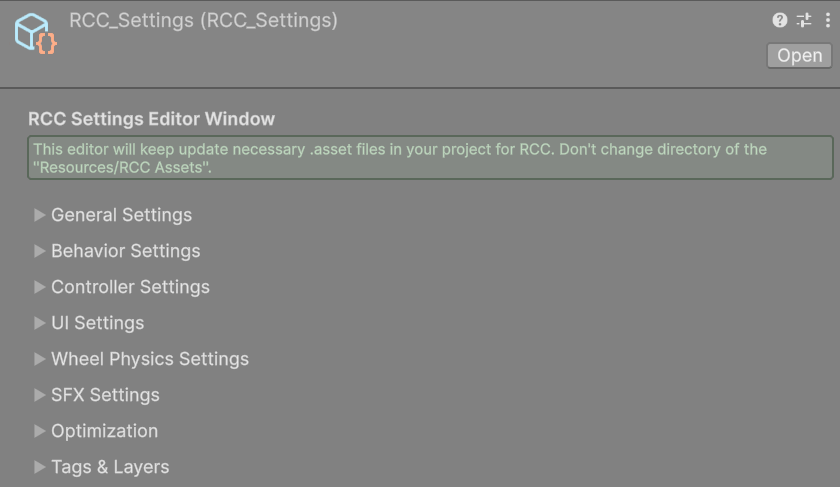
The input bindings file, RCC_InputActions.inputactions, is in Resources/ itself. See Input System.
Prefabs You Will Use First
| Prefab | Location | Use |
|---|---|---|
Vehicles: CTR, Coupe, F1, Jeep, M3_E36, M3_E46_New, M5_E30, Muscle, Pickup, Skyline, Skyline (AI Chaser), Truck |
Prefabs/Vehicles/ |
Ready-to-drive vehicles. Drag one into a scene. Skyline (AI Chaser) has an AI controller. |
RCC_Camera |
Prefabs/ |
The player camera. Add it with Create → Cameras → Add RCC Camera To Scene. See Camera System. |
RCC_Canvas |
Prefabs/UI/ |
Dashboard HUD and mobile touch controls. Add it with Create → UI → Add RCC Canvas To Scene. See Mobile Setup. |
RCC_Telemetry |
Prefabs/UI/ |
Telemetry overlay. Spawned automatically when RCC Settings → Use Telemetry is on. |
RCC_Canvas (AIO) |
Prefabs/UI/ |
The demo launcher menu of the AIO demo scene. Not needed in your game. |
RCC_Canvas (API) |
Prefabs/UI/ |
Button panel of the RCC_Blank_API demo scene. |
RCC_Wheel_1 … RCC_Wheel_7 |
Prefabs/Wheels/ |
Wheel models for vehicle setup and customization. |
SmallTrailer, RCC_LightTrailer |
Prefabs/ |
A towable trailer and its light. |
Managers (RCC_SceneManager, RCC_SkidmarksManager, RCC_CustomizationManager) create themselves when a scene needs them. To add one by hand, use Tools → BoneCracker Games → Realistic Car Controller → Create → Managers.
Tools Menu
All RCC tools are under Tools → BoneCracker Games → Realistic Car Controller:
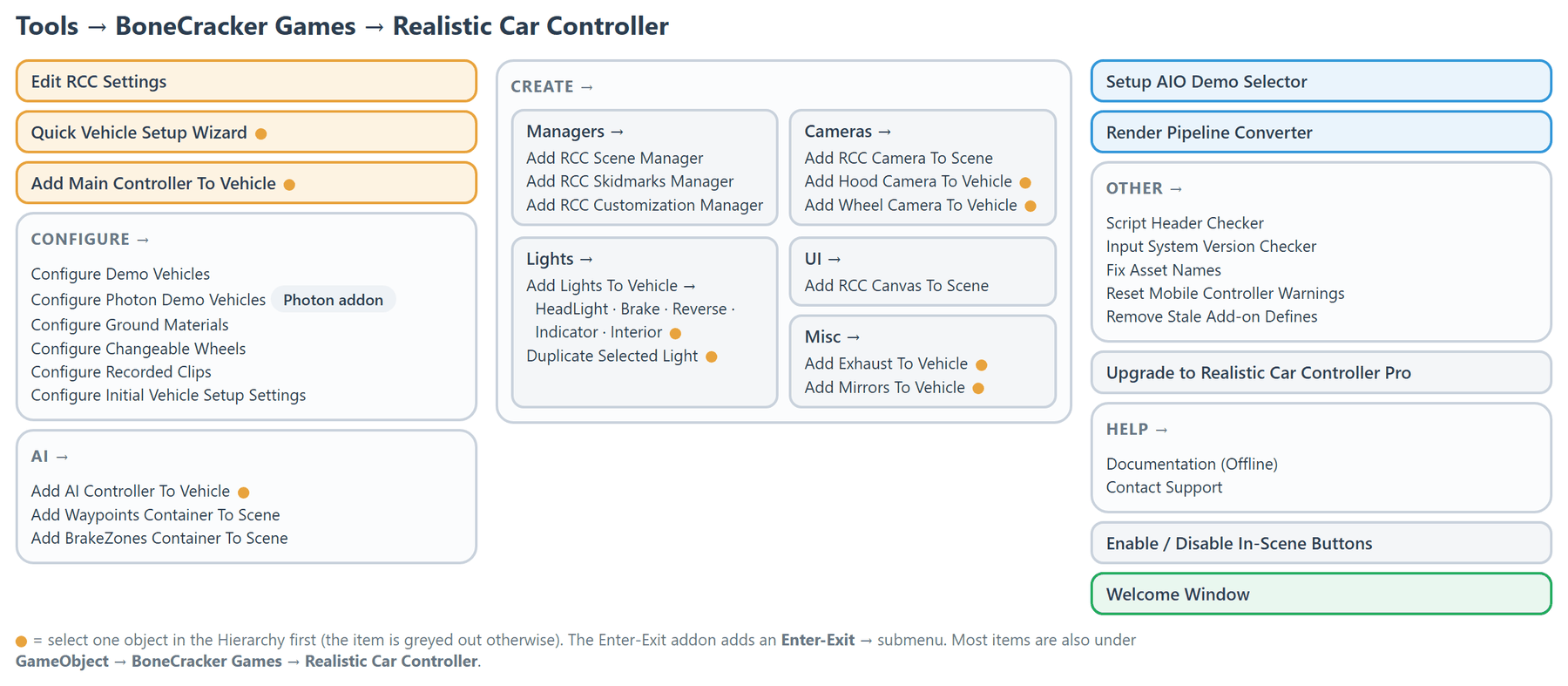
| Menu item | What it does |
|---|---|
| Edit RCC Settings | Selects RCC_Settings in the Inspector. |
| Quick Vehicle Setup Wizard | Turns a 3D model into a drivable vehicle. See Creating New Vehicles. |
| Add Main Controller To Vehicle | Adds RCC_CarControllerV4 to the selected model, or opens the wizard instead. |
| Configure → | Opens the settings assets listed above. Configure Photon Demo Vehicles appears after the Photon addon is imported. |
| Create → | Managers, Cameras (RCC camera, hood camera, wheel camera), Lights (headlight, brake, reverse, indicator, interior; duplicate selected light), UI (RCC Canvas), Misc (exhaust, mirrors). |
| AI → | Add AI Controller To Vehicle, Add Waypoints Container To Scene, Add BrakeZones Container To Scene. See AI System. |
| Setup AIO Demo Selector | Edits the RCC_Canvas (AIO) prefab in place: category headers, hover tooltips on the level buttons, and a keyboard controls panel. |
| Render Pipeline Converter | Converts RCC to URP or HDRP. See Render Pipelines. |
| Other → | Script Header Checker, Input System Version Checker, Fix Asset Names, Reset Mobile Controller Warnings, Remove Stale Add-on Defines. |
| Upgrade to Realistic Car Controller Pro | Opens the RCC Pro info window. |
| Help → | Documentation (Offline) opens this documentation. Contact Support opens the support page. |
| Enable In-Scene Buttons / Disable In-Scene Buttons | Shows or hides the RCC toolbar in the Scene view. |
| Welcome Window | Opens the Welcome Window. |
The Enter-Exit addon adds an Enter-Exit → submenu.
New in V6: Help → Documentation (Offline) opens these docs without an internet connection. Add RCC Camera To Scene offers to disable other main cameras and AudioListeners (undoable) instead of requiring you to delete
Main Camera.
Welcome Window
Opens automatically on first import. Reopen it with Tools → BoneCracker Games → Realistic Car Controller → Welcome Window.
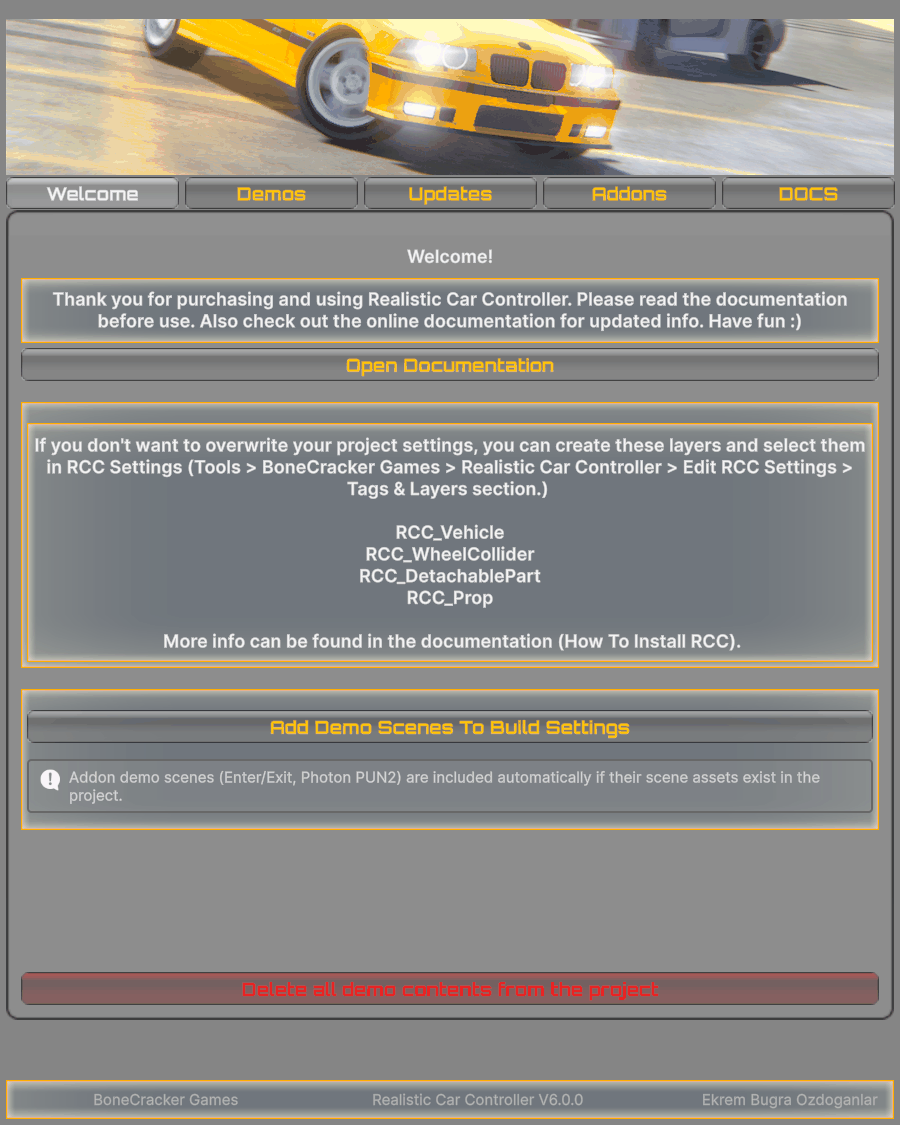
| Tab | What's there |
|---|---|
| Welcome | Open Documentation, the list of RCC layers, Add Demo Scenes To Build Settings, and Delete all demo contents from the project. |
| Demos | One button per demo scene. Photon scenes appear after the Photon addon is imported. |
| Updates | Installed version, update steps, and Check Updates. |
| Addons | Import the Photon PUN 2 integration and the Enter-Exit addon. See Addon Packages. |
| DOCS | Documentation (Offline HTML), Youtube Tutorial Videos, Other Assets. |