How the System Works
This page covers how RCC's main parts fit together: which components exist, what happens each frame, how the player vehicle is chosen, where settings come from, and how your own code hooks in. Each system has its own chapter; this page links to them.
Component Map
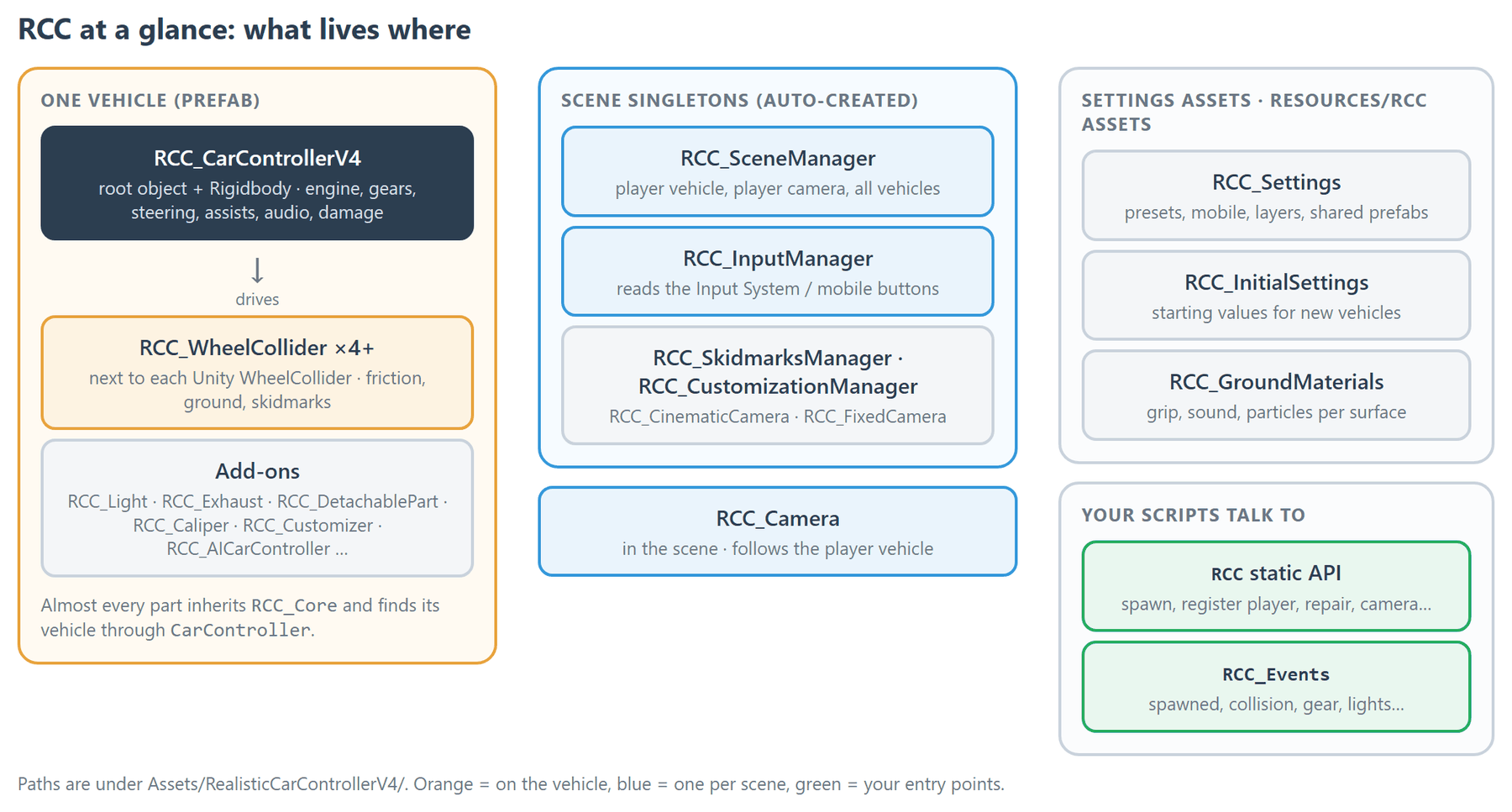
| Part | What it is | Where |
|---|---|---|
RCC_Core |
Base class for almost every RCC component. Gives each one Settings, GroundMaterials and CarController (the parent vehicle, found by walking up the hierarchy). |
Scripts/RCC_Core.cs |
RCC_CarControllerV4 |
The vehicle. One per car, on the root with a Rigidbody. Engine, gearbox, steering, brakes, assists, audio, damage. |
Scripts/RCC_CarControllerV4.cs |
RCC_WheelCollider |
Sits next to each Unity WheelCollider. Applies torque / brake / steer, friction, ground detection, skidmarks, wheel particles and audio. |
Scripts/RCC_WheelCollider.cs |
| Singletons | RCC_SceneManager, RCC_InputManager, RCC_SkidmarksManager, RCC_CustomizationManager, RCC_CinematicCamera, RCC_FixedCamera (plus two UI helpers). Each is created automatically the first time something needs it. |
Scripts/RCC_Singleton.cs |
RCC_Camera |
The player camera. Follows the vehicle the Scene Manager marks as the player. | Scripts/Camera/ |
| Vehicle add-ons | RCC_Light, RCC_Exhaust, RCC_DetachablePart, RCC_Caliper, RCC_Mirror, RCC_Customizer, RCC_AICarController and others. All read their vehicle through CarController. |
Scripts/ |
| Settings assets | RCC_Settings, RCC_InitialSettings, RCC_GroundMaterials and a few smaller ScriptableObjects. |
Resources/RCC Assets/ |
RCC |
Static API for common tasks (spawn, register player, repair, change camera…). | Scripts/RCC.cs |
RCC_Events |
Static events you can subscribe to. | Scripts/RCC_Events.cs |
Classes that do not inherit RCC_Core: RCC_TruckTrailer (a plain MonoBehaviour), RCC_Events, RCC_CheckUp and RCC_GetBounds (plain classes), and the data classes RCC_Inputs and RCC_Damage (serializable classes, not components — RCC_Damage is the damage field on the vehicle).
All paths are relative to Assets/RealisticCarControllerV4/.
A Frame in the Life of a Vehicle
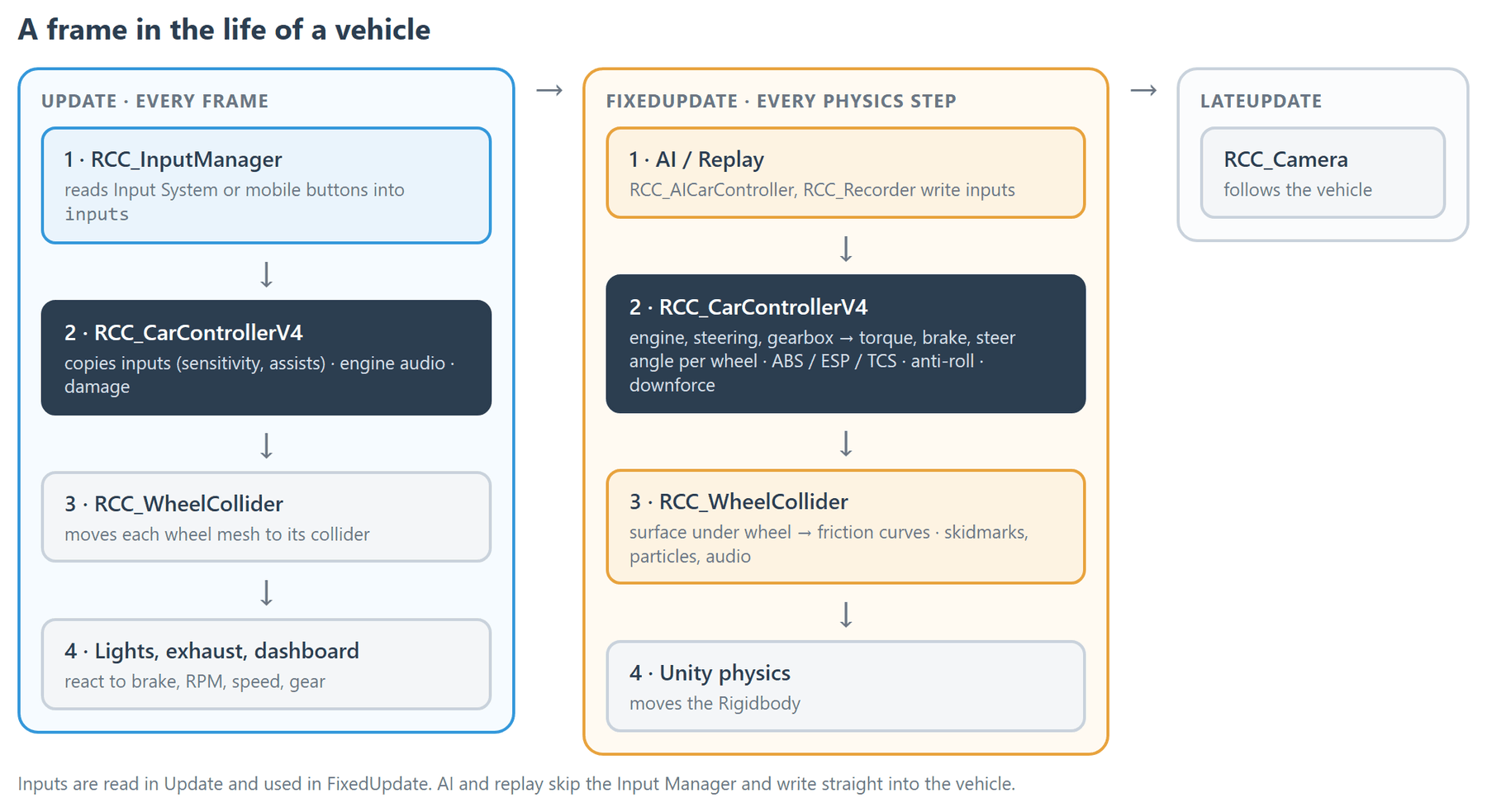
Every frame (Update)
RCC_InputManagerreads the Input System (or the mobile buttons, when Mobile Controller is enabled) into itsinputs(anRCC_Inputs).RCC_CarControllerV4copies those inputs into its ownthrottleInput,brakeInput,steerInput,handbrakeInput, etc., applying steering sensitivity and assists. It also updates engine audio and damage.RCC_WheelCollidermoves each wheel mesh to match its collider.RCC_Light,RCC_Exhaustand the dashboard UI react to the vehicle's current values (brake, RPM, speed, gear…).
Every physics step (FixedUpdate)
- AI (
RCC_AICarController) and replay (RCC_Recorder) write their inputs straight into the vehicle. RCC_CarControllerV4runs the engine, steering and gearbox, then pushes motor torque, brake torque and steer angle into eachRCC_WheelCollider. Assists (ABS, ESP, TCS, steering / traction helpers), anti-roll bars and downforce run here.RCC_WheelColliderfinds the surface under the wheel, sets the friction curves, and handles skidmarks, wheel particles and wheel audio.- Unity's physics moves the
Rigidbody.
After that (LateUpdate) — RCC_Camera follows the vehicle.
Friction starts from the active behavior preset (when the global preset is on and the vehicle doesn't ignore it) and is scaled by the ground material. See Behavior Presets, Ground Physics and How WheelColliders Work.
Script execution order
RCC sets this automatically on import (Editor/InitLoad/RCC_ScriptExecutionOrderManager.cs). Don't change it by hand.
| Order | Script | Why |
|---|---|---|
| -1000 | RCC_SceneManager |
Ready before any vehicle registers itself. |
| -60 | RCC_MobileButtons |
Publishes touch input before the Input Manager reads it. |
| -50 | RCC_InputManager, RCC_SkidmarksManager |
Created early, outside the first physics step. |
| -11 | RCC_AICarController, RCC_Recorder |
Write inputs before the vehicle uses them. |
| -10 | RCC_CarControllerV4 |
Updates slip / steering state before the wheels read it. |
| 10 | RCC_Customizer |
Applies the saved loadout after the vehicle is set up. |
Player Vehicle Registration
The Scene Manager (RCC_SceneManager) tracks the player vehicle (activePlayerVehicle), the player camera and all vehicles in the scene. Add it with Tools → BoneCracker Games → Realistic Car Controller → Create → Managers → Add RCC Scene Manager; if you don't, it is created automatically when first needed.
A vehicle becomes the player vehicle in one of two ways:
- Automatically. Every vehicle that is not AI-controlled announces itself when it spawns. With Register Last Spawned Vehicle As Player Vehicle on (the default), the Scene Manager registers it. The last one to spawn wins.
- From code.
RCC.RegisterPlayerVehicle(vehicle), with overloads that also set controllability and engine state.RCC.DeRegisterPlayerVehicle()clears it.
Registering points the camera at the vehicle.
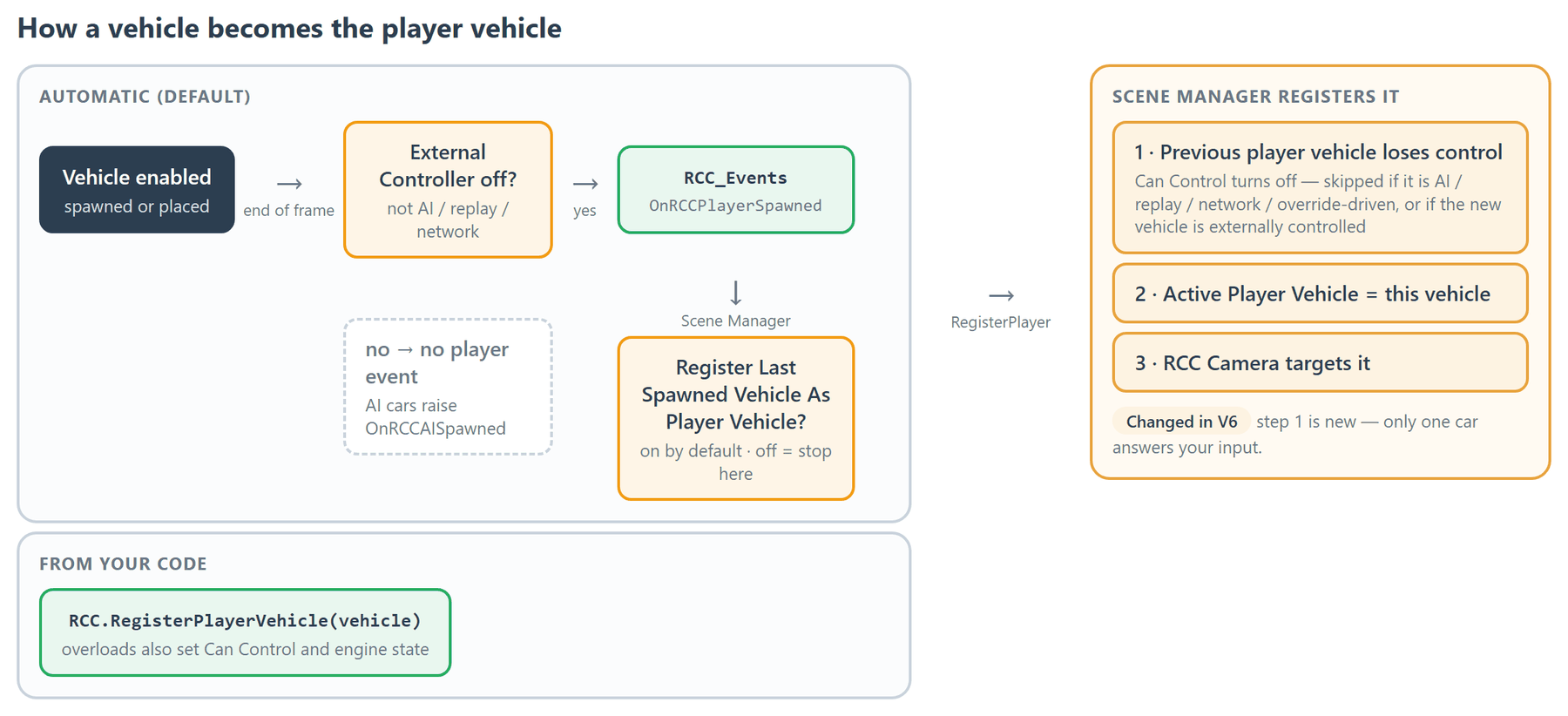
Changed in V6: registering a new player vehicle takes player control away from the previous one, so only one car answers your input. A previous vehicle driven by AI, replay, network or override inputs is left alone, and registering an AI car (for example to watch it) releases nothing.
Where Settings Come From
| Asset | Used for | Open with |
|---|---|---|
RCC_Settings |
Project-wide settings: behavior presets, mobile controller, layers, shared prefabs and sounds. Read at runtime. | Tools → BoneCracker Games → Realistic Car Controller → Edit RCC Settings |
RCC_InitialSettings |
Starting values (Rigidbody, suspension, friction) applied when you add RCC_CarControllerV4 to a model and when RCC creates its wheel colliders. Changing it does not touch existing vehicles. |
Tools → BoneCracker Games → Realistic Car Controller → Configure → Configure Initial Vehicle Setup Settings |
RCC_GroundMaterials |
Friction, sound and particles per physic material and terrain layer. | Tools → BoneCracker Games → Realistic Car Controller → Configure → Configure Ground Materials |
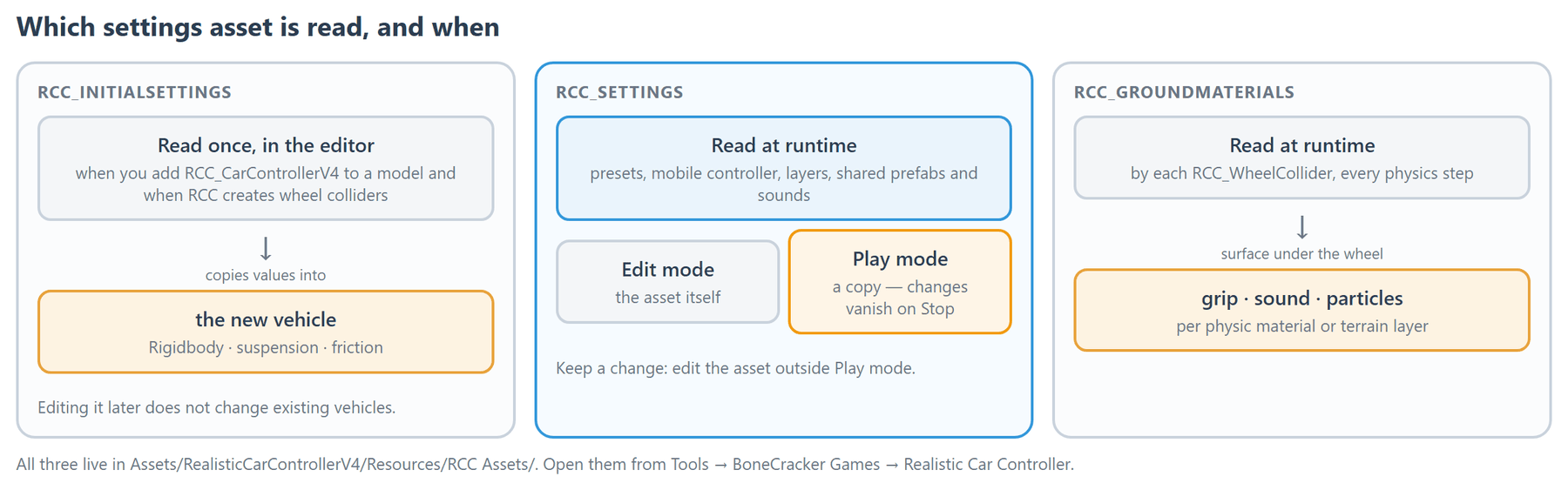
In Play mode, RCC_Settings.Instance returns a copy of the asset. Runtime changes (for example switching presets with RCC.SetBehavior) are gone when you stop playing; edit the asset outside Play mode to keep a change.
Changed in V6: the Play-mode copy is never used after you leave Play mode, so edits you make to RCC Settings in edit mode always reach the asset.
The five behavior presets (Balanced, Racing, Drift, Semi Arcade, Fun) live in RCC_Settings, and the global preset ships off. Details: Behavior Presets and RCC Settings.
Extension Points
Extend RCC from your own scripts instead of editing RCC's — your changes then survive updates.
| Need | Use | Chapter |
|---|---|---|
| React to spawns, collisions, gear shifts, lights, camera changes | RCC_Events — subscribe in OnEnable, unsubscribe in OnDisable |
Events System |
| Drive a vehicle from your own code | OverrideInputs(RCC_Inputs) on the vehicle; DisableOverrideInputs() to hand back |
Overriding Inputs |
| Spawn, register, repair, change camera or behavior | RCC static methods |
Scripting API |
| Control one vehicle directly | Vehicle methods such as StartEngine(), KillEngine(), GearShiftUp(), GearShiftDown(), GearShiftTo(int) (0 = first gear, -1 = reverse), SetCanControl(bool) |
Scripting API |
Things to know:
- AI does not use
OverrideInputs.RCC_AICarControllercallsSetExternalControl(true)on its vehicle and writes the inputs directly. An externally controlled vehicle ignores player input and input events. See AI System. - Input events fire on the key press, for everyone. For example
RCC_Events.OnGearShiftUpfires when the gear-up input is pressed, not when a gear change happens; each vehicle decides whether to act on it. OnRCCPlayerSpawnedfires for every non-AI vehicle when it spawns, not only for the registered player vehicle.
Example — log every player-vehicle collision:
using UnityEngine;

public class CollisionLogger : MonoBehaviour {

    private void OnEnable() {
        RCC_Events.OnRCCPlayerCollision += OnVehicleCollision;
    }

    private void OnDisable() {
        RCC_Events.OnRCCPlayerCollision -= OnVehicleCollision;
    }

    private void OnVehicleCollision(RCC_CarControllerV4 vehicle, Collision collision) {
        Debug.Log(vehicle.name + " hit " + collision.gameObject.name);
    }

}
Other systems: Cameras, Lights, Input System, Mobile Setup, Damage, Customization, Render Pipelines.