Ground Physics
How RCC changes grip, wheel sounds, particles, skidmarks and tire deflation per surface, and how to set up your own surfaces on meshes and Unity Terrain.
Quick Start
Add an ice surface:
- In the Project window, create a new physic material asset and name it
Ice. - Select your ice collider(s) and drag
Iceinto each collider's material slot. - Open Tools → BoneCracker Games → Realistic Car Controller → Configure → Configure Ground Materials and click Create New Ground Material.
- In the new box at the bottom of the list, set Physic Material =
Ice, Forward Stiffness =0.3, Sideways Stiffness =0.3, Wheel Particles =Prefabs/Particles/RCC_WheelSlipAsphalt, Wheel Sound =Sounds/Wheel/AsphaltSkid, Wheel Skidmarks =Prefabs/RCC_Skidmarks_Asphalt. - Enter Play mode and drive onto the ice.
How a Surface Is Chosen
All surfaces live in one asset: Resources/RCC Assets/RCC_GroundMaterials.asset. Every physics step, each wheel picks one Ground Materials entry:
- Wheel in the air → entry 0.
- Collider's physic material matches an entry's Physic Material → that entry (first match wins, compared by asset reference, not name).
- Collider's physic material matches a Terrain Physic Material entry → RCC finds the strongest terrain layer under the wheel and uses the Ground Materials entry that layer maps to (see Unity Terrain).
- Anything else → entry 0.
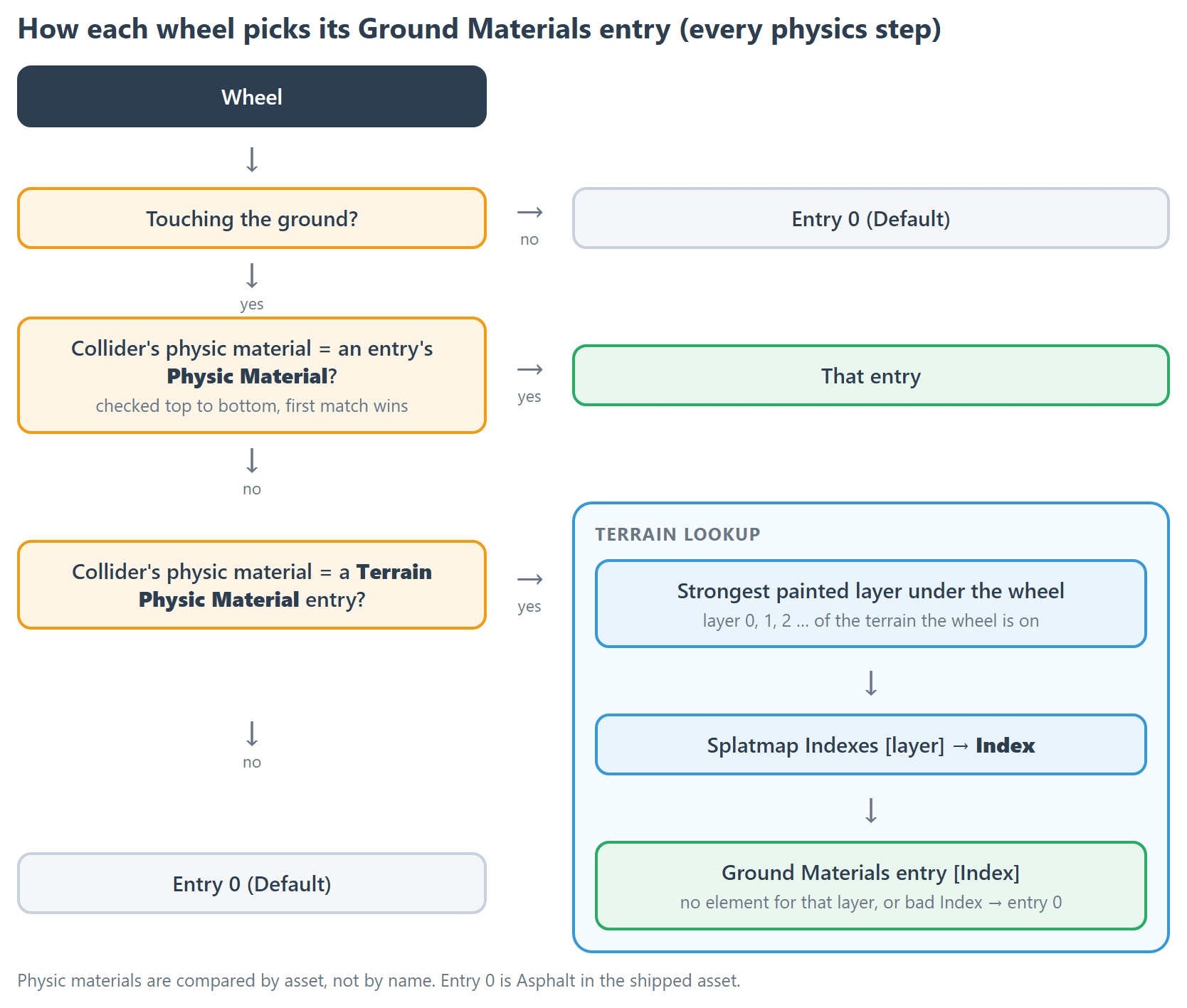
Entry 0 is the default surface. The inspector marks it (Default); in the shipped asset it is Asphalt.
Opening the Editor
- Tools → BoneCracker Games → Realistic Car Controller → Configure → Configure Ground Materials
- Tools → BoneCracker Games → Realistic Car Controller → Edit RCC Settings, then Wheel Physics Settings → Configure Ground Physic Materials (or SFX Settings → Configure Wheel Slip Sounds)
- Select
Resources/RCC Assets/RCC_GroundMaterials.assetin the Project window.
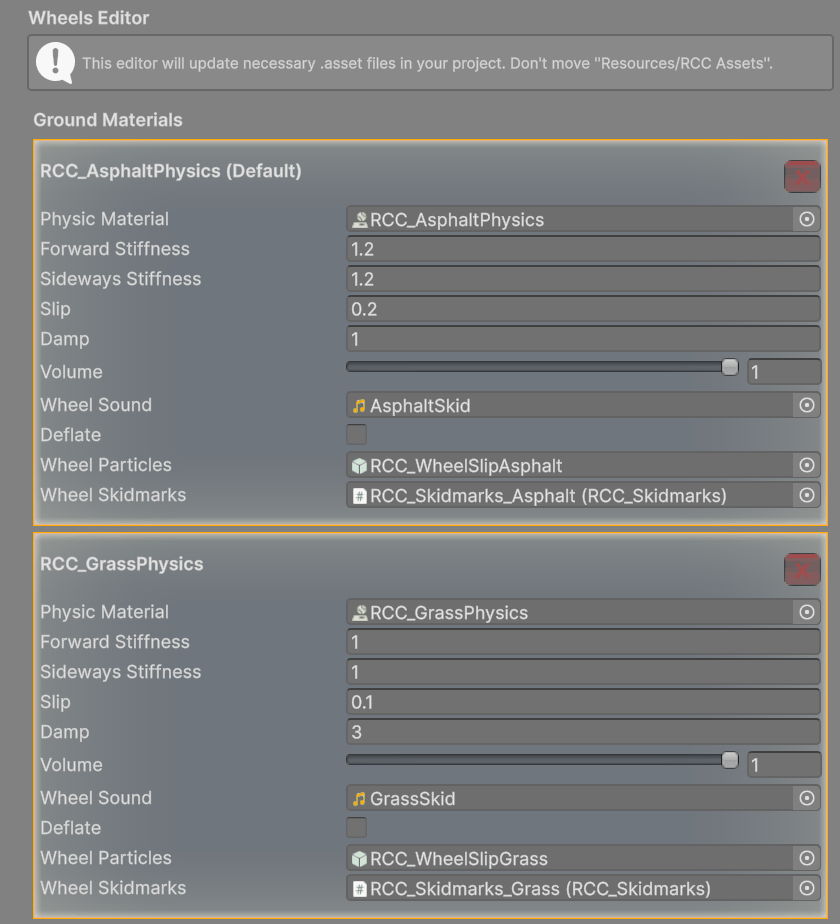
Do not move the Resources/RCC Assets folder. Create New Ground Material adds an entry at the end of the list; the red X on an entry removes it.
Ground Material Fields
| Inspector label | What it does | New entry default |
|---|---|---|
| Physic Material | The physic material this entry matches. Always assign one. | empty |
| Forward Stiffness | Multiplies the wheel's forward (accelerate / brake) grip. Higher = more grip. | 1 |
| Sideways Stiffness | Multiplies the wheel's sideways (cornering) grip. | 1 |
| Slip | Slip threshold. Above it, particles, skid sound and skidmarks start, and TCS starts cutting torque. Does not change grip. | 0.25 |
| Damp | Wheel damping rate (rolling resistance), applied fully with no throttle and fading out at full throttle. Higher = the car slows down faster when coasting. | 1 |
| Volume | Skid sound volume at full slip (0–1). | 1 |
| Wheel Sound | Skid sound. Plays only while the wheel slips above Slip; pitch rises with slip. | empty |
| Deflate | Touching this surface flattens the tire immediately. | off |
| Wheel Particles | Particle prefab (Particle System on its root). Emission turns on above Slip and off below it. Required — an empty slot throws an error on every wheel when a vehicle spawns. | empty |
| Wheel Skidmarks | RCC_Skidmarks prefab drawn on this surface. Empty = no skidmarks on this surface. |
empty |
Only Volume has a range (0–1). The other numeric fields accept any value ≥ 0.
Global switches in RCC Settings → Optimization: Do Not Use Any Particle Effects (no wheel particles are created, so an empty Wheel Particles slot no longer errors) and Do Not Use Skidmarks.
Shipped Surfaces
Physic materials are in Physics Materials/, particles in Prefabs/Particles/, sounds in Sounds/Wheel/, skidmarks in Prefabs/.
| # | Physic Material | Fwd / Side Stiffness | Slip | Damp | Volume | Wheel Particles | Wheel Sound | Wheel Skidmarks | Deflate |
|---|---|---|---|---|---|---|---|---|---|
| 0 | RCC_AsphaltPhysics (Default) | 1.2 / 1.2 | 0.2 | 1 | 1 | RCC_WheelSlipAsphalt | AsphaltSkid | RCC_Skidmarks_Asphalt | off |
| 1 | RCC_GrassPhysics | 1 / 1 | 0.1 | 3 | 1 | RCC_WheelSlipGrass | GrassSkid | RCC_Skidmarks_Grass | off |
| 2 | RCC_SandPhysics | 0.8 / 0.8 | 0.05 | 10 | 1 | RCC_WheelSlipSand | SandSkid | RCC_Skidmarks_Sand | off |
| 3 | RCC_PlatformPhysics | 1.2 / 1.2 | 0.2 | 0.75 | 1 | RCC_WheelSlipAsphalt | AsphaltSkid | RCC_Skidmarks_Asphalt | off |
| 4 | RCC_WheelSpike | 1 / 1 | 0.25 | 10 | 0 | RCC_WheelSparkles | — | RCC_Skidmarks_Asphalt | on |
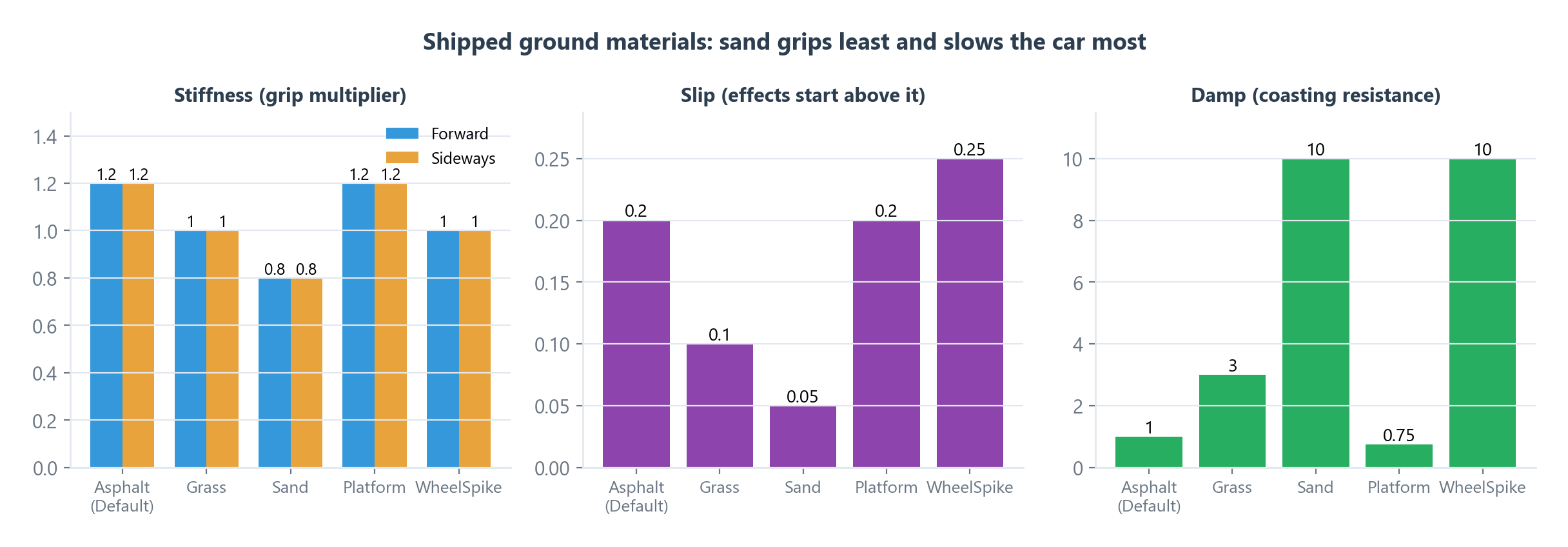
RCC_WheelSpike is used by Prefabs/SpikeStrip.prefab.
Unity Terrain
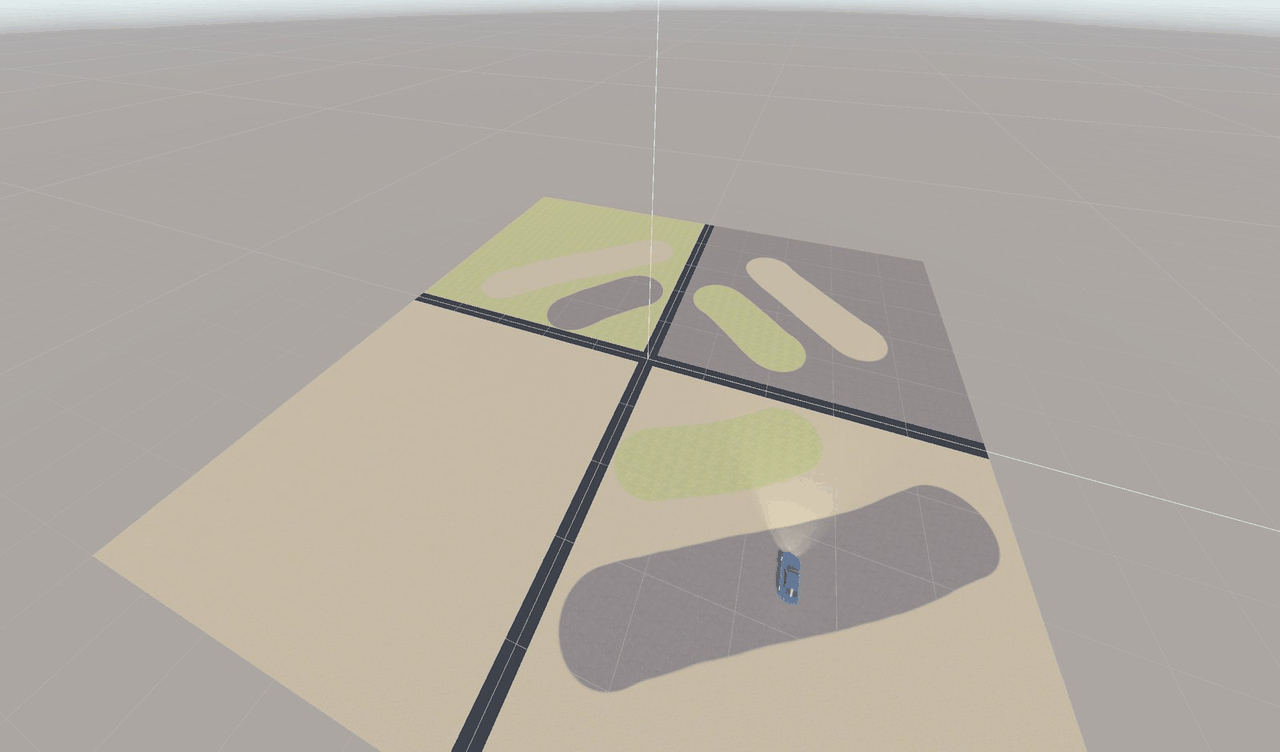
A terrain uses one physic material on its Terrain Collider. RCC reads the terrain's painted layers and converts the strongest layer under the wheel into a Ground Materials entry.
Setup
- Create a physic material for the terrain (e.g.
MyTerrainPhysics). Do not add it to the Ground Materials list — Ground Materials entries are checked first, so the terrain would behave as that one entry everywhere. - Assign it to the terrain's Terrain Collider material slot.
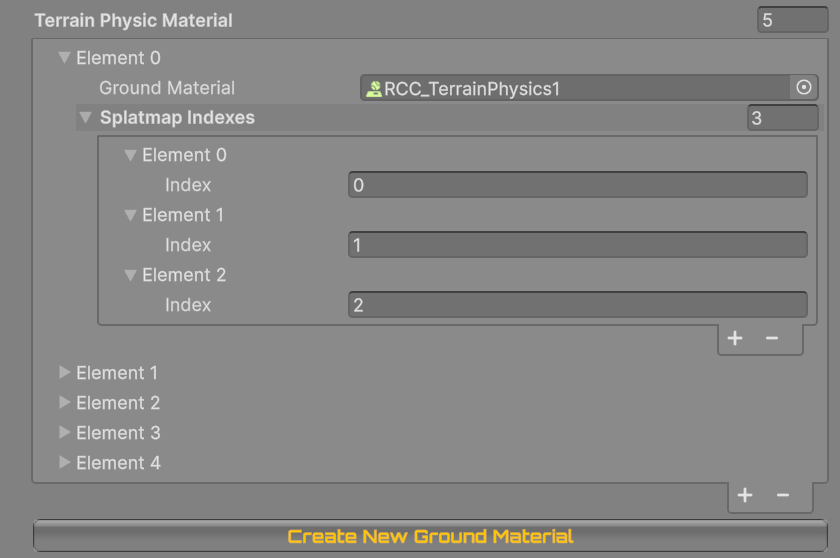
- In Configure Ground Materials, expand Terrain Physic Material, add an element and set its Ground Material to
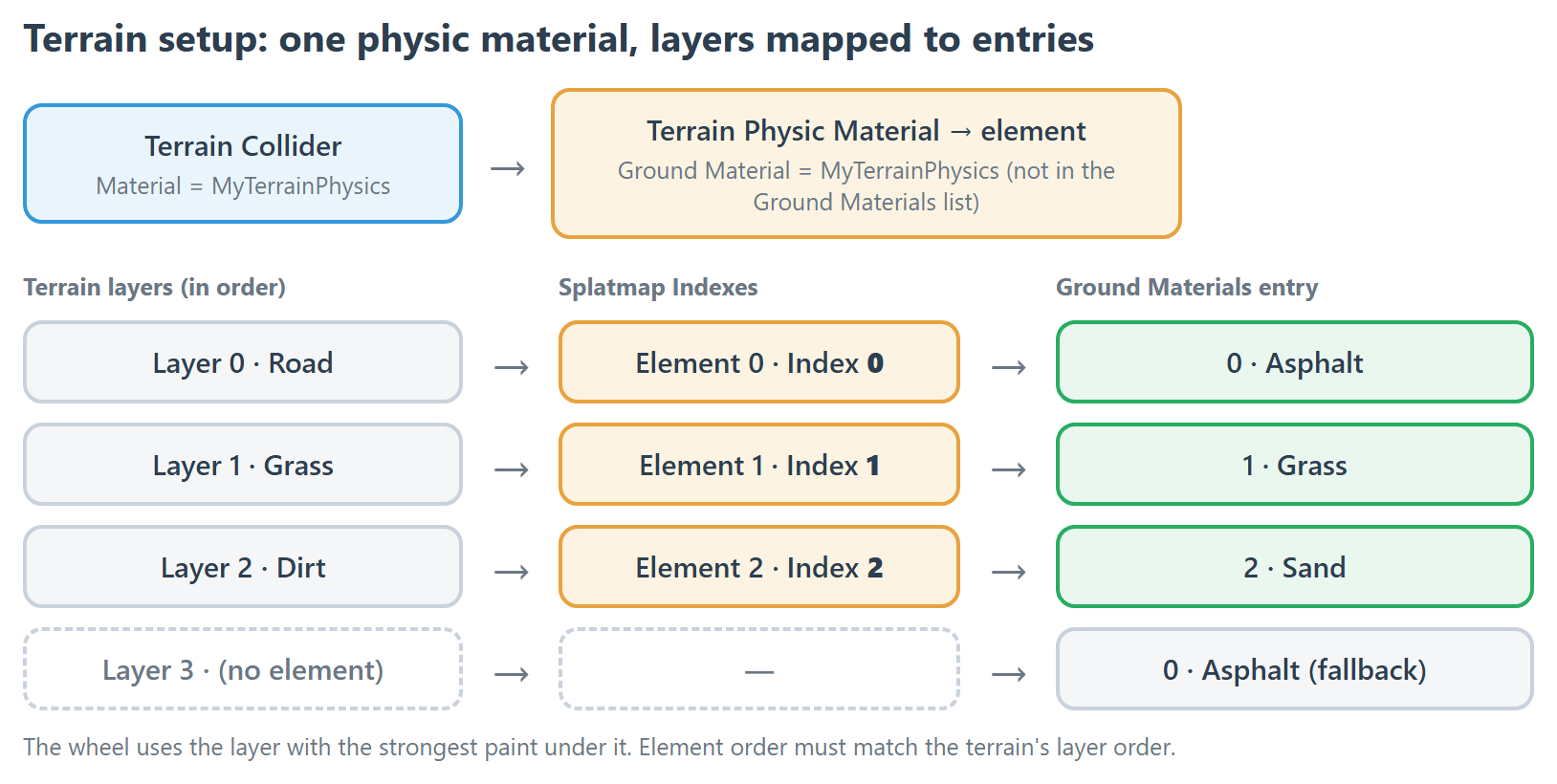
MyTerrainPhysics. - Under Splatmap Indexes, add one element per terrain layer, in the same order as the terrain's layer list (element 0 = first layer). Set each element's Index to the Ground Materials entry number that layer should use (
0Asphalt,1Grass,2Sand, …). - Enter Play mode.
Example: a terrain with layers Road, Grass, Dirt → Splatmap Indexes 0, 1, 2 gives Road = Asphalt, Grass = Grass, Dirt = Sand.
Rules
- Terrain layers without a Splatmap Indexes element, and Index values that don't exist in Ground Materials, use entry 0.
- Several terrains can share one terrain physic material; RCC uses the terrain the wheel is actually on.
- The RCC Scene Manager reads all active terrains' painted data once, shortly after the scene starts. Terrains loaded or repainted later are not picked up.
- If any active terrain is missing its Terrain Data, terrain lookup is skipped for all terrains (Console error in the Editor).
Shipped terrain entries
| Terrain physic material | Used in | Layer 0 → | Layer 1 → | Layer 2 → |
|---|---|---|---|---|
| RCC_TerrainPhysics1 | RCC_Multiple_Terrain | Asphalt | Grass | Sand |
| RCC_TerrainPhysics2 | RCC_Multiple_Terrain | Grass | Asphalt | Sand |
| RCC_TerrainPhysics3 | RCC_Multiple_Terrain | Sand | Asphalt | Grass |
| RCC_TerrainPhysics4 | RCC_Multiple_Terrain | Sand | Asphalt (fallback) | Asphalt (fallback) |
| RCC_TerrainPhysics | RCC_City scenes | Sand | Grass | Grass |
Tire Deflation
On a surface with Deflate on, the tire flattens as soon as the wheel touches it: wheel radius × Deflate Radius Multiplier and grip × Deflated Stiffness Multiplier (per wheel on RCC_WheelCollider; shipped vehicles use 0.8 and 0.5). The deflate sound, flat-tire sound and deflate particles come from RCC Settings (Wheel Deflate Sound, Wheel Flat Sound, Wheel Deflate Particles).
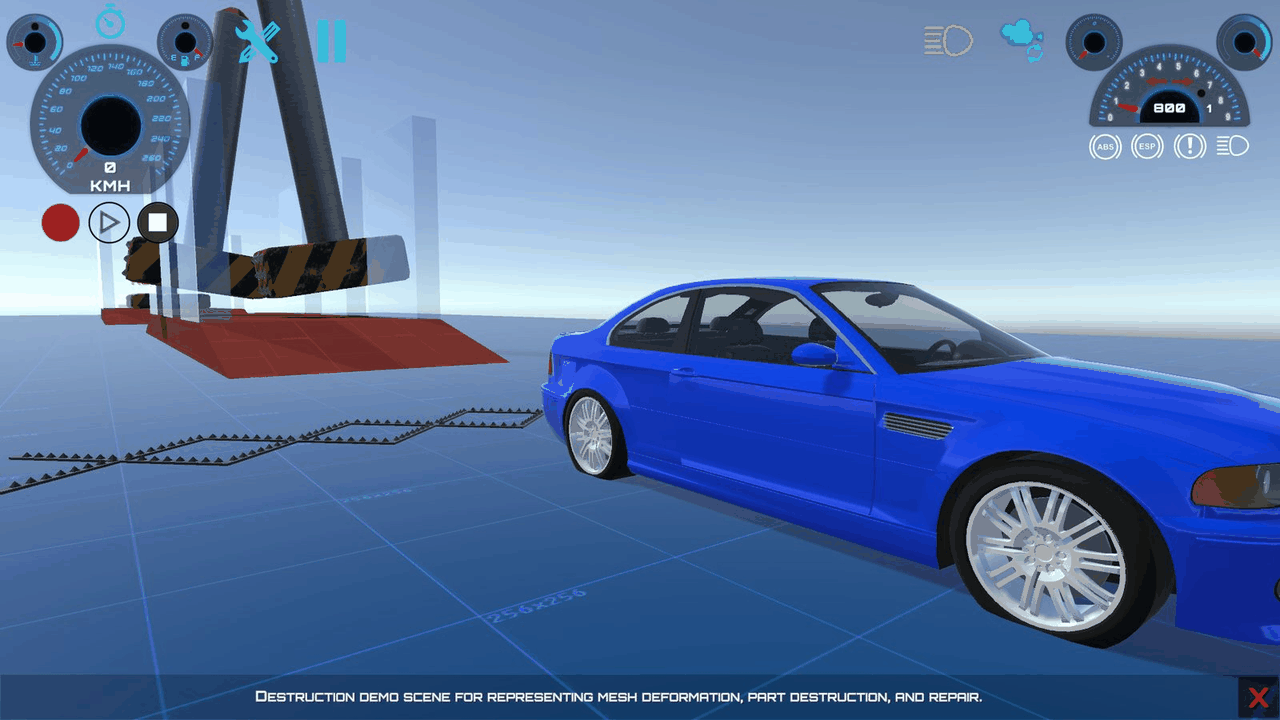
To restore a tire from code, call Inflate() on its RCC_WheelCollider. A tire still touching a Deflate surface flattens again.
Common Problems
| Symptom | Fix |
|---|---|
| Surface behaves like asphalt | The collider has no physic material, or a different one than the entry (duplicate assets with the same name count as different). |
| Whole terrain behaves like one surface | The terrain's physic material is also in the Ground Materials list. Remove it from there. |
| Wrong surface on a terrain layer | Splatmap Indexes order doesn't match the terrain's layer order. |
| Errors on every wheel when a vehicle spawns | An entry has an empty Wheel Particles slot, or the prefab has no Particle System on its root. |
| No skidmarks on one surface | That entry's Wheel Skidmarks is empty, its Slip is too high, or Do Not Use Skidmarks is on. |