How To Override Inputs
This page shows how to drive an RCC vehicle from your own script (cutscenes, driving schools, custom AI, networking), how to hand control back, and which input source wins when several try to drive the same vehicle.
Quick Start
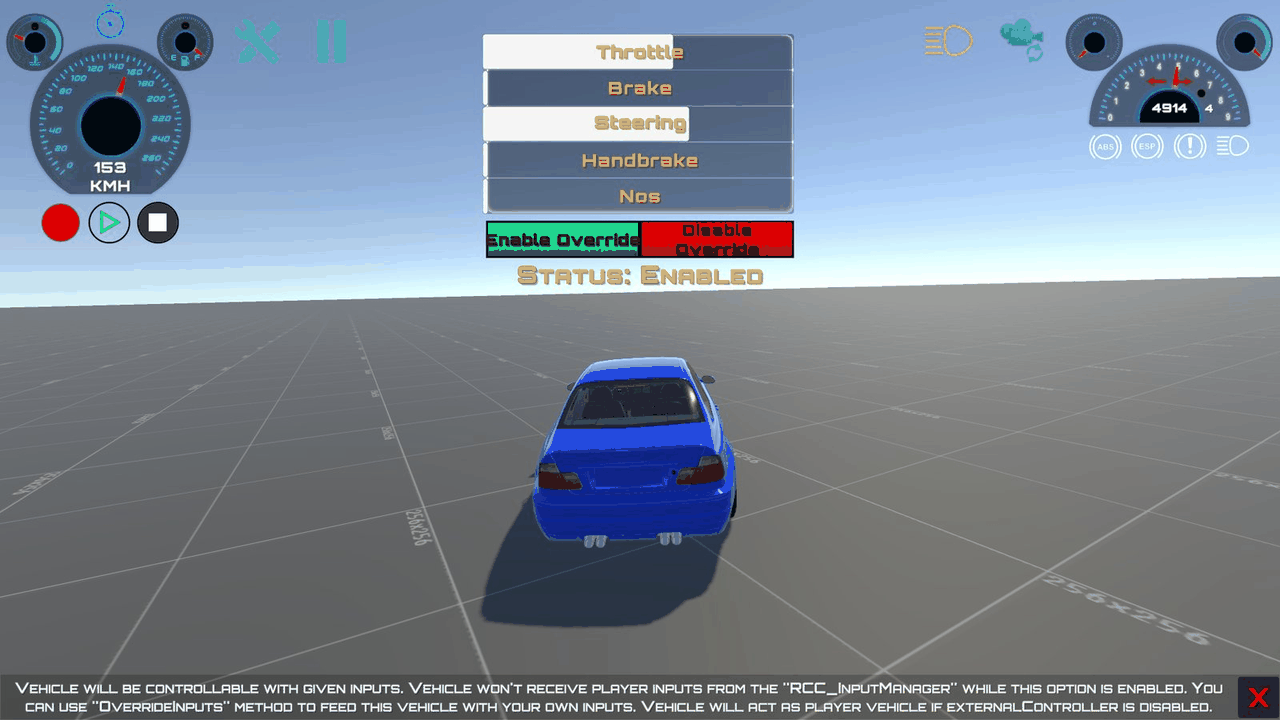
Try it first in the RCC_Blank_OverrideInputs demo scene: click Enable Override, move the sliders, click Disable Override. See Demo Scenes.
In your own script:
- Create one
RCC_Inputsand keep it in a field:RCC_Inputs myInputs = new RCC_Inputs(); - Take control:
vehicle.OverrideInputs(myInputs); - Change the values whenever you like:
myInputs.throttleInput = 1f; - Give control back to the player:
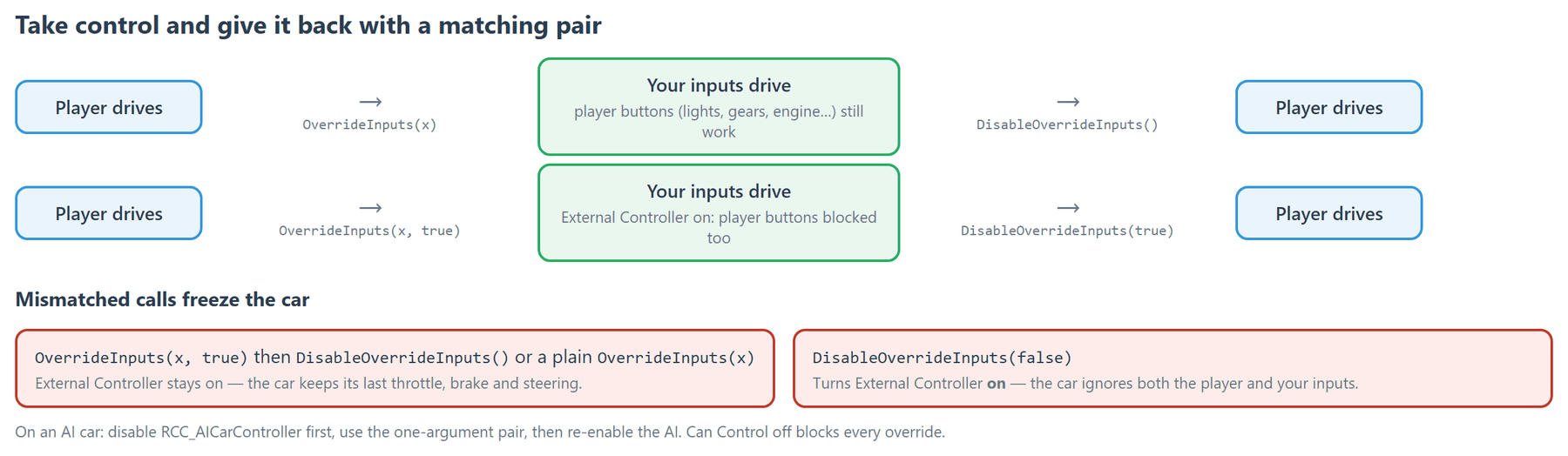
vehicle.DisableOverrideInputs();
OverrideInputs stores a reference to your object, so changing myInputs is enough. You don't have to call OverrideInputs again each frame.
The Methods
All methods are on RCC_CarControllerV4.
| Method | What it does |
|---|---|
OverrideInputs(RCC_Inputs newInputs) |
Drives the vehicle with newInputs. The player's driving input is ignored. Player button actions (lights, gears, engine, indicators, trailer detach) still reach the vehicle. AI and replay ignore this override. |
OverrideInputs(RCC_Inputs newInputs, bool enableExternalController) |
With true: drives the vehicle with newInputs and turns External Controller on, so player button actions stop reaching it too. With false: same as the one-argument version, and it turns External Controller off. |
DisableOverrideInputs() |
Ends the override. Use it after OverrideInputs(newInputs). |
DisableOverrideInputs(bool disableExternalController) |
Ends the override and sets External Controller to the opposite of the argument. Use DisableOverrideInputs(true) after OverrideInputs(newInputs, true). |
SetExternalControl(bool state) |
Turns External Controller on or off. It also cancels the "wins over External Controller" part of OverrideInputs(newInputs, true). AI and replay call this. |
SetCanControl(bool state) |
false stops the vehicle from taking any input, override included. Same as RCC.SetControl(vehicle, state). |
Warning:
DisableOverrideInputs(false)turns External Controller on. The vehicle then ignores both the player and your inputs, and keeps its last throttle, brake and steering values.Changed in V6:
OverrideInputs(newInputs, true)now drives the vehicle. Before V6, turning External Controller on made the vehicle ignore the inputs you passed.
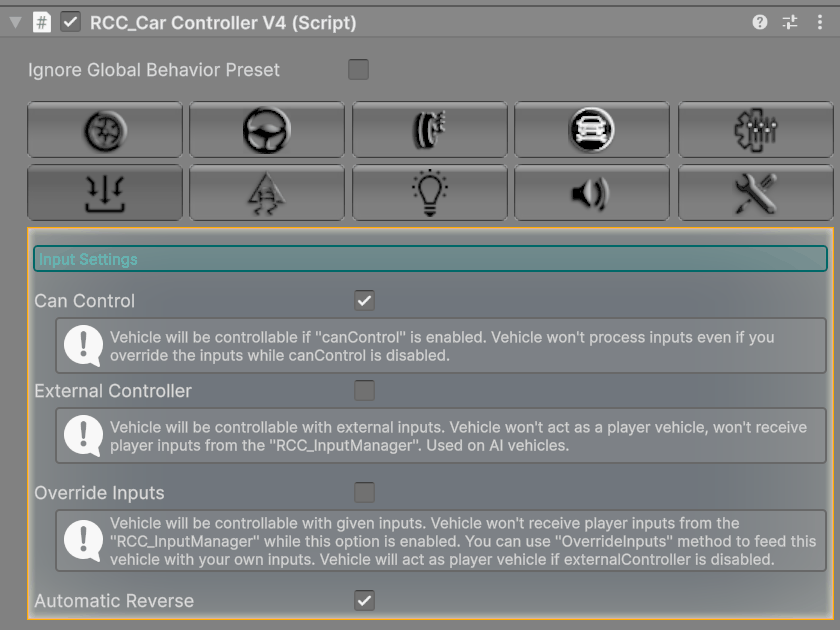
The Inputs section of the vehicle inspector shows the same three switches: Can Control, External Controller and Override Inputs.
Who Drives the Vehicle
| Mode | Set by | Who drives | Player driving input | Player button actions |
|---|---|---|---|---|
| Player (default) | Nothing: Can Control on, External Controller off, Override Inputs off | RCC_InputManager |
Yes | Yes |
| Override | OverrideInputs(myInputs) |
Your RCC_Inputs |
No | Yes |
| Override + external | OverrideInputs(myInputs, true) |
Your RCC_Inputs |
No | No |
| External controller | SetExternalControl(true): RCC_AICarController calls it when enabled, replay calls it when playback starts; Photon remote vehicles set it too. Or tick External Controller. |
That script. It writes the vehicle's throttleInput, brakeInput, steerInput and so on directly. |
No | No |
| Can Control off | SetCanControl(false) |
Nobody. Throttle, brake, steering and NOS go to 0 and the handbrake is held on (unless External Controller is also on). | No | No |
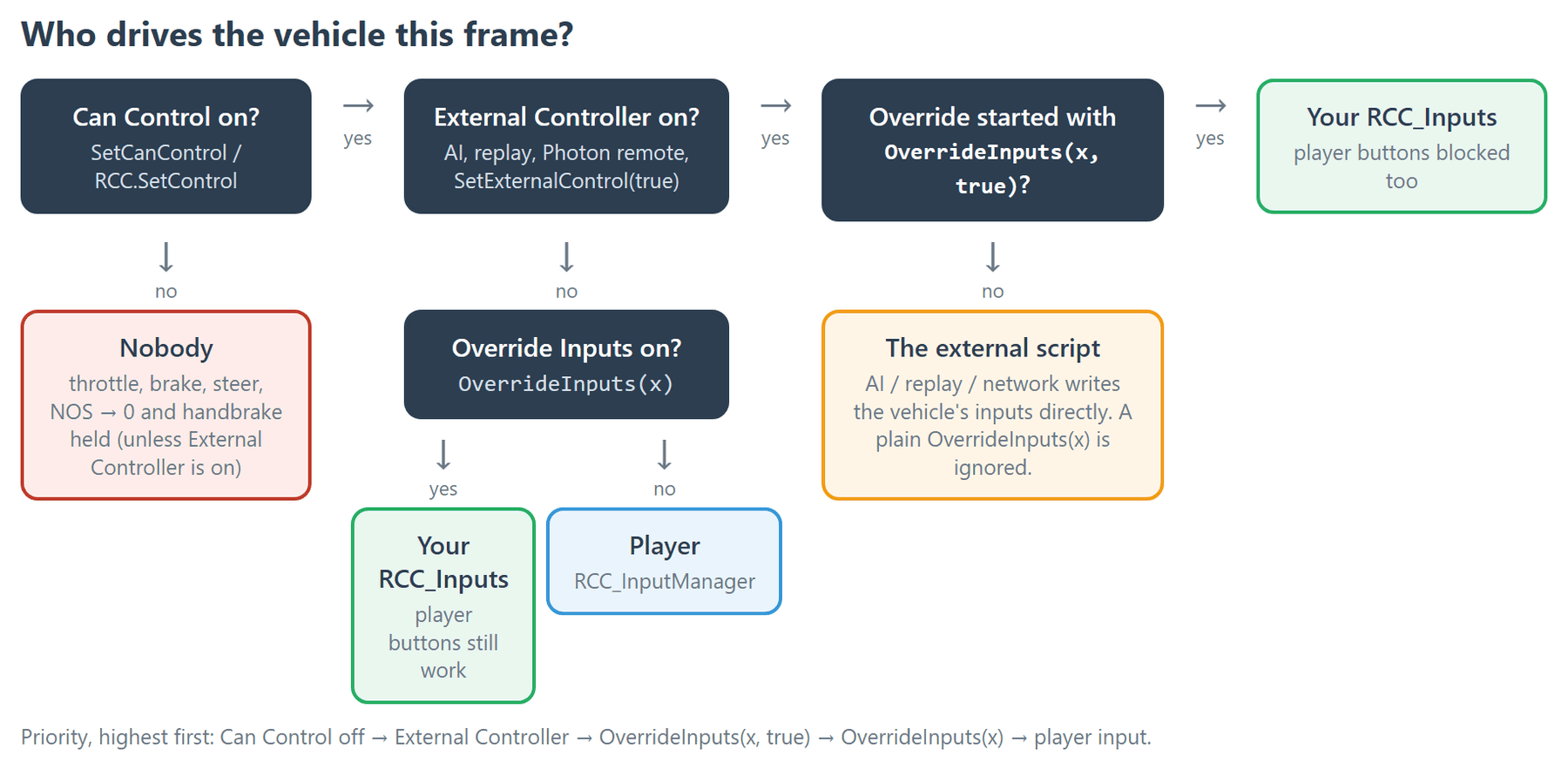
Priority, from highest to lowest:
- Can Control off. Nothing drives the vehicle.
- External Controller (AI, replay, network). A plain
OverrideInputs(myInputs)is ignored while it is on. OverrideInputs(myInputs, true). It wins over the External Controller flag it turned on itself. If AI or replay then callSetExternalControl(true), they take over.OverrideInputs(myInputs).- Player input.
Notes:
RCC_AICarControllerand replay do not useOverrideInputs. They use External Controller and write the vehicle's inputs directly.- When External Controller is on at
Awake, the engine starts on its own, whatever Run Engine At Awake is set to.
Changed in V6: registering a new player vehicle (
RCC.RegisterPlayerVehicle) turns Can Control off on the previous player vehicle. It skips a vehicle that uses External Controller or Override Inputs, so a car you are driving by script keeps driving.
RCC_Inputs Fields
| Field | Range | How the vehicle uses it |
|---|---|---|
throttleInput |
0 – 1 | Gas. With Automatic Gearbox on, throttle and brake swap roles while the car is in reverse. |
brakeInput |
0 – 1 | Brake. With Automatic Gearbox on, a value above 0.9 at a standstill shifts into reverse. To hold the car still, use handbrakeInput. |
steerInput |
-1 (left) – 1 (right) | Steering. It gets the same smoothing (Use Steering Sensitivity) and counter-steer as player input. |
handbrakeInput |
0 – 1 | Handbrake. |
boostInput |
0 – 1 | NOS. It only works when Use NOS is on, the NOS tank has charge, and throttleInput is 0.75 or more. |
clutchInput |
0 – 1 | Clutch. It is only read when Automatic Clutch is off. |
gearInput |
— | Not read by the vehicle. Use GearShiftUp(), GearShiftDown() or GearShiftTo(int gear) (0 = first gear, -1 = reverse). |
orbitX, orbitY, scroll |
— | Not read by the vehicle or RCC Camera. |
The engine must be running: while it is off, throttle is forced to 0. Start it with StartEngine(), or StartEngine(true) to skip the starter sound.
Full Example: Drive to a Target
Add this script to any GameObject. Assign Vehicle and Target, then press Play. The car drives to the target and stops there. Call GiveControlBack() to return it to the player.
using UnityEngine;

public class MyDriveToTarget : MonoBehaviour {

    [Tooltip("The RCC vehicle to drive.")]
    public RCC_CarControllerV4 vehicle;

    [Tooltip("The point the vehicle drives to.")]
    public Transform target;

    [Tooltip("Cruise speed in km/h.")]
    public float cruiseSpeed = 50f;

    [Tooltip("The vehicle stops within this distance (meters) of the target.")]
    public float stopDistance = 8f;

    // One instance, reused every frame. The vehicle keeps a reference to it.
    private readonly RCC_Inputs myInputs = new RCC_Inputs();

    private bool driving;

    private void Start() {

        TakeControl();

    }

    public void TakeControl() {

        if (!vehicle)
            return;

        if (!vehicle.engineRunning)
            vehicle.StartEngine(true);

        vehicle.OverrideInputs(myInputs);
        driving = true;

    }

    public void GiveControlBack() {

        driving = false;

        if (vehicle)
            vehicle.DisableOverrideInputs();

    }

    private void OnDisable() {

        if (driving)
            GiveControlBack();

    }

    private void Update() {

        if (!driving || !vehicle || !target)
            return;

        Vector3 localTarget = vehicle.transform.InverseTransformPoint(target.position);
        float distance = localTarget.magnitude;

        myInputs.steerInput = Mathf.Clamp(localTarget.x / Mathf.Max(distance, 0.01f) * 2f, -1f, 1f);

        if (distance < stopDistance) {

            myInputs.throttleInput = 0f;
            myInputs.brakeInput = 0f;
            myInputs.handbrakeInput = 1f;

        } else if (vehicle.speed < cruiseSpeed) {

            myInputs.throttleInput = 1f;
            myInputs.brakeInput = 0f;
            myInputs.handbrakeInput = 0f;

        } else {

            myInputs.throttleInput = 0f;
            myInputs.brakeInput = 0.3f;
            myInputs.handbrakeInput = 0f;

        }

    }

}
vehicle.speed is always in km/h.
To also stop player button actions (lights, gears, engine) from reaching the car, use vehicle.OverrideInputs(myInputs, true) in TakeControl and vehicle.DisableOverrideInputs(true) in GiveControlBack.
Mixing With Player Input
To assist the player instead of replacing them, copy the player's values from RCC_InputManager.Instance.inputs into your own object and change what you need. For example, in Update:
RCC_Inputs player = RCC_InputManager.Instance.inputs;

myInputs.throttleInput = player.throttleInput;
myInputs.brakeInput = player.brakeInput;
myInputs.handbrakeInput = player.handbrakeInput;
myInputs.steerInput = Mathf.Lerp(player.steerInput, assistSteer, 0.3f); // assistSteer: your own -1..1 value
Never write into RCC_InputManager.Instance.inputs. Every player-driven vehicle reads from it.
Taking Over an AI Car
A plain override is ignored while RCC_AICarController drives. Disable the AI first. Disabling it turns External Controller off.
aiController.enabled = false;           // AI lets go
vehicle.OverrideInputs(myInputs);       // you drive

vehicle.DisableOverrideInputs();        // stop overriding
aiController.enabled = true;            // AI drives again
Common Mistakes
- Only setting
overrideInputs = true, or ticking Override Inputs in the inspector. The vehicle still reads the Input Manager's inputs and follows the player. CallOverrideInputs(myInputs). - Creating
new RCC_Inputs()every frame. It works, but it allocates memory every frame. Keep one instance and change its values. - Writing into
vehicle.inputs. When the vehicle isn't overridden, that is the Input Manager's shared object. - Calling a plain
OverrideInputson an AI car or during replay. It is ignored. See Taking Over an AI Car. - Mixing the one- and two-argument versions. After
OverrideInputs(x, true), a later plainOverrideInputs(x)orDisableOverrideInputs()leaves External Controller on, and the car freezes on its last inputs. Keep using the two-argument version, and release withDisableOverrideInputs(true). - Calling
DisableOverrideInputs(false). It turns External Controller on (see the warning above). - Calling
DisableOverrideInputs(true)on an AI car. It turns External Controller off while the AI is still writing inputs, so the AI and the player fight over the car. UseDisableOverrideInputs()there. - Can Control is off. Overrides are ignored. Call
SetCanControl(true). - Engine is off. Throttle stays at 0. Call
StartEngine(). - Releasing a car that is no longer the player vehicle. After
DisableOverrideInputs()it follows player input again, because Can Control is still on. CallSetCanControl(false)as well. - Expecting
gearInput,orbitX,orbitYorscrollto do something. RCC doesn't read them. UseGearShiftTo(int)for gears. - Holding
brakeInputat 1 to stop with Automatic Gearbox on. The car shifts into reverse and backs up. UsehandbrakeInput.
See Also
- Input System: the normal player input pipeline and bindings
- AI System: the built-in AI driver
- Scripting API:
RCC.RegisterPlayerVehicle,RCC.SetControland more - Addon Packages: Photon PUN 2 networked vehicles
- Demo Scenes: RCC_Blank_OverrideInputs